Summarize with AI
Search purchases
In short
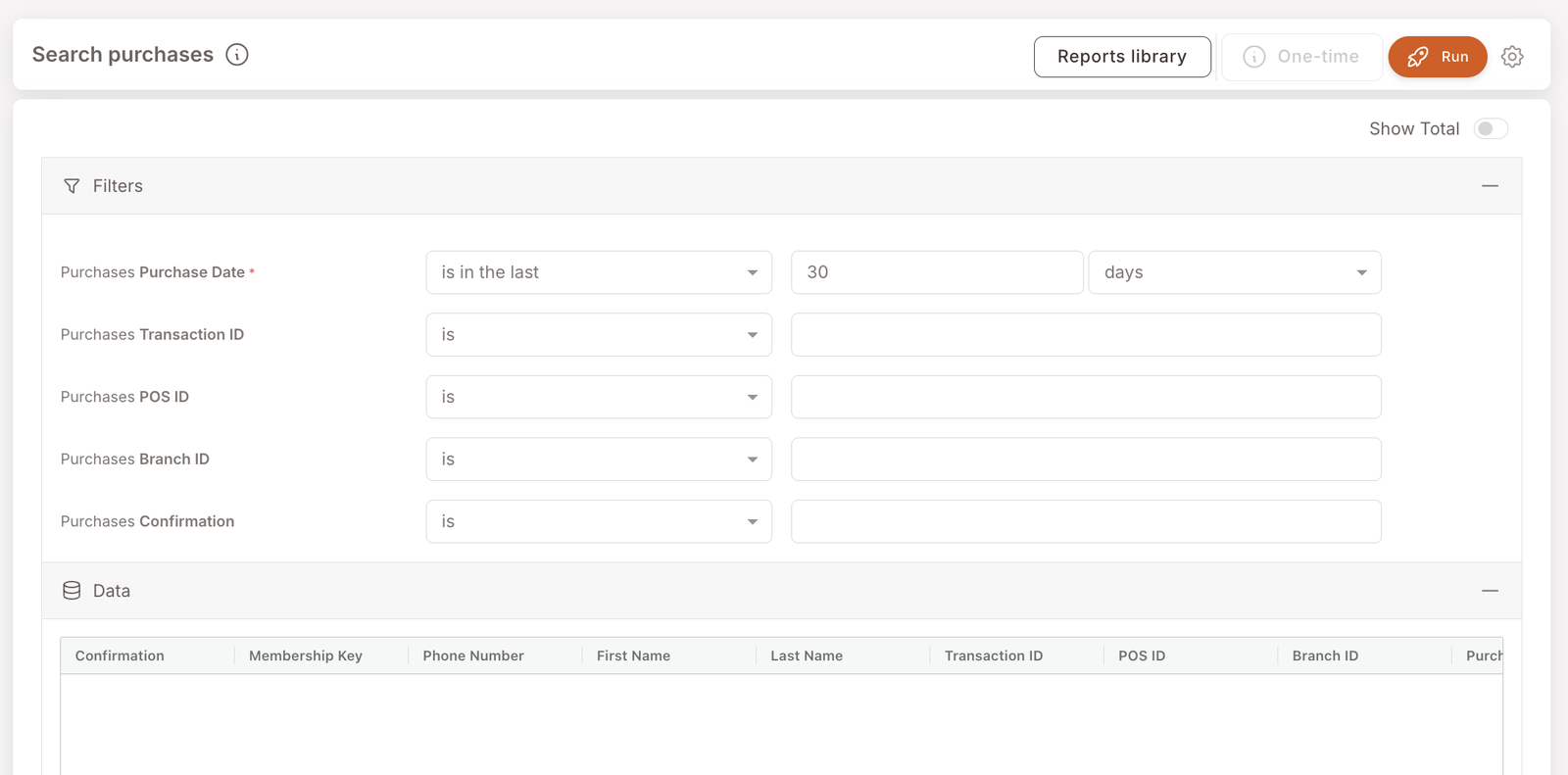
Find one specific transaction by Transaction ID, POS ID, Branch ID, or Confirmation code. This is the lookup report — when you have one identifier and need to pull up the matching purchase (and the member it's attached to, if any). Different from Member purchases, which scans by date range and tag.
Reach for this report when a member calls about a single transaction and you need the matching record fast — "the receipt says confirmation code XYZ, what was on that check?" The required date filter keeps the result set bounded; the optional ID filters narrow it to one row.
What you'll see
Required filters:
- Purchases Purchase Date — date range.
Optional filters (any combination of):
- Purchases Transaction ID — exact match on the transaction ID.
- Purchases POS ID — the POS terminal that processed the transaction.
- Purchases Branch ID — the branch where the transaction happened.
- Purchases Confirmation — the confirmation code printed on the receipt or returned by the API.
Data columns:
- Confirmation — the confirmation code.
- Membership Key — member identifier (if the transaction was member-identified — empty otherwise).
- Phone Number / First Name / Last Name — member details (if member-identified).
- Transaction ID / POS ID / Branch ID — the IDs you can also filter on.
- Purch... — additional purchase columns visible by scrolling right (amount, items, payment method).
When to reach for this report
3 common use cases
- Member service — receipt lookup. A member calls disputing a transaction or asking for clarification. Filter by Confirmation code or Transaction ID and pull up the record.
- POS support — terminal-level audit. A POS terminal had an issue at a specific time. Filter by POS ID and Date Range to see all transactions through that terminal.
- Compliance / dispute resolution. Need to verify a specific check happened, with which member attached. Filter by what you have (Confirmation, Transaction ID, etc.) and pull the matching row.
What to do with the result
Follow-on actions
- Jump to the member. If the result row has a Membership Key, click through to the Member profile for the full activity context — credit balances, other purchases, applied gifts, etc.
- Reconcile with POS records. If the transaction shows up in the platform but the POS system shows something different, that's a sync issue worth flagging to your integrator.
Related reports
- Member purchases — same data shape but scanned by date range and tag, not by ID.
- Sales — branch-level aggregate of the same purchases.
- Visits — visit-count aggregate.