Location list
The Location list is your branch directory — every physical location of your business, identified by the Branch ID the POS sends and a Branch Name you control. Two things depend on it being current: a branch can only send and receive transactions if it's on this list and set to Active, and the Active count at the top of the page is the number of locations your subscription is counted on. Keeping the list in step with reality — adding, pausing, reactivating — is yours to manage.
What you'll see
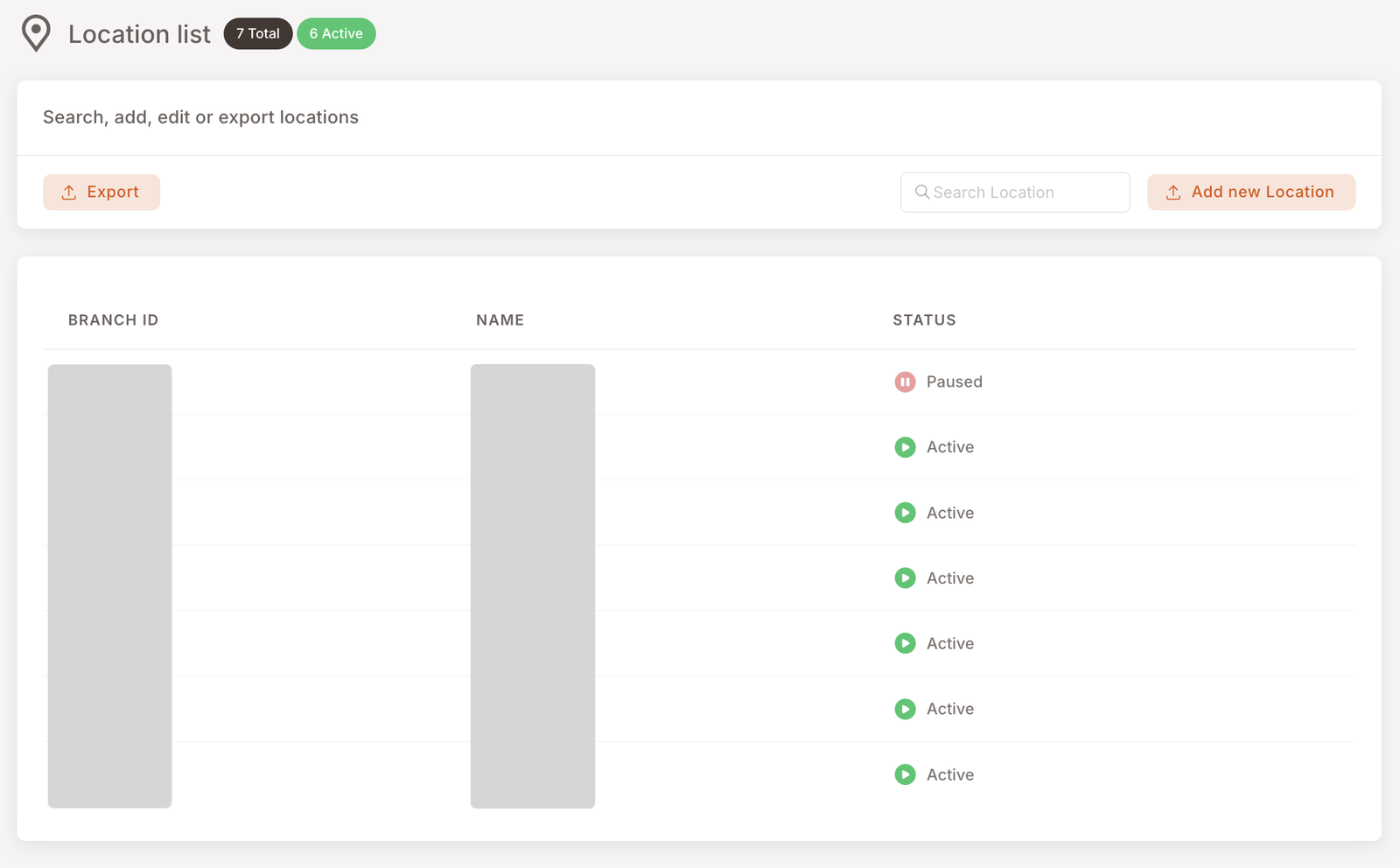
The Location list page shows total and active counts at the top, controls in the middle (Search, Add new Location, Export), and a table below with three columns:
- Branch ID — the identifier the POS sends via the API on every transaction. Set by the POS / your integrator; you don't change it here.
- Name — the human-readable branch name. This is the field you control. It's what shows up everywhere else in the management panel.
- Status — Active (green) or Paused (red). Pause a branch to take it out of service without deleting the row.
A branch has to be on this list to work
The platform only accepts traffic from branches it knows about. If a purchase, a stamp, or a benefit request arrives carrying a Branch ID that isn't on this list — or one whose row is Paused — it's rejected. Nothing is saved, the member earns nothing, no benefit is applied at the till, and the POS gets an error back instead of a confirmation.
There's no half-working state here: either the branch exists on this list and is Active, in which case everything works normally, or it doesn't, in which case nothing loyalty-related works at that location at all.
That's deliberate. It means the list can be trusted as the definitive answer to "which of our locations are live?" — for you, for your POS provider, and for support.
If one location says loyalty "stopped working"
Almost always the branch is missing from this list, or its row is Paused.
Check three things here, in this order: is there a row for that location at all, is its Branch ID the one the POS is actually sending, and is the status Active? Fix whichever is wrong and the location works again immediately — nothing needs to be reset at the till.
If all three look right and it still doesn't work, that's the point to ask your integrator.
When to touch this
Four operational moments:
- Open a new branch. Add the row before the location starts trading, using the exact Branch ID the POS will send. Until the row exists and is Active, every loyalty transaction from that location is refused.
- Rename a branch. Edit the Name. The change propagates everywhere the name is read — Dashboard, Reports, Member profiles all pick it up on the next render.
- Close a branch. Pause it, don't delete it — historical transactions need the row to still exist so old reports still resolve the name. Pausing keeps the history, stops the branch transacting, and takes it out of the Active count.
- Reopen a branch. Set a paused row back to Active and it starts working again immediately. Nothing else needs to be reconfigured.
Active locations and your plan
The Active badge at the top of the page isn't only a display counter — it's the number of locations your subscription is counted on, and the same number your POS provider can read back from the platform. So the list settles both questions at once, from one place:
- Open a location, add the row: it starts working, and it starts counting.
- Close a location, pause or remove the row: it stops working, and it stops counting from that point on.
The practical consequence is that an out-of-date list costs you in one direction or the other. A branch that was never added can't trade at all. A branch you closed months ago but never paused is still counted as active. Neither needs a separate message to anyone — the list is the record both sides read.
Why this matters more than other Settings pages
Almost everything else in Settings is set-and-forget. The Location list isn't. It's the only Settings surface that needs ongoing operational maintenance — every time the business opens, closes, renames or reopens a location, this list has to follow.
Beyond gating transactions, these surfaces read directly from it:
- Dashboard → Top locations leaderboard.
- All branch-level Reports — Sales, Visits, Discounts, Punch, Credits.
- Member profile → Behaviors → Favourite branch.
- Smart Campaigns audience filters that key off branch (e.g. "members whose favourite branch is X").
If a Top locations leaderboard shows a numeric ID instead of a name, or a member's favourite branch renders blank, this is the page to check first — usually a branch that traded before it was properly named here.
Export
The Export button downloads the current list as a CSV. Useful for offline edits, for handing the list to a partner system, or for a quick audit of which locations you're currently counted on. The CSV is a snapshot — no two-way sync — but it's the easiest way to bulk-review names and statuses.