Add a new slide, or remove an old one
A new campaign usually means a new slide. When the campaign ends, you take it off again.
Add a slide
-
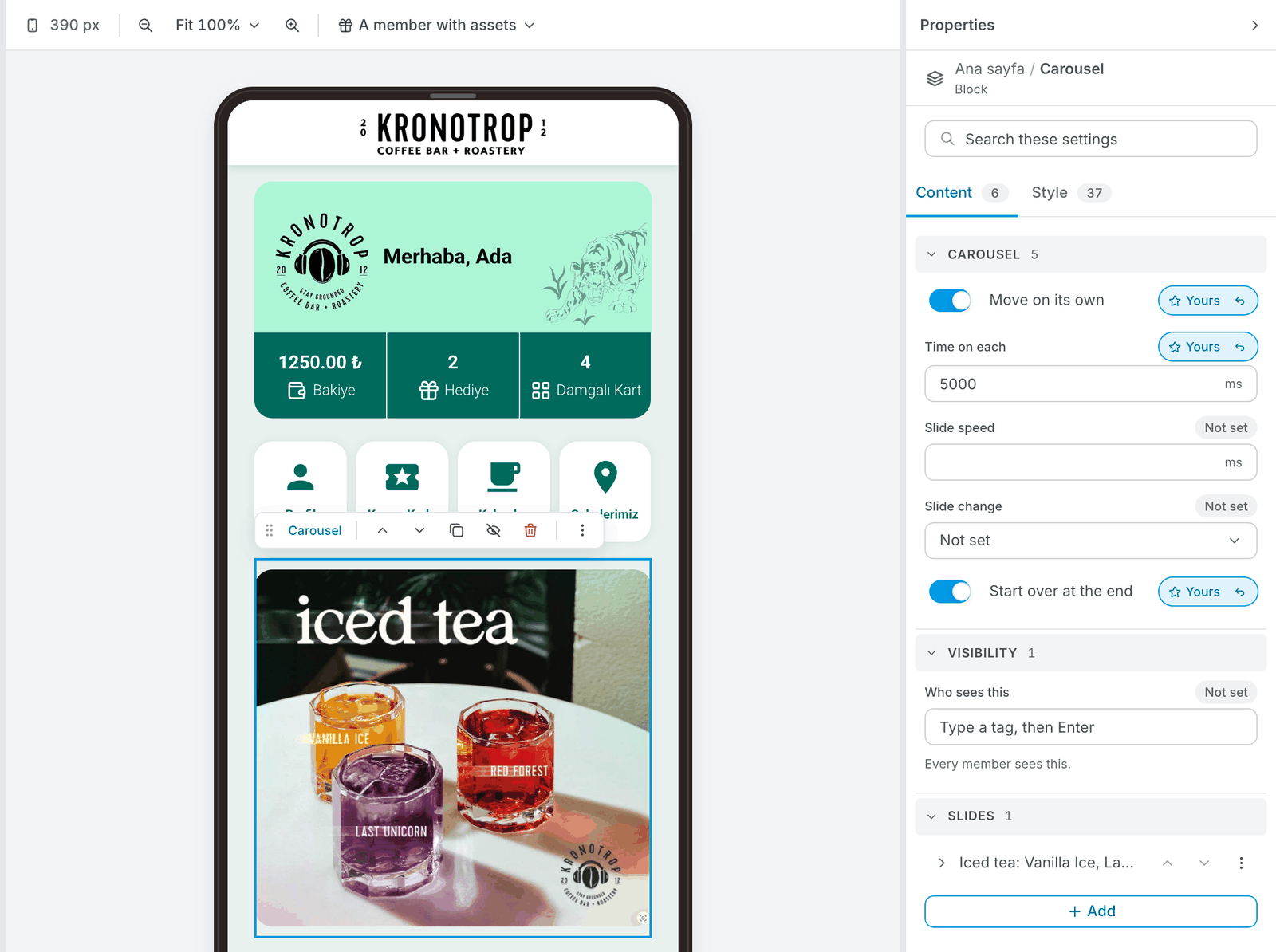
Open User Interfaces → Web & App and click the carousel on the phone.
-
On the Content tab, find Slides and click Add. A new slide appears at the end of the list, with a stand-in picture.
-
Click the new slide and give it its picture and description, as in Change a slider picture.
-
To change the order, use the up and down arrows next to each slide. The first slide in the list is the first one members see.
-
Publish when you are ready.
How the slides move
With two or more slides, the carousel settings (click the carousel, Content tab) decide how they move:
- Move on its own: on, the slides change by themselves. Off, members swipe.
- Time on each: how long each slide stays, in milliseconds.
5000is 5 seconds. - Start over at the end: on, the first slide comes back after the last one.
A carousel with a single slide shows no dots under it. The dots appear once it has two or more slides.
Click the ⋯ next to a slide you already have and choose Duplicate. The copy keeps what the old slide does when tapped and who sees it, so you only swap the picture.
Remove a slide
Click the ⋯ next to the slide in the Slides list. Besides Duplicate, you get two choices:
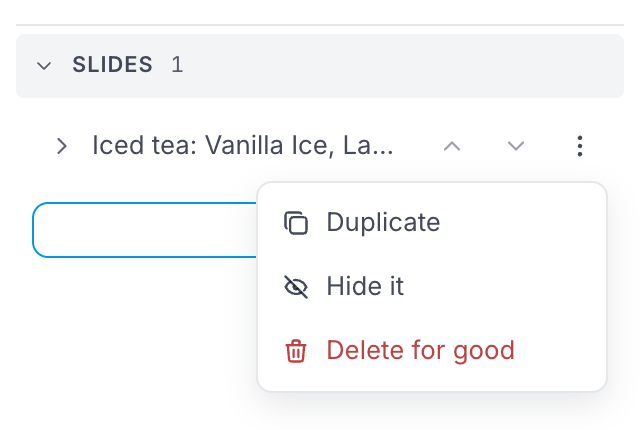
- Hide it: members stop seeing the slide, and it stays in your list for next time. Best for a campaign that comes back every year.
- Delete for good: the slide is removed from your list.
Either way, members still see the slide until you Publish.
If you are not sure you are done with a campaign, hide its slide. A hidden slide costs nothing and saves you rebuilding it next season.
A whole new carousel
Your home screen can hold more than one carousel. To add another one with the same settings, click a carousel on the phone and use Duplicate on the small toolbar that appears above it. The same toolbar has Hide and Delete for the whole carousel.