Change a slider picture
The pictures that slide across your home screen live in a Carousel block. Each picture is one slide. This page swaps the picture on a slide you already have.
Click the picture on the phone → Content tab → Slides → click the slide → Image → Choose from your files → Publish.
Steps
-
In Hub, open User Interfaces → Web & App. Your app appears on the phone.
-
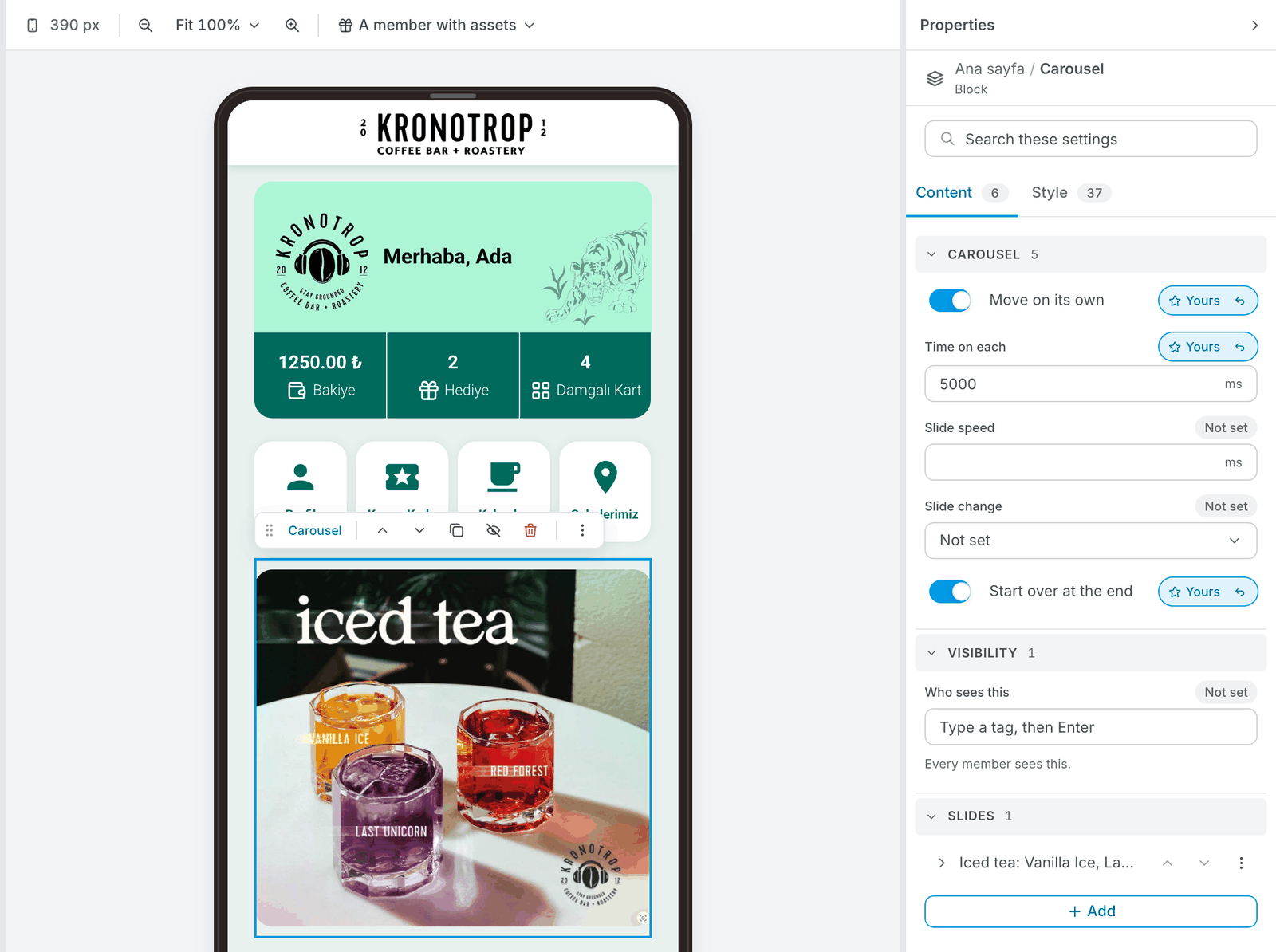
Click the picture you want to change on the phone. The carousel is selected and its settings open on the right, under Properties.
- Can't find it? In the left bar, click Screens, open your home screen, and click Carousel in the list. A home screen can have more than one carousel: pick the one whose slide you want.
-
Make sure the Content tab is open.
-
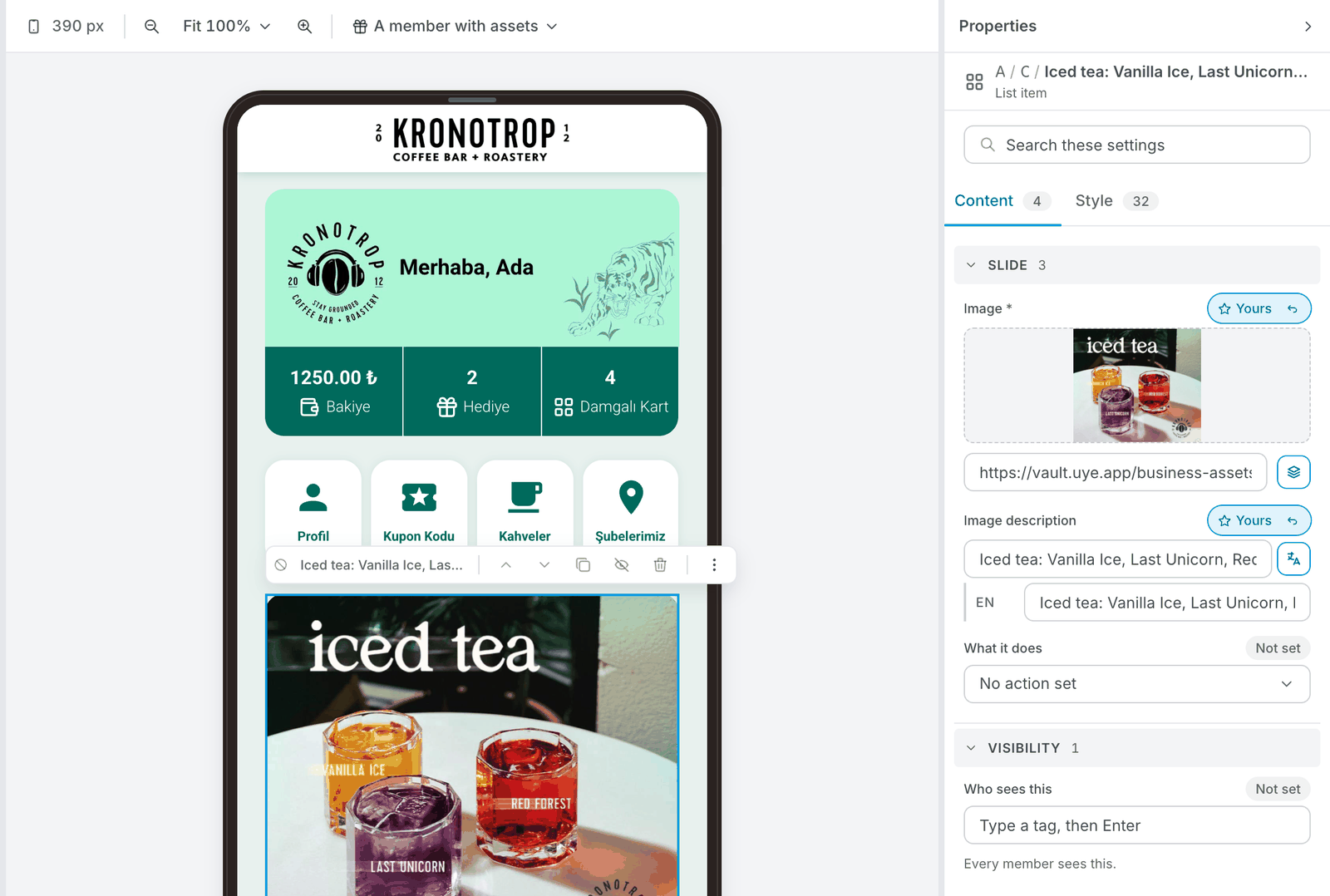
Under Slides, click the slide you want to change. Its settings open: Image, Image description and What it does.
-
Under Image, click Choose from your files and pick the new picture from your computer. You can also drop a picture on the box, or paste a link to a picture that is already online.
-
Update Image description so it matches the new picture, for example "Two coffees for the price of one, all September". Members don't see this line. Phones read it aloud to members who can't see the screen, and it shows if the picture fails to load. If your app speaks more than one language, there is one line per language: fill in each.
-
Check the phone in the middle. It already shows the new picture.
-
When it looks right, press Publish. See Publish, and undo a mistake.
Picture sizes
Files: JPG, JPEG, PNG or GIF, up to 2 MB. An animated GIF works for light movement. The app doesn't play video: to show a video, host it yourself and make the slide open its web address (see Make a slide open something).
For a home screen carousel, use 16:9 (a wide picture): at least 1280 × 720 px, ideally 1920 × 1080 px.
Every picture in the same carousel should have the same shape and size. The carousel takes the shape of the picture, so a tall picture next to a wide one makes the home screen jump as the slides change.
Other shapes, for pictures elsewhere in your app:
| Shape | Use it for | Smallest | Best |
|---|---|---|---|
| 1:1 square | Logo, reward and product pictures | 400 × 400 px | 1080 × 1080 px |
| 4:3 wide | Landscape content and products | 800 × 600 px | 1200 × 900 px |
| 16:9 wide | Home screen carousel and banners, announcements | 1280 × 720 px | 1920 × 1080 px |
| 9:16 tall | Full-screen and tall banners | 720 × 1280 px | 1080 × 1920 px |
| 3:4 tall | Portrait products | 600 × 800 px | 1200 × 1600 px |