Summarize with AI
Check it before your members see it
The phone in the middle shows your changes as you make them. Before you publish, use it to look at the app the way different members will.
On the phone in the editor
The controls at the top of the editor change what the phone shows. None of them changes your app.
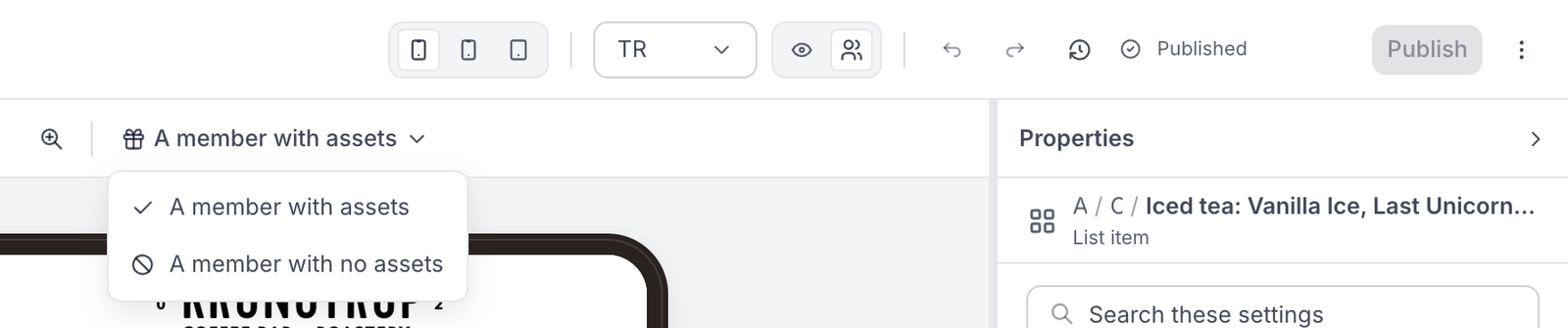
- Phone size. Three buttons: a normal phone, a small phone and a tablet. Check the small phone: long text and wide pictures are where things break first.
- Preview language. If your app speaks more than one language, switch it here to check each one.
- Visitor or signed-in member. A visitor sees the sign-in screens. A signed-in member sees the app itself.
- What this member has. Above the phone: A member with assets shows a member with a balance, gifts and stamps. A member with no assets shows a brand-new member. Check both: empty screens are easy to forget.
On a real phone
Open the ⋯ menu at the top right of the editor:
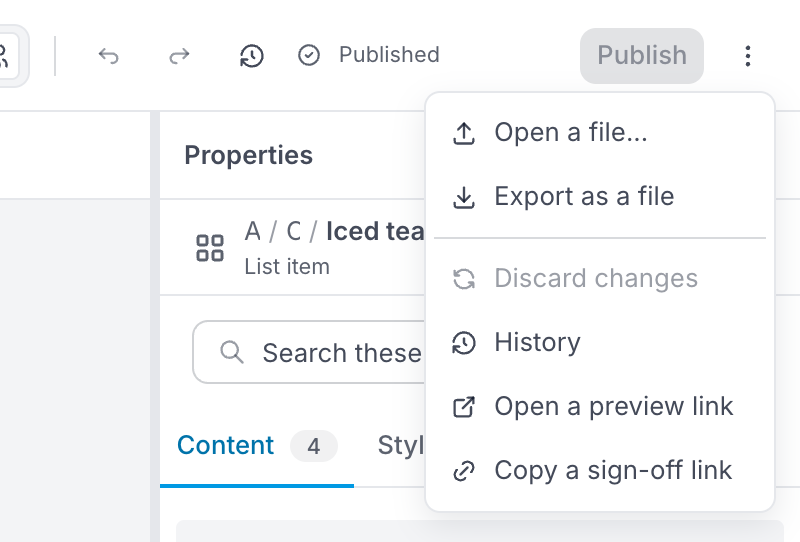
- Open a preview link opens your app in a new browser tab, with the changes you have not published yet.
- Copy a sign-off link copies a link to send to someone who should see the change before it goes live, for example the owner. It is for looking only: they can't change anything with it.
A quick checklist
- Every picture looks sharp on the small phone.
- Every campaign slide opens something when tapped.
- The bottom bar of the editor shows no warning about buttons that go nowhere.
- Each language reads correctly.
- A new member with nothing yet sees a screen that still makes sense.
Then publish.