Make a slide open something when tapped
A campaign slide works best when a tap takes the member somewhere: the offer's details, your delivery site, a survey. You choose that under What it does.
Steps
-
Open User Interfaces → Web & App, click the carousel on the phone, and click the slide under Slides.
-
On the Content tab, open What it does.
-
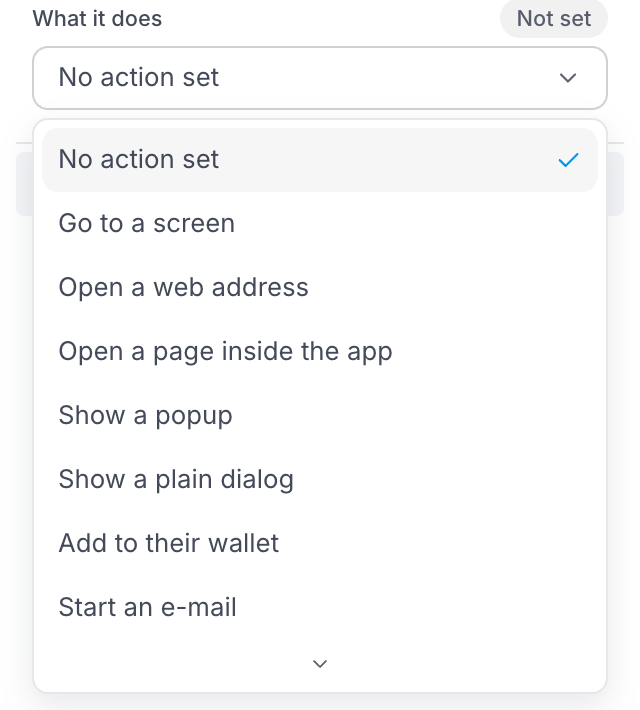
Pick what should happen (see the list below), then fill in what it asks for, for example the web address.
-
Publish when you are ready.
The choices you will use most
| Choice | What the member gets |
|---|---|
| Go to a screen | Another screen of your app, for example Gifts or a menu. |
| Open a web address | A website, outside your app. Good for delivery, booking or social media. |
| Open a page inside the app | A web page shown inside your app, so the member does not leave it. |
| Show a popup | One of your popups, over the current screen. |
| Add to their wallet | Their loyalty card, added to Apple Wallet or Google Wallet. |
The rest of the list
Show a plain dialog, Start an e-mail, Ask them to install the app, Change language, Sign out, Go back and Open an add-on are there too. They are more useful on buttons than on campaign slides.
Two choices mean the tap does nothing: No action set (nothing chosen yet) and Do nothing (chosen on purpose). A campaign slide that does nothing on a tap is a missed chance, so check for these.
If a button or slide points to a screen your app no longer has, the bottom bar of the editor says so, for example "2 buttons go to a screen that is not there". Fix those before you publish: members tapping them get nowhere.