Summarize with AI
Publish, and undo a mistake
The editor saves your work by itself as you go. Your members keep seeing the app as it was until you publish.
Where you stand
Two small signs tell you:
- At the bottom of the editor, the bar reads Saved and the time after each change. There is no save button to press.
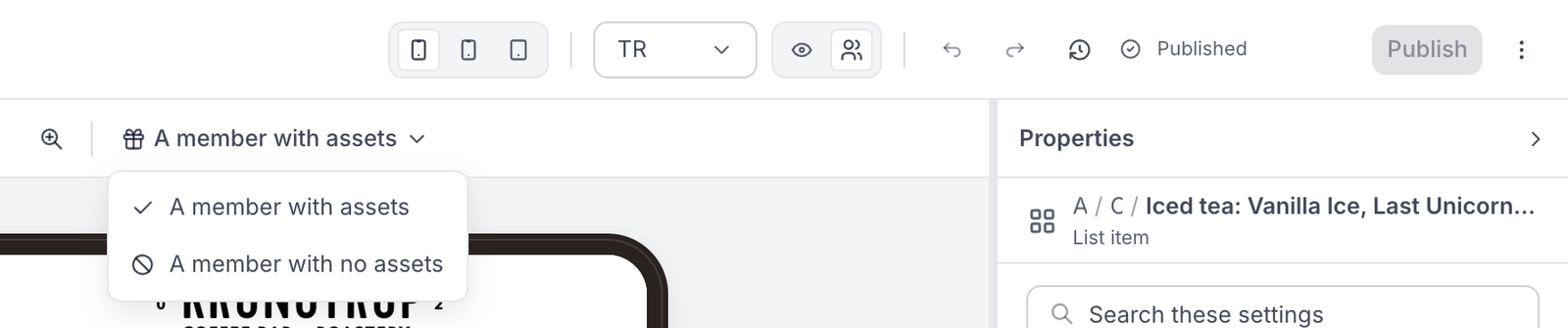
- At the top, beside Publish, it reads Unpublished changes when you have changes your members don't see yet, and Published when they see exactly what you see.
Publish
- Check your changes on the phone. See Check it before your members see it.
- Press Publish at the top right. Its label says what it does: "Make these changes live for members".
- Your members see the new version straight away.
Undo a mistake before you publish
- Undo and Redo, the two curved arrows at the top, step back and forward one change at a time. On a keyboard: ⌘Z and ⇧⌘Z (on Windows, Ctrl instead of ⌘).
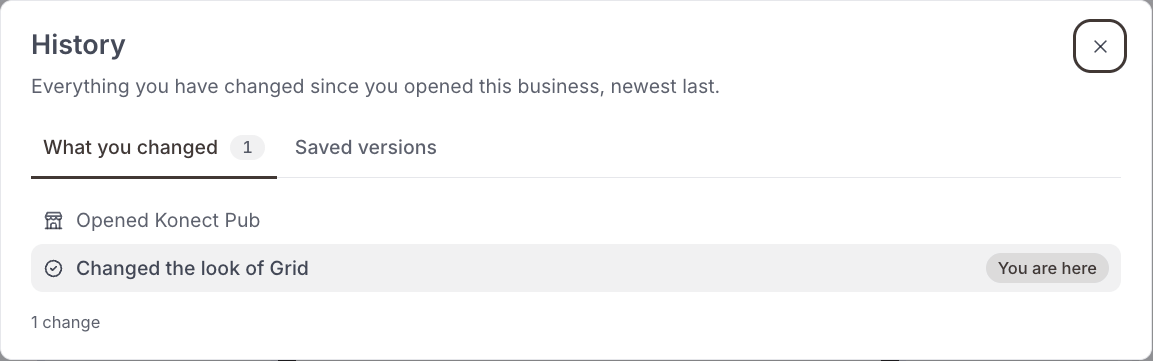
- History, the clock icon next to them, has a tab called What you changed. It lists every change since you opened your business in the editor, newest last, and marks where you are with You are here. Click any point to go back to it.
- Discard changes throws away everything you have not published, so the editor matches what your members see again. It is in the ⋯ menu at the top right, and on the Saved versions tab of History. Nothing is lost for good: the discarded work stays in History as Discarded changes, kept here.
Undo a mistake after you publish
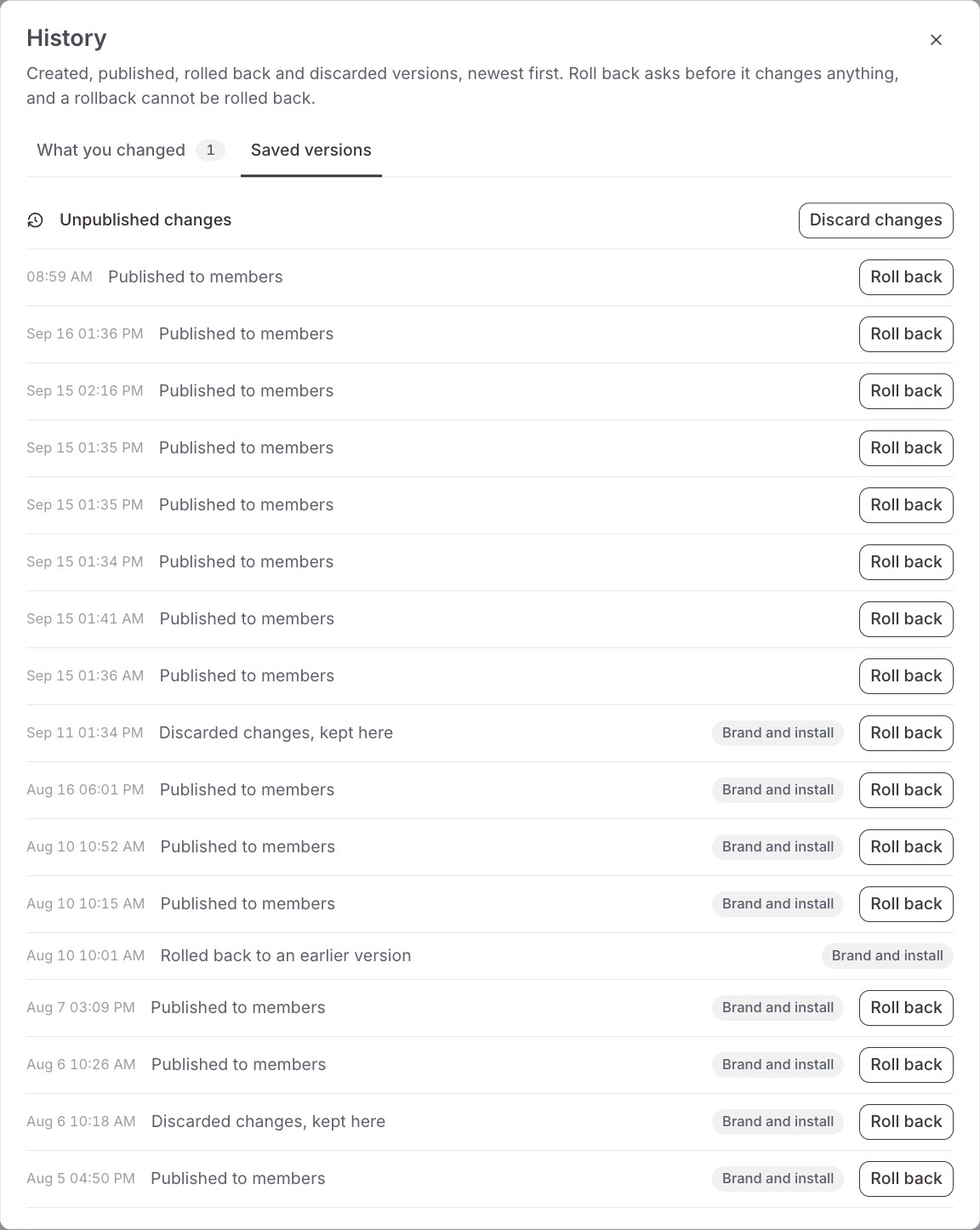
- Open History and go to the Saved versions tab. It lists every version you have published, newest first, with its date and time.
- Find the version you want back and press Roll back.
- The editor asks you to confirm before it changes anything.
- The older version comes back as unpublished changes. Check it on the phone, then press Publish to make it live again.
A rollback can't be rolled back
Once you roll back, that step itself cannot be undone from History. If you roll back to the wrong version, find the right one in the list and roll back to that instead.