Show a slide to some members only
Some campaigns are not for everyone: a VIP offer, a staff discount, a branch opening. You can show a slide only to members who carry a certain tag.
Steps
-
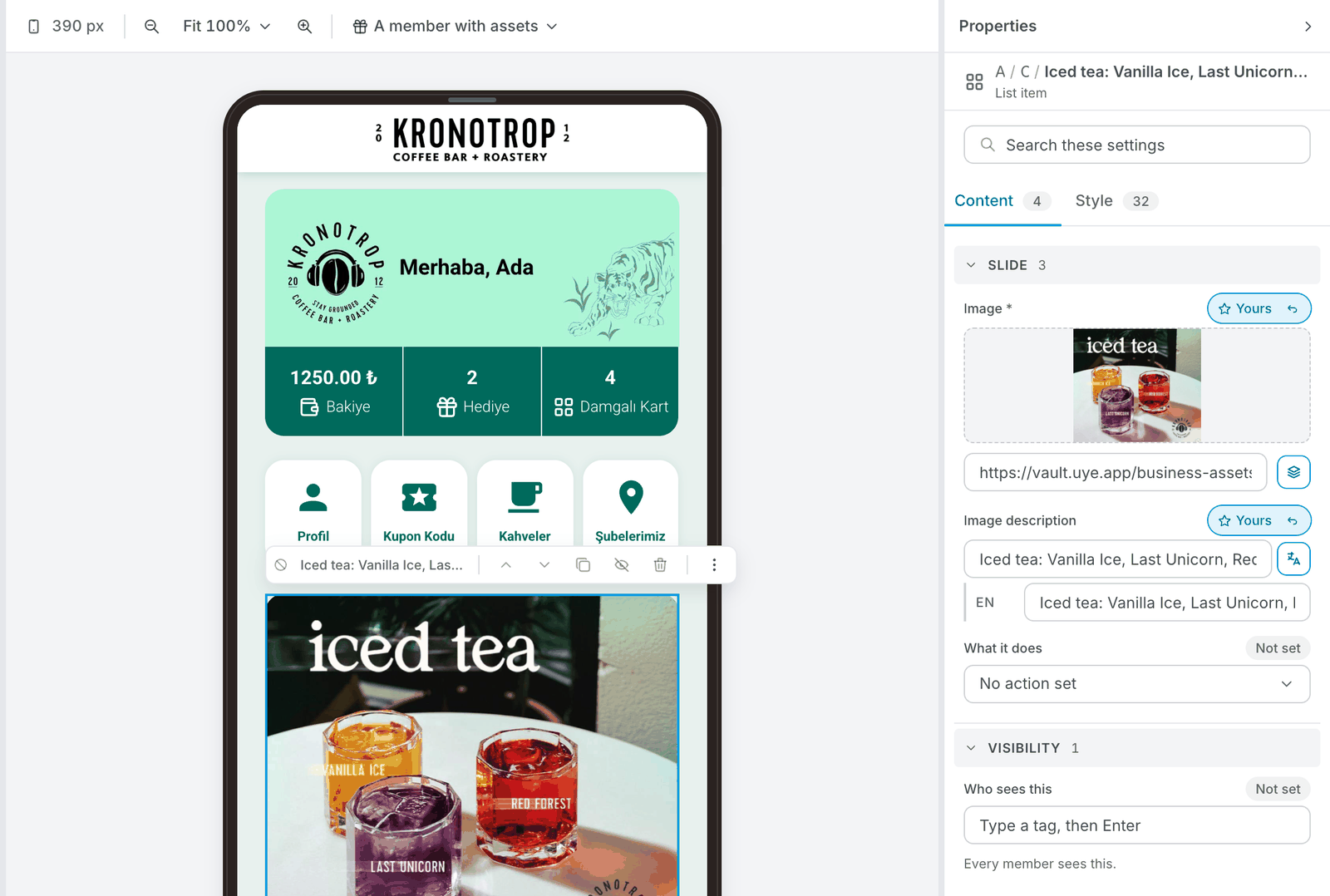
Open User Interfaces → Web & App, click the carousel on the phone, and click the slide under Slides.
-
On the Content tab, find Visibility → Who sees this, below the slide's picture and what it does.
-
Type the tag and press Enter. The tag must be written exactly as it is on your members.
-
Publish when you are ready.
When Who sees this is empty, the editor says "Every member sees this." That is the normal setting.
With more than one tag, any one of them is enough. Put VIP and Staff on a slide, and members tagged VIP see it, members tagged Staff see it too. Only members with neither tag miss it.
The same works for a whole block
Every block has the same Visibility setting, not only slides. Click a whole carousel, a greeting or a grid of buttons on the phone, and put the tag there: only members with that tag see that block.
Tags are labels on your members. See a member's tags on their profile in Members.