Smart surveys
Smart surveys is the in-product survey builder. Build any survey shape — from a one-question NPS to a multi-page, multi-language, conditional-logic experience — and reach members three ways: embedded in the Web app or Wallet Pass, sent via SMS / email (typically as a Smart Campaign follow-up), or via a direct link. Responses can be tied back to the member who answered (via magic links) or kept anonymous, and submissions can themselves be a Smart Campaign trigger — so you can reward respondents with a Gift, credits, or a tag the moment they hit Submit.
The survey tool is deliberately broad. The trade-off: it has many knobs, and not every team will use most of them. This page covers the scope — what the tool can do, the workflows it supports, the capabilities you'd want to know about — without enumerating every field. The builder is forgiving; trial and error works.
Where surveys live
Find the survey list under Marketing → Smart surveys in the left nav. Each row is one survey, with its ID, name, description, and # of Results so you can see at a glance which surveys are getting traction.
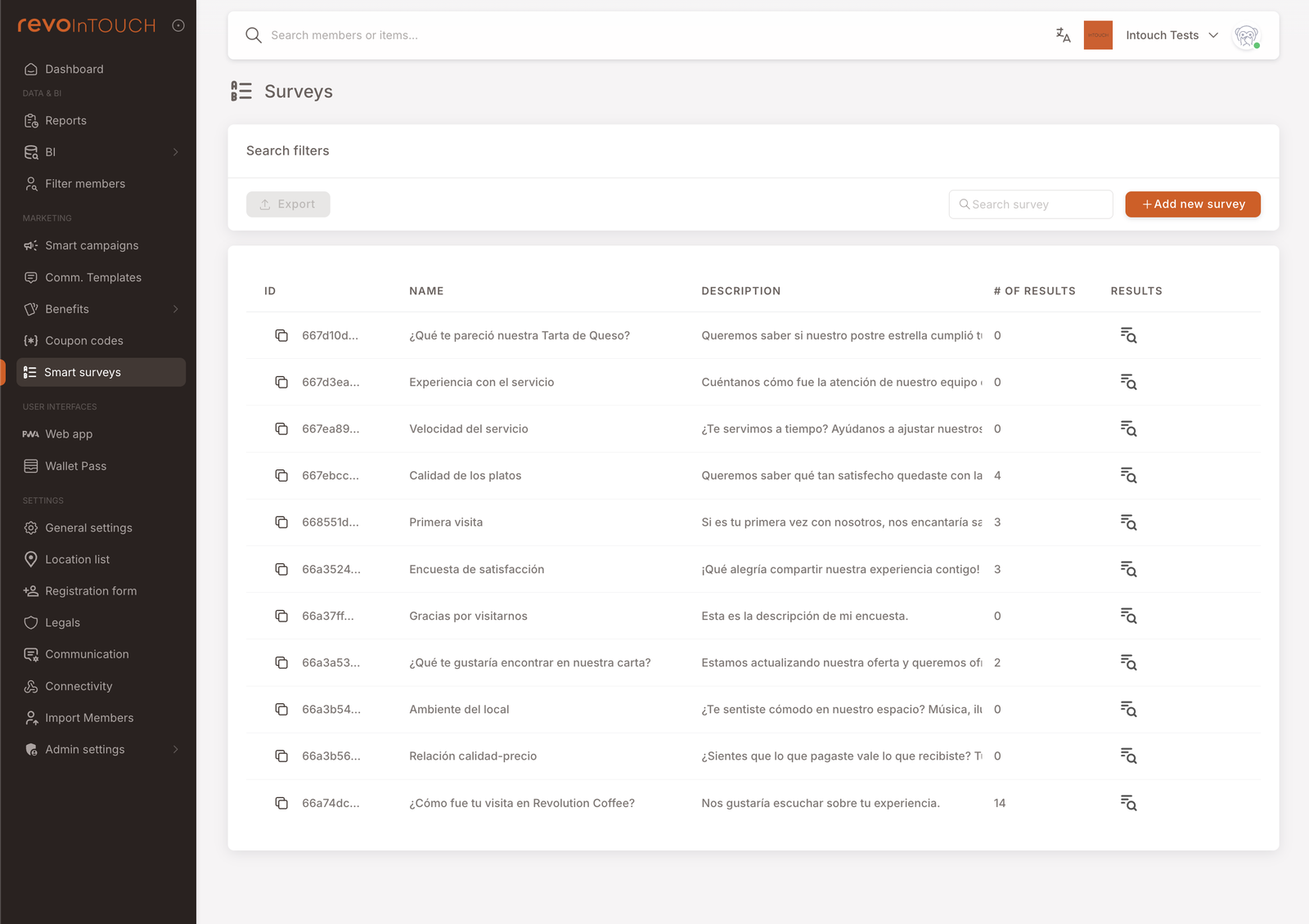
Two things at the end of each row, side by side:
- Results icon (the visible icon in the Results column) — clicking it opens the survey's results page directly. This is the same destination as the View results row action below; one click instead of two.
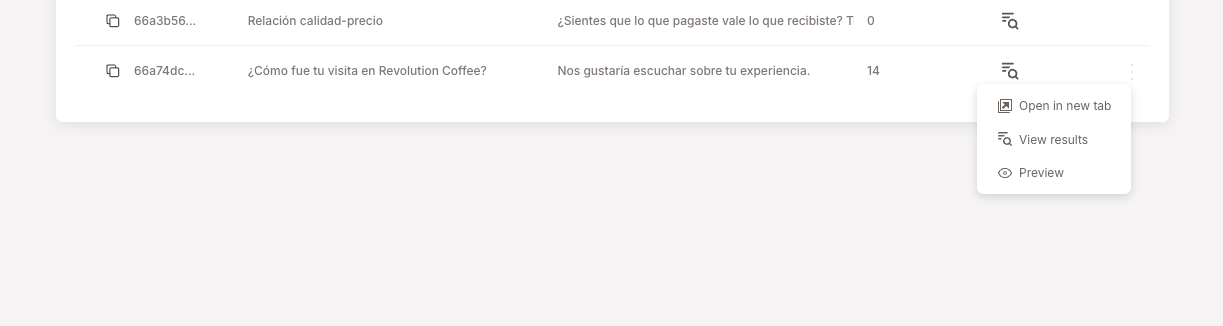
- Three-dots menu (the small vertical
⋮that currently only appears on hover, just to the right of the Results icon) — opens a row-action dropdown with three operations: Open in new tab, View results, Preview.
The survey builder
Click into a survey to open the builder — a five-tab editor:
- Designer — the main canvas. Build pages, add questions, configure each question's settings.
- Preview — see exactly how the survey renders for members, on desktop and mobile.
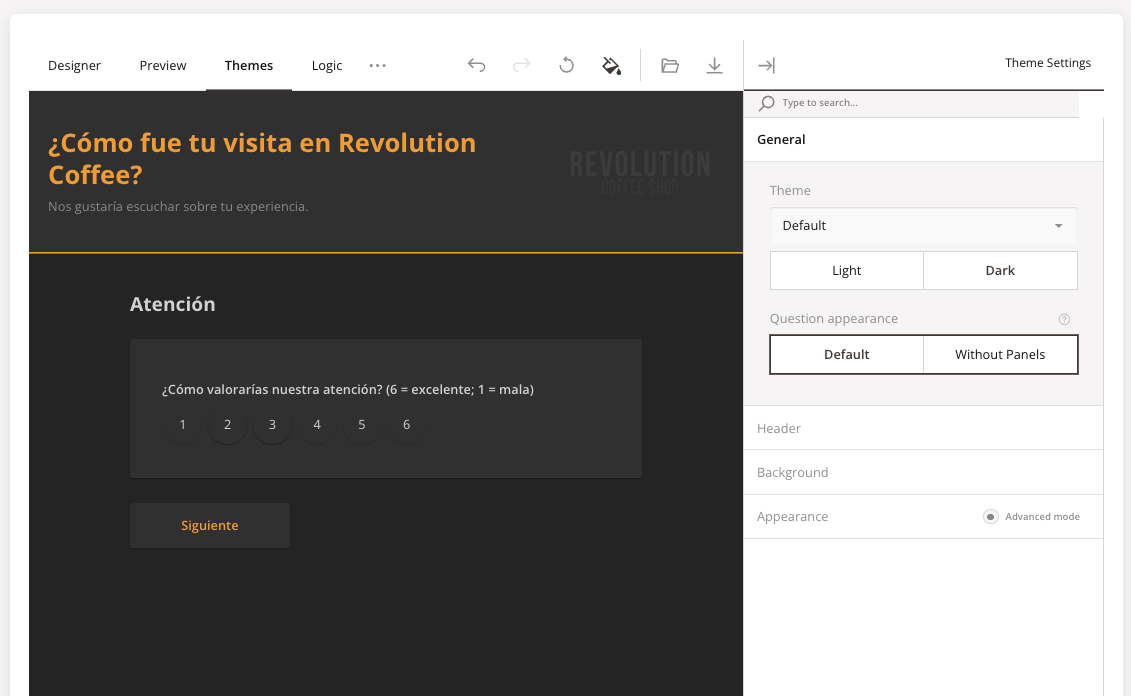
- Themes — Light / Dark mode, header / background customization, panel appearance.
- Logic — conditional / skip logic. "If answer to Q1 is X, skip to Q5"-style branching.
- Translations — multi-language. Add a language, fill in the translations, and members see whichever matches their Preferred language on profile. See Translations.
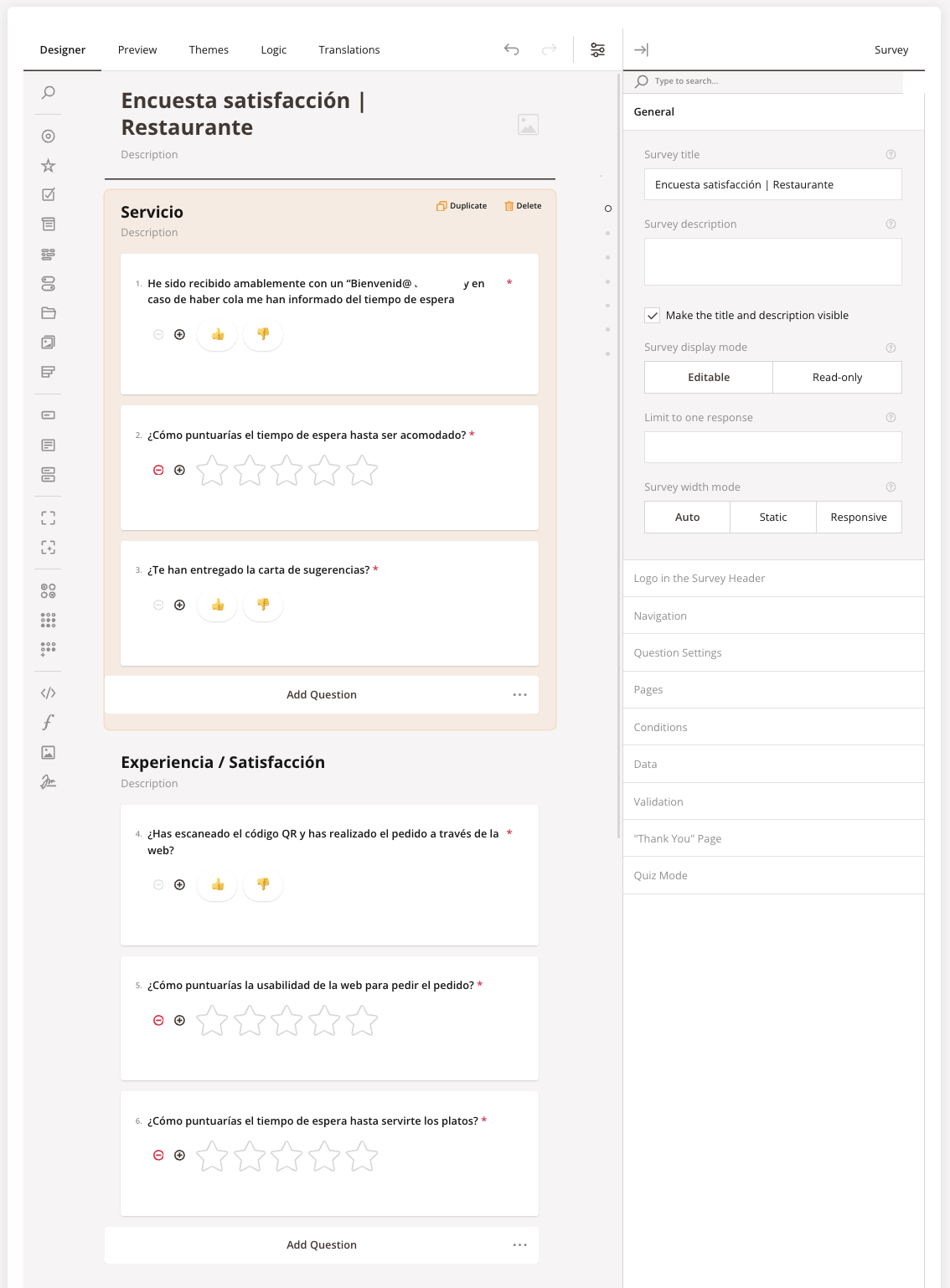
The right rail is the settings stack. The tabs above (Designer / Themes / etc.) handle the survey's structure; the right rail handles the per-element configuration — alignment, required-marker, validation rules, thank-you-page copy, Quiz Mode (for score-based / right-answer surveys), and the Pages / Conditions / Data / Validation collapsibles.
You don't need to learn every setting up front. The defaults are reasonable; tune what you need as you build.
Question types
For a satisfaction survey, Rating Scale (Stars or Smileys) covers most of what you need. For a more open feedback survey, mix Rating Scale questions with a Long Text "anything else?" at the end. The full library is broad — see below for everything available in the picker.
Full question-type library — grouped by use
- Single-choice — Radio Button Group, Yes/No (Boolean), Dropdown, Image Picker.
- Multi-choice — Checkboxes, Multi-Select Dropdown.
- Rating — Rating Scale, with three sub-flavors: numeric Labels, Stars, or Smileys.
- Free-text input — Single-Line Input, Long Text, Multiple Textboxes.
- Single-Line Input typed variants — Color, Date, Date and Time, Email, Month, Number, Password, Phone Number, Range, Text, Time, URL, Week. Pick the variant that matches the data — Email validates email format, Phone Number applies phone formatting, etc.
- Ranking — drag-to-order question.
- Matrices — Single-Select Matrix, Multi-Select Matrix, Dynamic Matrix (for grids of related questions).
- Layout — Panel, Dynamic Panel (group questions into repeatable blocks).
- Special — File Upload, Signature, Image, HTML, Expression (read-only computed).
Themes
The Themes tab gives the survey a brand-aligned look — Light / Dark, custom header, custom background, panel style. Worth a few minutes at launch so the survey looks like your survey, not a generic form.
Translations — one survey, many languages
You don't need a separate survey per language. Build the survey once, then add the languages you need on the Translations tab and fill in the wording — the survey stays a single survey with a single results table, and each member sees it in their own language.
Add a language. Open the Translations tab and the Language Settings panel on the right. Click the + button to pick a language from the list; it's added as a new column in the translation grid, next to the default language. Add as many as you need, and remove one by clearing its checkbox.
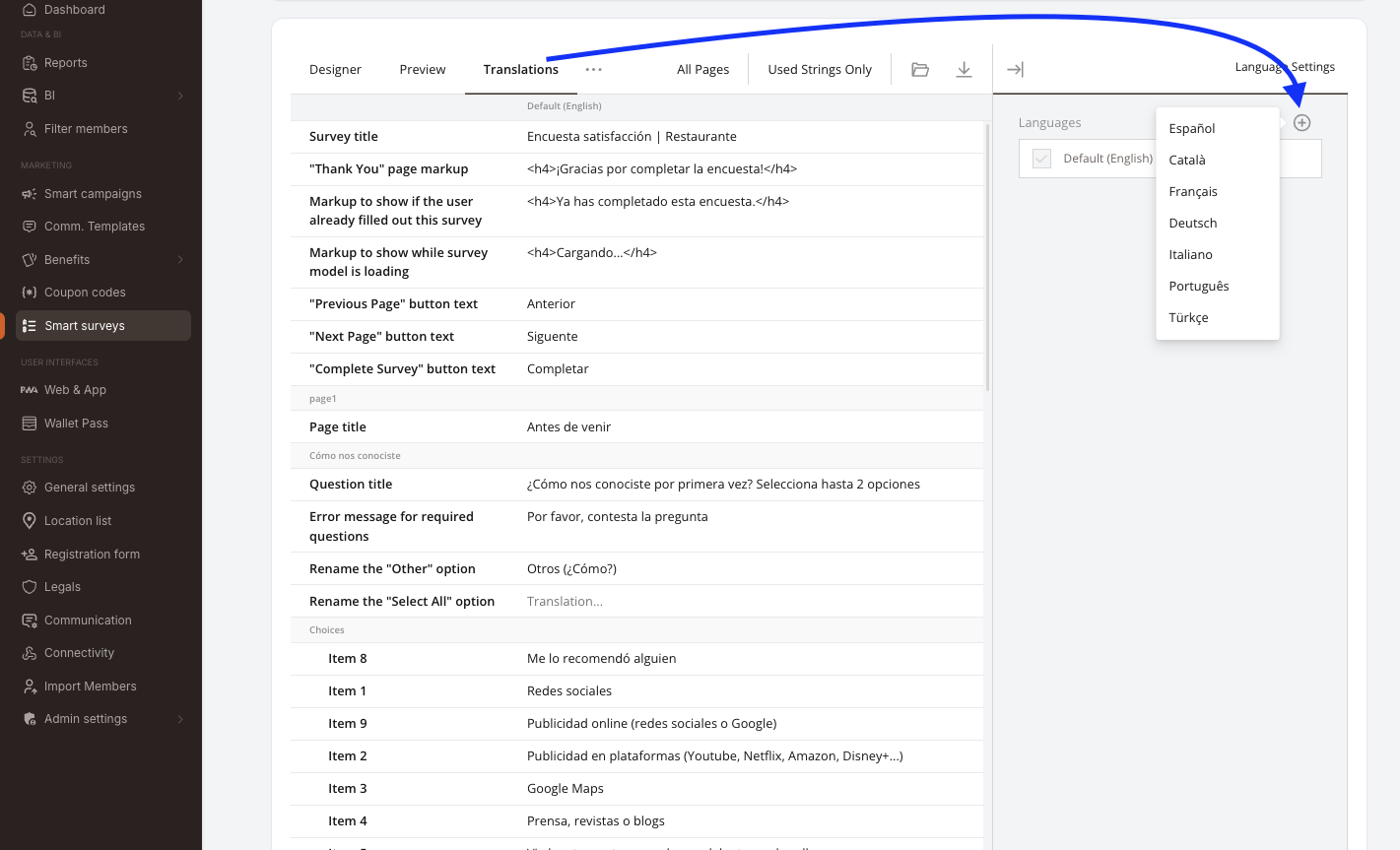
Fill in the wording. The grid lists every translatable string in the survey — grouped by page and question — with the default language on the left and one editable column per added language. That includes more than the questions themselves: the survey title, the Previous / Next / Complete button labels, the thank-you page, the "you already answered this survey" message, required-question error messages, and each answer choice. Type the translation straight into the cell; empty cells fall back to the default language.
Two filters at the top of the grid keep long surveys manageable:
- All Pages — everything in the survey, page by page.
- Used Strings Only — hides strings that aren't actually shown in this survey, so you only translate what members will read.
For a long survey, the import / export icons let you take the strings out of the panel, translate them elsewhere (a translator, a spreadsheet, an agency), and bring them back in one go instead of typing cell by cell.
What members see. Members get the language matching their Preferred language on their profile; anyone whose language you haven't added — or any string you've left blank — sees the default language. Use the Preview tab to switch languages and check the rendering before going live, especially where a translation runs longer than the original and changes the layout.
What members see
Surveys render as a clean, mobile-friendly form. Title at the top, page-by-page navigation (with a Siguiente / Next button between pages), and a configurable thank-you page after submit. The Preview tab shows you exactly what members will get before you publish — including the visual rendering of each question type:
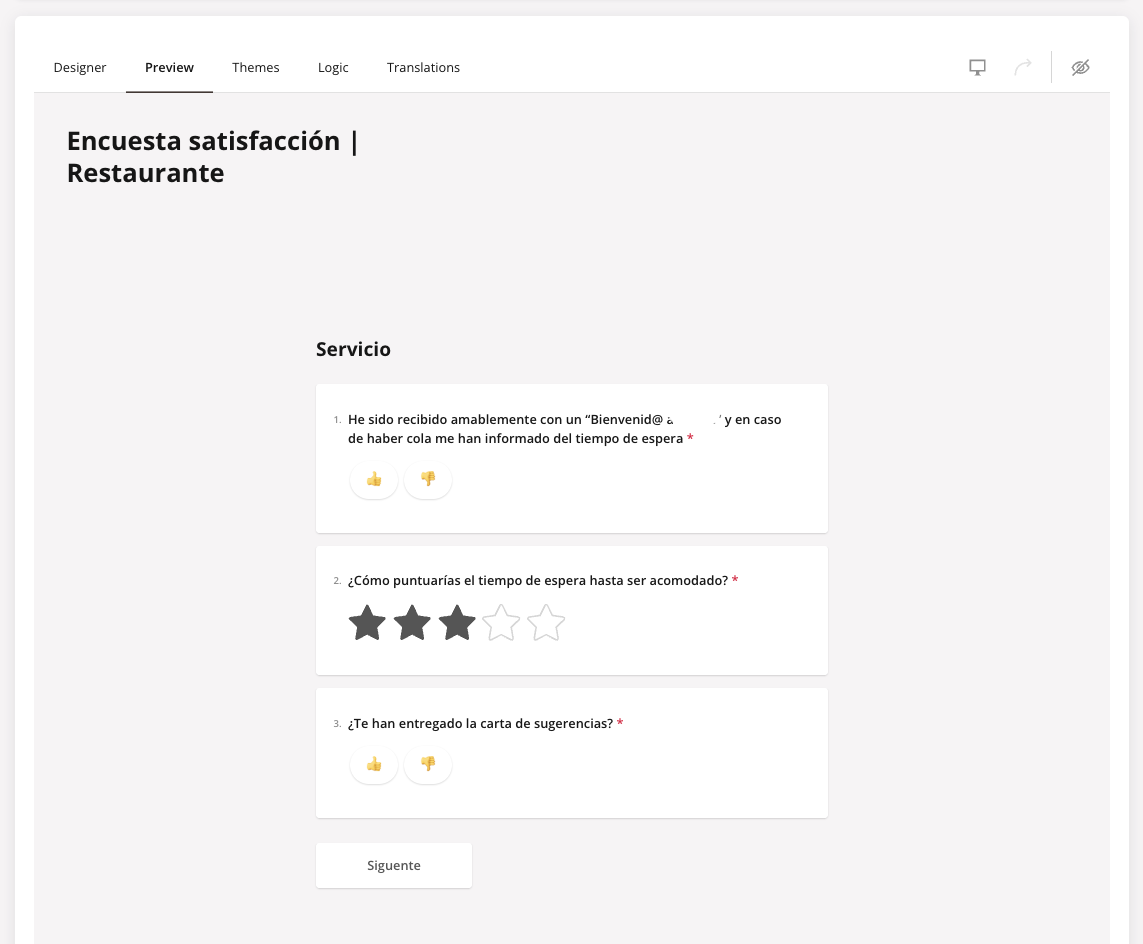
Toggle through Preview's controls to see the rendering in dark mode, in each translated language, and across desktop / mobile breakpoints — confirm the look before going live.
Conditional logic — different paths for different answers
What the member sees isn't necessarily the full survey. The Logic tab in the builder lets you wire up "if the answer to question X is Y, then…" rules — hide a later question, jump to a different page, end the survey early. The result is a survey that adapts to the respondent: someone who rates the food positively skips the "what went wrong?" page; someone who selects "didn't eat here" on the first question skips the food-and-drink section entirely.
Set the rules on the Logic tab; the member experience is automatic — they just see whatever pages and questions their earlier answers haven't excluded.
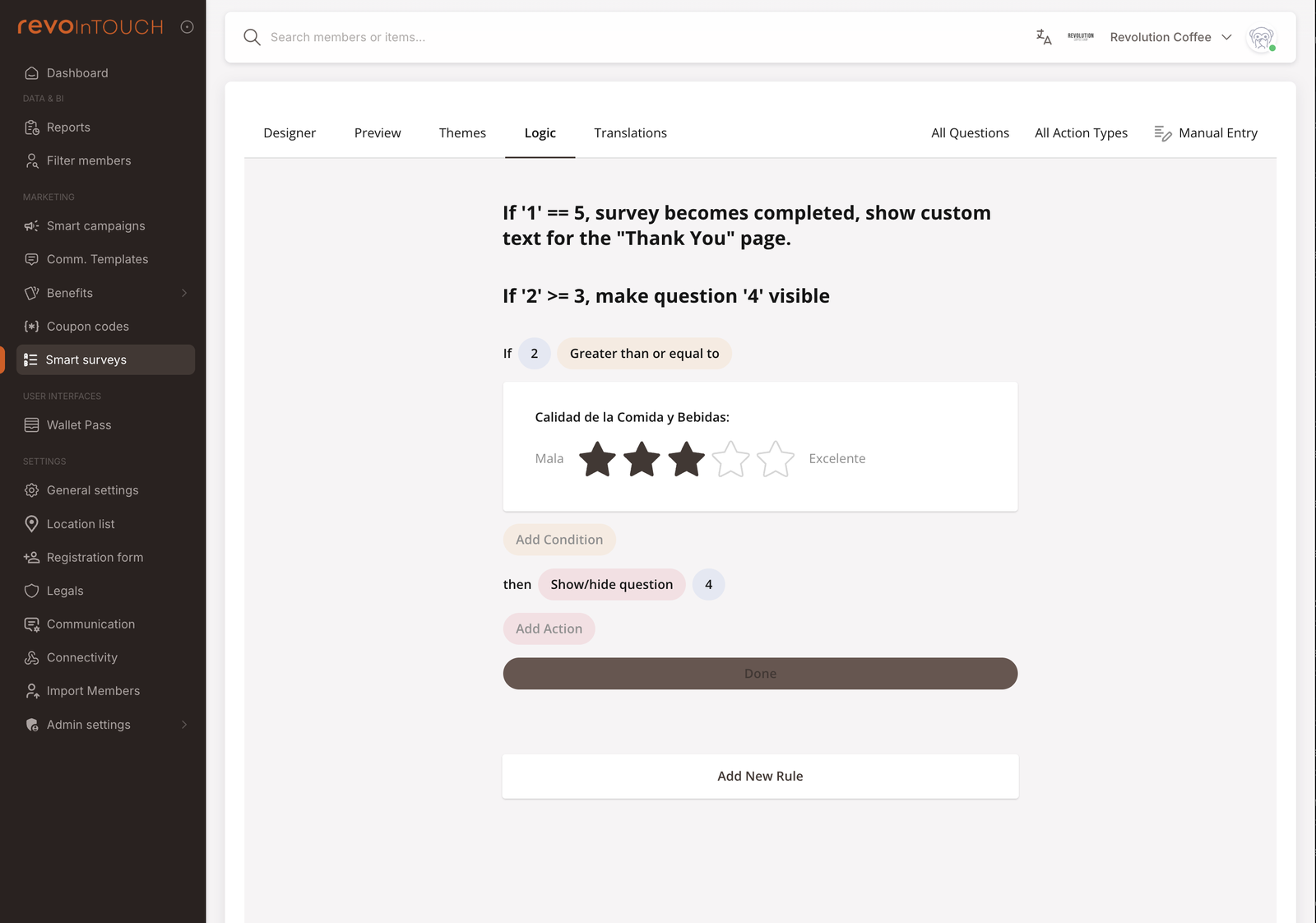
Common shapes:
- Skip a question. "If member answered 👎 on Q1, skip Q2 about specifics."
- Branch by segment. "If member selected Vegetarian, show the vegetarian-only follow-up; otherwise show the regular follow-up."
- End early. "If member selected Didn't eat here, jump to the Thank-you page — don't make them sit through unrelated questions."
Distribution — getting the survey to members
Three patterns, picked by the question you're trying to answer:
Embedded in the Web app or Wallet Pass
For always-on, low-pressure feedback ("Got feedback? We're listening…"), put the survey link as a button or banner directly in the Web app or on the back of the Wallet Pass. Members tap it whenever they feel like it.
The placement is configured on the Web app / Wallet Pass surface itself (under Web app / Wallet Pass settings — this is where you paste the link), not on the survey side. The survey provides a URL; the surface decides where to show it.
Sent via SMS / email at the right moment
For targeted, contextual feedback ("we noticed you tried our new dish — what did you think?"), send the survey link via a Comm. Template inside a Smart Campaign. Two canonical patterns:
- Product feedback. "You just tried our Tarta de Queso — how was it?" — a Rule on Makes a purchase trigger, condition Basket items contains Tarta de Queso, action Send SMS with a magic link to the cheesecake survey, with a 30-minute delay so the member's already left the table.
- Branch-level service feedback. "You just visited our Branch X — how were the toilets?" — a Rule on Makes a purchase trigger, condition Branch is X, action Send SMS / Send email with the survey link, no delay or short delay.
The magic-link mechanism is what makes this work — see Identifying respondents below.
Direct link — anything else
The survey URL is a regular URL. You can paste it anywhere — a printed receipt's QR code, a poster at the till, an external partner email, a social media post. Whatever can carry a URL can carry a survey link. Without a magic-link wrapper, responses arrive anonymous (see below).
Identifying respondents — magic links
By default, survey responses are identified when the respondent reaches the survey via a magic link. A magic link is a URL with the member's membershipKey baked into the query string — when the member clicks it, the survey already knows who they are, and the response row in the results table gets a clickable Show member button in the member column.
Reach the survey without a magic link (e.g. via the public Web-app banner, a printed QR code, a cold link), and the response submits anonymously — the member column on the row stays blank, and you can't reward, follow up with, or segment that respondent later.
So:
- For rewarded surveys (free coffee for every submission, follow-up SMS), you need magic links — there's no other way to identify the respondent.
- For anonymous-by-design surveys (sensitive feedback, NPS), skip the magic links and use a public link — the anonymity is the feature.
Awarding respondents — close the loop with a Smart Campaign
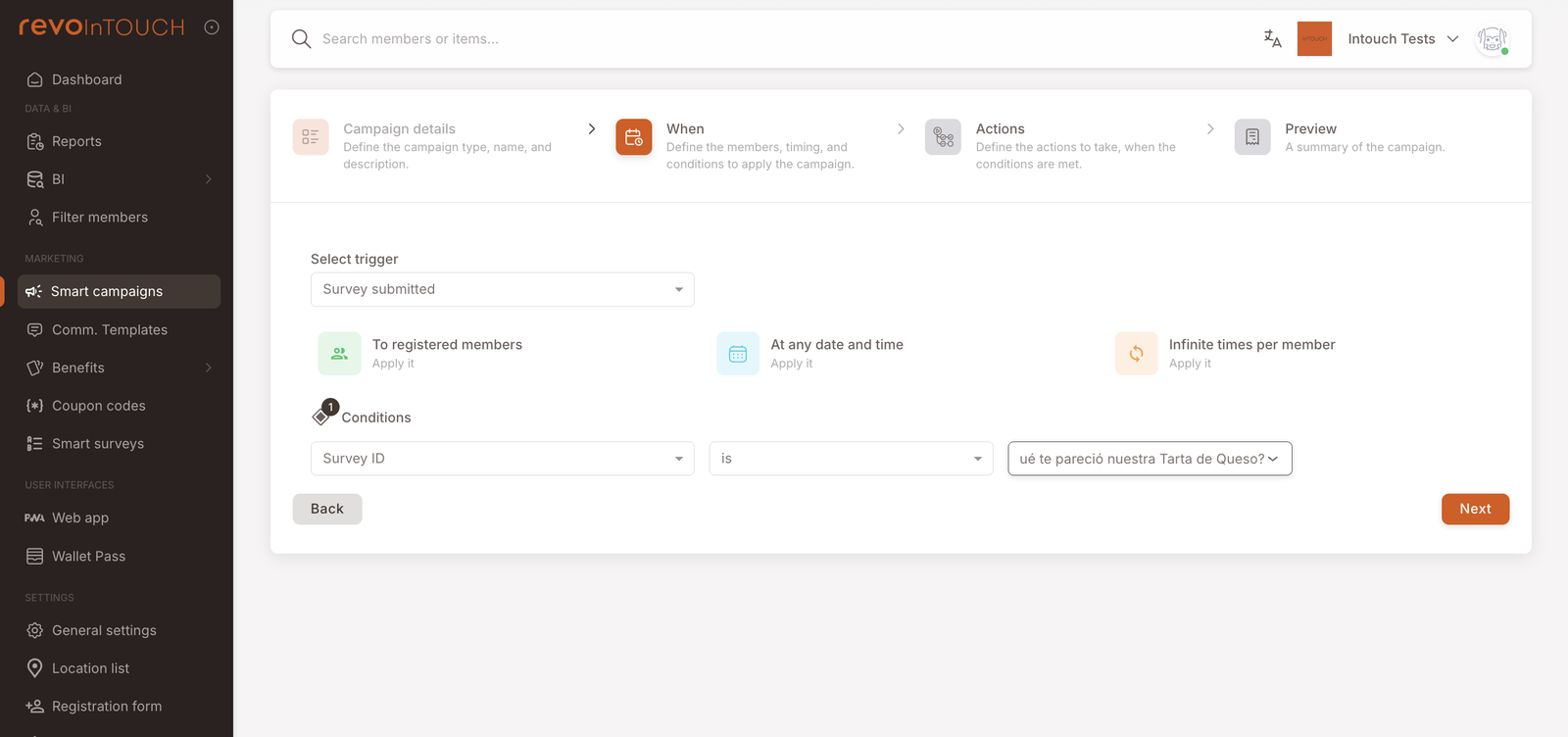
The Survey submitted trigger on a Rule lets you act the moment a member finishes a survey. The pattern:
- Trigger — Survey submitted.
- Condition — Survey ID is <the survey you're rewarding>. The Rule fires only on submissions of that specific survey, not every survey in the tenant.
- Action — typically Send asset (a free-coffee Gift, a 10€ coupon) or Add credits (a fixed cashback bonus). Pair with a Send SMS thank-you if you want the member to know the reward landed.
Rate-cap to prevent gaming
The default rate-cap tile is Infinite times per member. For a rewarded-survey Rule, that's almost never what you want — a member could resubmit the same survey twice and earn the reward twice. Click the rate-cap tile to open the Apply how many times modal and pick Limited:
- Up to N times in total — the same member can earn the reward at most N times across the program's lifetime.
- Up to N times per [day / week / month] — the same member can earn the reward at most N times per period.
For most surveys, Up to 1 times in total (lifetime) is the right cap — one reward per member per survey.
![The Apply how many times modal. Two options: Infinite (Action can be applied infinite times) and Limited (Action can be applied limited times). Limited has two configurable rows: "Up to N times in total" and "Up to N times per [month/week/day]".](/assets/images/awarding-rate-cap-modal-71a2528787fbb1ff56ec5dc8ba87041b.png)
Reading the results
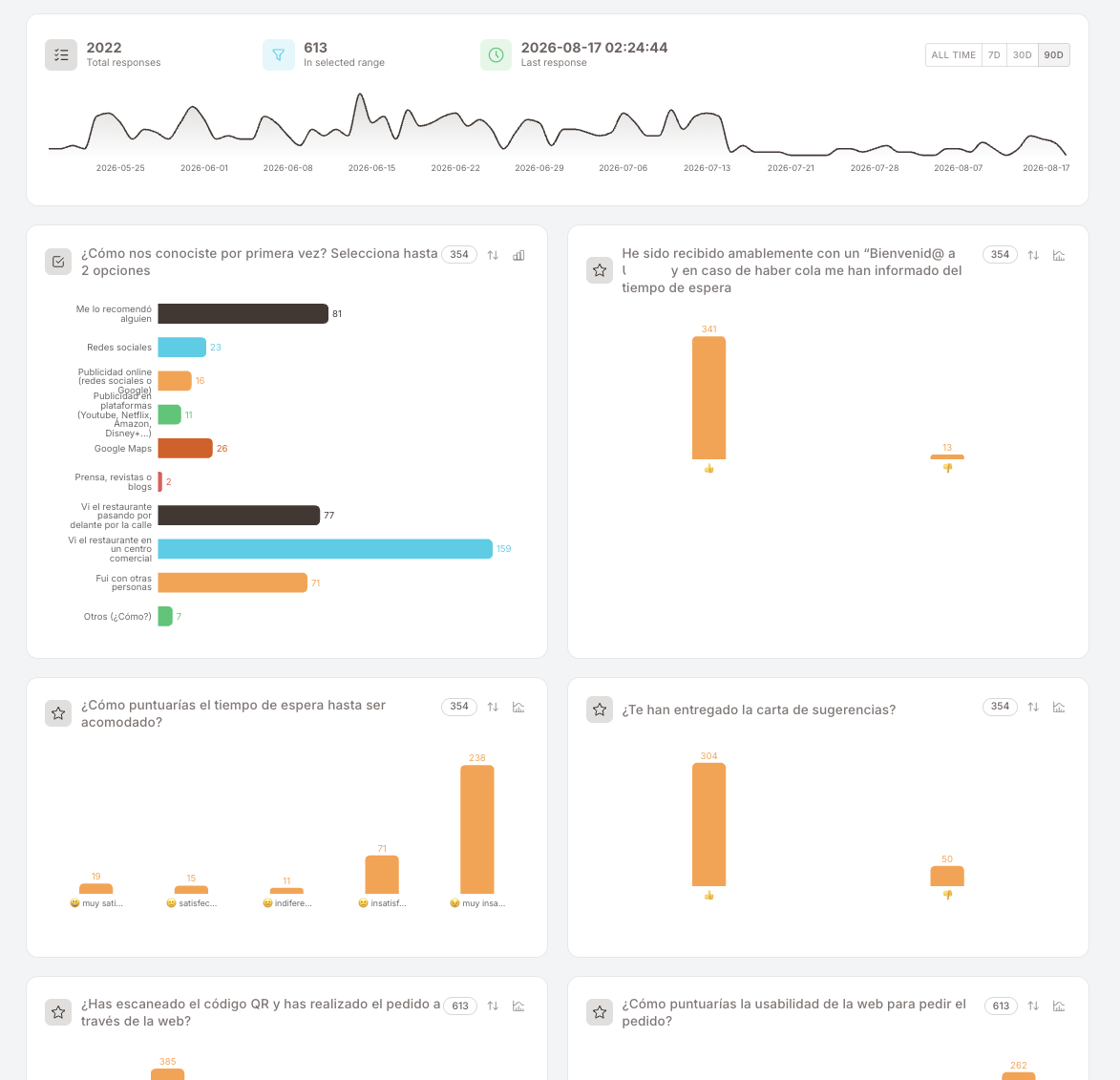
Click the Results icon on a survey row (or View results in the row's three-dots menu) to land on the results dashboard. It reads top to bottom, from the widest view to the narrowest: how many answers you have and how they trend, then what each question says, then the individual submissions.
Pick a time range first — everything below it re-scopes. Counters tell you volume and whether responses are still coming in, the timeline tells you when, the question cards tell you what members said, and the Individual responses table at the bottom is where you go row by row or export to CSV / XLSX.
Volume, recency, and the time range
A strip across the top carries the headline numbers: total responses the survey has collected overall, how many of those fall inside the range you've selected, and the date and time of the most recent response — the quickest way to spot a survey that has quietly stopped receiving traffic.
Beside them sits the range switcher (all time, and rolling windows of the last few days / weeks / months). It governs the whole page — the timeline, every question card, and the responses table all follow the range you pick, so a number that looks alarming is often just a narrow window.
Under the counters, a response timeline plots submissions across the selected range. It's the fastest way to connect volume to something you did: a campaign send, a weekend, a QR poster that came down.
Per-question charts
Below the timeline, one card per question in a two-column grid. Each card shows the question text, a small icon for the question's type, the number of people who answered that particular question, and two controls — one to reorder the answers, one to switch the chart type. Bars are colour-coded per answer and labelled with their counts.
That per-question count is the quiet insight on this page. It isn't the same as the total: questions on later pages, or ones sitting behind conditional logic, get fewer answers by design. When a question drops sharply compared with the ones before it, members either abandoned the survey there or logic routed them past it — both worth knowing before you read the percentages.
Individual responses
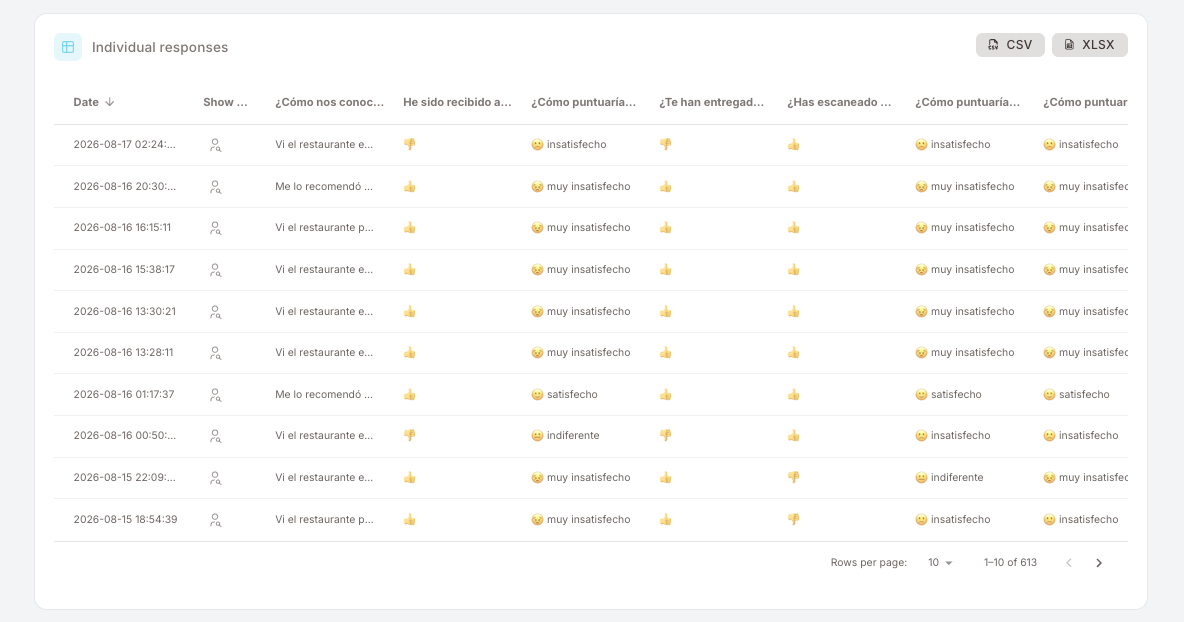
At the bottom of the page, the Individual responses table — one row per submission, newest first, sortable by date. One column per question, with answers rendered visually (👍 / 👎 for thumbs questions, emoji faces for smiley ratings, stars for star ratings, plain text for text answers) rather than as raw values, so a row can be read at a glance.
The Show member control appears on rows where the response was identified via a magic link; anonymous rows leave it blank. Page through with the rows-per-page control, or take the data out with the CSV and XLSX buttons in the card's header — that's the route to a pivot table, a BI tool, or a colleague who wants the raw answers.
When to reach for a survey vs other tools
- Survey — "What do members think / want / remember?" Open-ended or scale-rated questions, member-driven response.
- Reports / BI — "What did members do?" Behavioural data already in the system.
- Filter members — "Who matches X?" Audience selection from existing data.
Surveys generate new data; the others read existing data. Use a survey when no existing signal answers the question.
Gotchas
6 things to watch for when building / running surveys
- The time range on the results page is sticky in your head, not on the page. The counters, the timeline and every question chart follow the selected range. A survey that looks like it "collapsed" is often just being read on a 7-day window. Check the range before drawing a conclusion — and before screenshotting a chart for someone else.
- Anonymous-by-link is silent. A respondent reaching the survey without a magic link won't error or be blocked — they'll submit anonymously. If you intended to reward submissions, you'll see "0 rewards issued" with non-zero submissions and wonder why. Fix: distribute via magic-link channels only.
- Magic links carry the member's identity in the URL. Don't share a single magic link with multiple people (e.g. by forwarding the SMS) — every submission via that link will appear as the same member.
- Survey ID is the immutable handle. When you set up a Smart Campaign Rule on Survey submitted, the condition uses the survey's ID, not its name. Renaming the survey doesn't break the Rule; deleting and re-creating the survey does (the new survey has a new ID).
- Translations need to be kept in sync. Adding or rewording a question in the default language doesn't update its translations — the new string simply appears untranslated on the Translations tab, and members in other languages see it in the default language. Nothing breaks and nothing warns you, so revisit the Translations tab after every copy change.
- The rate cap is on the awarding Rule, not the survey itself. Members aren't blocked from filling the same survey twice — only the reward is capped. If duplicate submissions are a problem (e.g. they pollute the results), you'll need a manual cleanup step on the analytics side.