Smart Campaigns overview
Smart Campaigns is the platform's engine for turning member behavior into automated marketing: accumulation programs, thank-you messages, targeted discounts, anniversary gifts, re-engagement nudges, and anything else that should happen automatically when a member does (or doesn't do) something. Everything you set up here lives under Marketing → Smart campaigns in the left nav.
This page is the map. It introduces the five campaign kinds you can create, shows when to reach for each, and points into the Campaign essentials pages for the shared primitives — triggers, conditions, actions, cases — that underpin them all.
The five campaign kinds
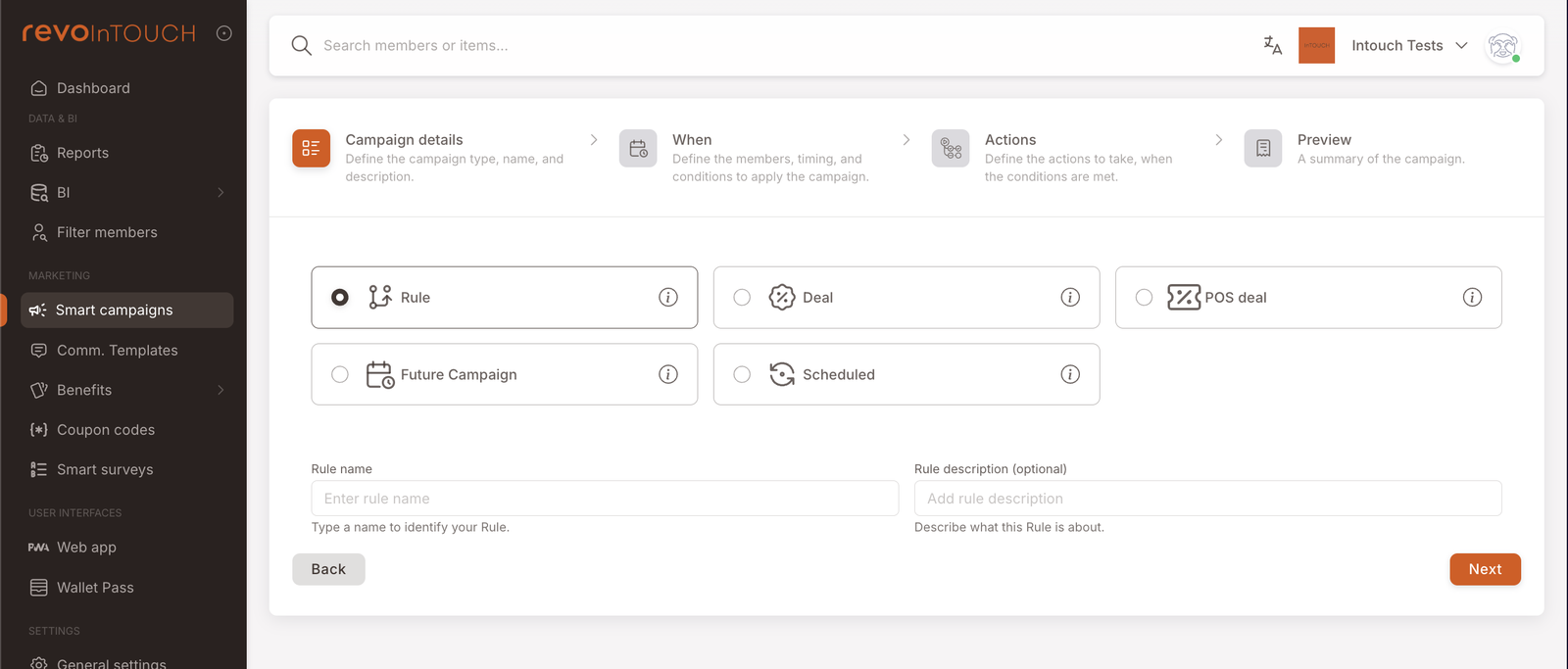
When you click Create campaign, step 1 of the wizard asks you to pick one of five kinds. The choice is significant: it determines what fires the campaign (an event, a scheduled time, a member choice) and what the campaign can do (award a balance, send a message, apply a discount at the till).
- Rule — fires automatically when something happens to a member (a purchase, a tag change, a coupon entry, and so on). Rules are the workhorse of Smart Campaigns; most of what you'll build will be a Rule.
- Deal — a silent automatic discount applied at the till whenever an identified member closes a check that matches the Deal's eligibility. Members don't see Deals anywhere; the discount just shows up in the total.
- POS Deal — the same silent automatic discount, but applied on every check regardless of whether a member is attached. Used for non-loyalty, store-wide pricing rules.
- Future Campaign — a one-shot campaign set to run on a specific date in the future (e.g. "Send a Holiday-promo SMS to all members on Dec 24"). Uses the same action set as Rule, but with a scheduled fire time instead of an event trigger.
- Scheduled — a recurring campaign that runs on a cadence you choose, from daily to yearly, rather than on an event.
Action sets differ by kind. Rule and Future Campaign share the full 9-action set (see the Actions catalog). Scheduled uses a narrower subset of that set today, focused on birthdays. Deal and POS Deal have their own discount-shaped actions — they can't send messages, add credits, or apply tags. If you're hunting for an action that isn't there, you're in the wrong kind.
At a glance
| Kind | What fires it | Main purpose | Action set |
|---|---|---|---|
| Rule | An event (purchase, tag, coupon entry, etc.) | Automated rewards, messages, tags | 9-action shared set |
| Deal | Check closes with matching basket + identified member | Silent automatic discount at the till | Discount-shaped |
| POS Deal | Check closes with matching basket (any check) | Silent automatic discount applied on every check | Discount-shaped |
| Future Campaign | A specific future date | One-shot scheduled blast | 9-action shared set |
| Scheduled | A recurring schedule | Repeating automation without an event trigger | Subset of the 9-action set (birthday-fit today) |
The shared building blocks
Every Smart Campaign — regardless of kind — is built from the same small set of primitives, introduced on the Campaign essentials pages:
- Triggers — what starts a Rule. Rule-specific, but the concept of a "starting event" is the same idea Future Campaign and Scheduled use, with a date or schedule in place of an event.
- Conditions — filters that narrow which instances of the trigger actually fire the campaign (e.g. only purchases over €20, only members tagged
vip, only on weekends). Same field / operator / value syntax across every kind. - Actions — what the campaign does once its trigger has fired and its conditions have passed. The available actions depend on the kind (see the table above).
- Split into cases — branch the campaign's actions based on a per-branch condition (first matching case wins). Available in every kind: in Rule / Future Campaign / Scheduled, each case holds its own stack of actions; in Deal / POS Deal, each case holds its own discount definition.
If you're new to Smart Campaigns, read these four in order — they establish the vocabulary every kind-specific page reuses.
Picking the right kind
Three questions usually settle it:
1. What do I want to happen?
- Give the member something back after the fact (credits, points, a gift, a message) → Rule, Future Campaign, or Scheduled.
- Make the member pay less right now → Deal (member selects) or POS Deal (POS applies).
2. What starts it?
- A member event (purchase, tag change, survey submission, etc.) → Rule.
- A specific future date, once → Future Campaign.
- A recurring cadence (every Monday, first of the month, etc.) → Scheduled.
- A check closing — the discount should apply automatically at the till whenever the basket matches → Deal or POS Deal (see question 3).
3. Should the discount require a member to be identified on the check? (only relevant if you answered "pay less right now" to question 1)
- Yes — only identified members should get the discount → Deal.
- No — every check gets it, members and non-members alike → POS Deal.
Most organisations start with a single Rule (cashback, birthday gift, or punch-card accumulation), then layer in a Deal once there's a catalogue of active offers members can choose from, and add Scheduled / Future Campaign later for date-driven sends. You don't need to use every kind — pick the one that matches the next problem in front of you.
The wizard is universal
All five kinds use the same four-step wizard:
- Campaign details — name, kind, description, state (Active / Draft / Paused). Trigger-agnostic.
- When — the trigger (for Rules), the date / schedule (for Future Campaign / Scheduled), or the eligibility rules (for Deal / POS Deal), plus audience, timing, rate cap, and conditions.
- Actions — what the campaign does once its when is satisfied. Stacked actions, optionally split into cases.
- Preview — a read-only summary of everything you configured, with a final Save button.
Once you know the shape, creating a new campaign of any kind is mostly a matter of filling in the what's different — the trigger or schedule or eligibility rules, the condition list, the actions. The structure is the same.
Change log — who changed what, and when
Every campaign keeps its own Change log: a dated record of who created it, who edited it, who paused or reactivated it. Open it from the ⋮ (three-dot) menu on the campaign's row in the Smart Campaigns list.
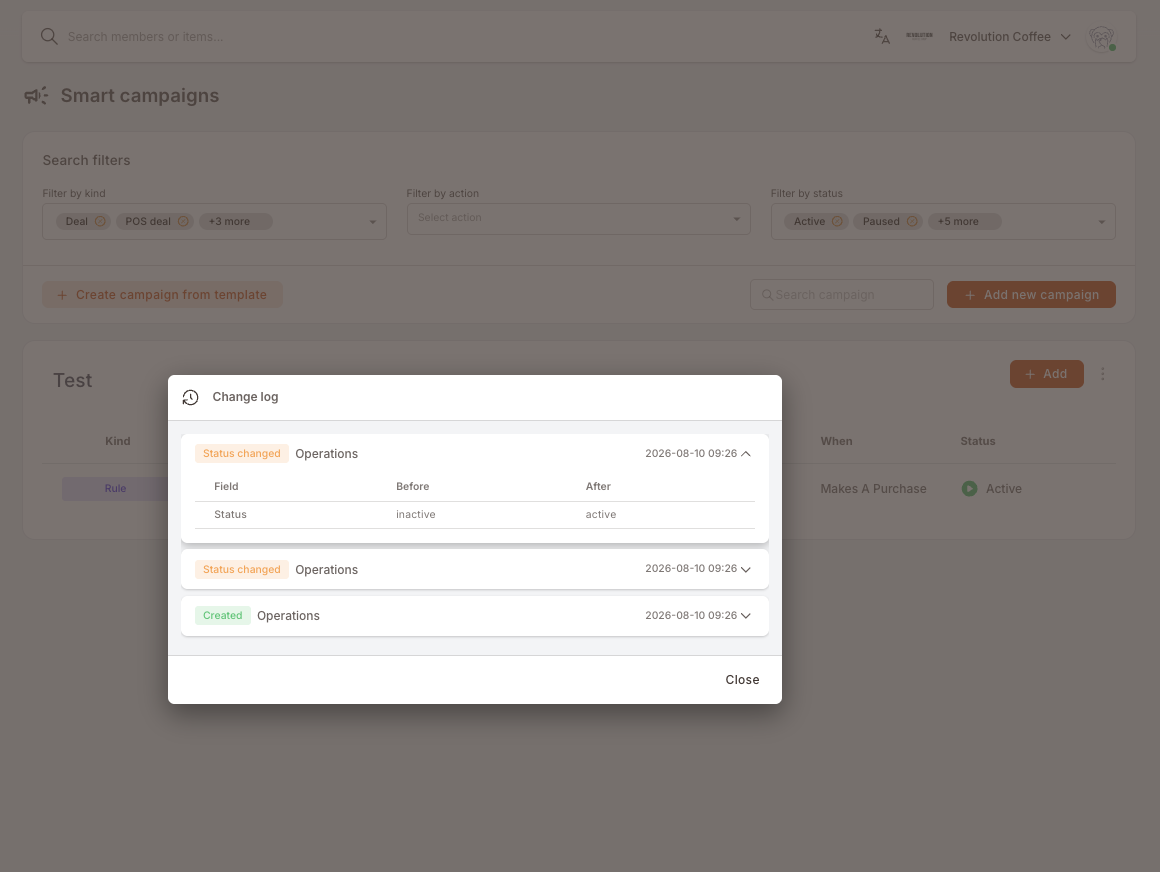
Cheat sheet. ⋮ menu → Change log → entries listed newest first (date · who · what kind of change) → click an entry to expand it and see the exact before / after values for each field that changed.
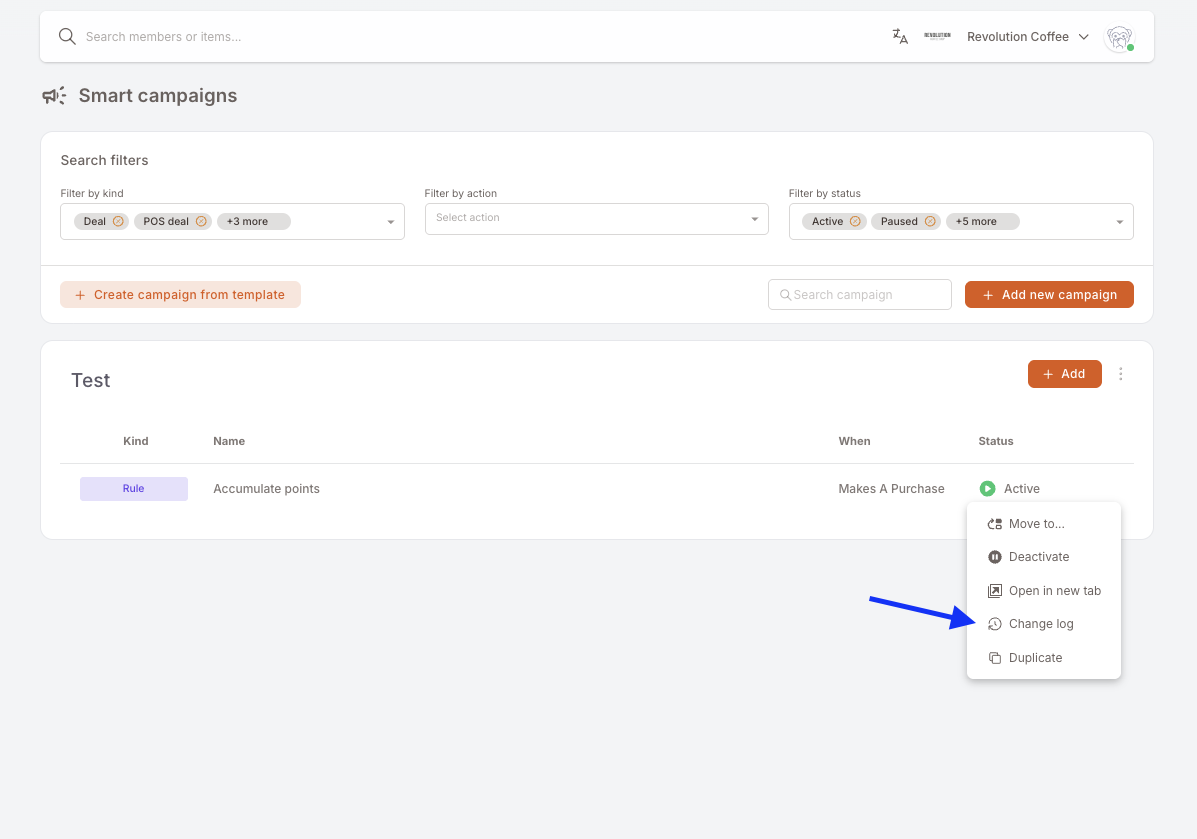
The list view answers when and by whom; expanding an entry answers what exactly.
What's covered, what's recorded, and the one limitation to know
Covered surfaces. The Change log is available on all five Smart Campaign kinds (Rule, Deal, POS Deal, Future Campaign, Scheduled) and on both Benefits types (Gifts and Punch cards). Same menu, same dialog, same behaviour everywhere.
What gets recorded. Any operation that changes the item or its place in the workspace — creation, edits to the configuration, status changes (Active / Draft / Paused), archiving, moving between folders, duplication, deletion. Each entry carries the timestamp and the user account that performed it; expanding it lists the affected fields with their previous and new values side by side.
History starts at the release, not at the item's creation. Only changes made from the moment the feature went live are recorded. Campaigns and Benefits that existed before that show no history for their earlier edits — the log isn't backfilled.
Where this is most useful. Two questions come up constantly in shared workspaces and the Change log settles both: "why did this campaign stop firing?" (someone paused it — the entry names them and the time) and "who changed the reward amount?" (the expanded entry shows the old value next to the new one). Where a campaign's own reporting tells you what a campaign did, the Change log tells you what people did to the campaign.
Looks like a campaign kind, isn't
A few things in the product that are sometimes mistaken for campaign kinds:
- Benefits (Gifts, Punch cards) are assets, not campaigns. A Rule can issue a Gift via the Send asset action, but the Gift itself is configured separately under Benefits → Gifts. See Actions → Send asset.
- Communication templates (SMS / Email / Notification) are content, not campaigns. A Rule's Send SMS / Send email / Send notification actions pick a saved template from Comm. Templates; the template doesn't fire on its own.
- Tags are profile attributes, not campaigns. Applying a tag via a Rule's Tag member action is how you mark a member; what you do with the tagged member is a separate Rule triggered by Tagged.