Conditions reference
A condition narrows which instances of a trigger event actually fire the Rule. Triggers answer the what ("the member made a purchase"); conditions answer the which ("…only when the basket total is over €20, at the Downtown branch"). Every condition is a row with three slots — a field, an operator, and a value — and conditions are combined with AND.
This page is a syntax reference: it covers the row anatomy, the operators available for each field type, how conditions combine, and the two places in the wizard where conditions appear. The list of which fields each trigger exposes lives on the Triggers reference — one page per concern.
Where conditions appear
Conditions show up in two places in the Rule wizard, with identical syntax in both:
- Step 2 — When → Conditions. Rule-wide conditions. The field list is specific to the chosen trigger — a purchase trigger exposes basket/branch/payment fields, a coupon-redemption trigger exposes coupon-related fields, and so on. Some triggers (Total spend updated, Visit updated) expose no condition fields at all — the event itself is the entire filter.
- Step 3 — Actions → inside a case. When you toggle Split into several cases, each case has its own Condition row that decides whether that case runs. Case conditions can reach into member-level attributes (tags, balances, activity counters, consent flags) in addition to the event-level fields from step 2 — the exact list depends on the trigger. See Split into several cases for the case model.
Both places use the same row shape and the same operator catalog. The difference is scope: step 2 conditions gate the whole Rule; step 3 conditions gate one branch of it.
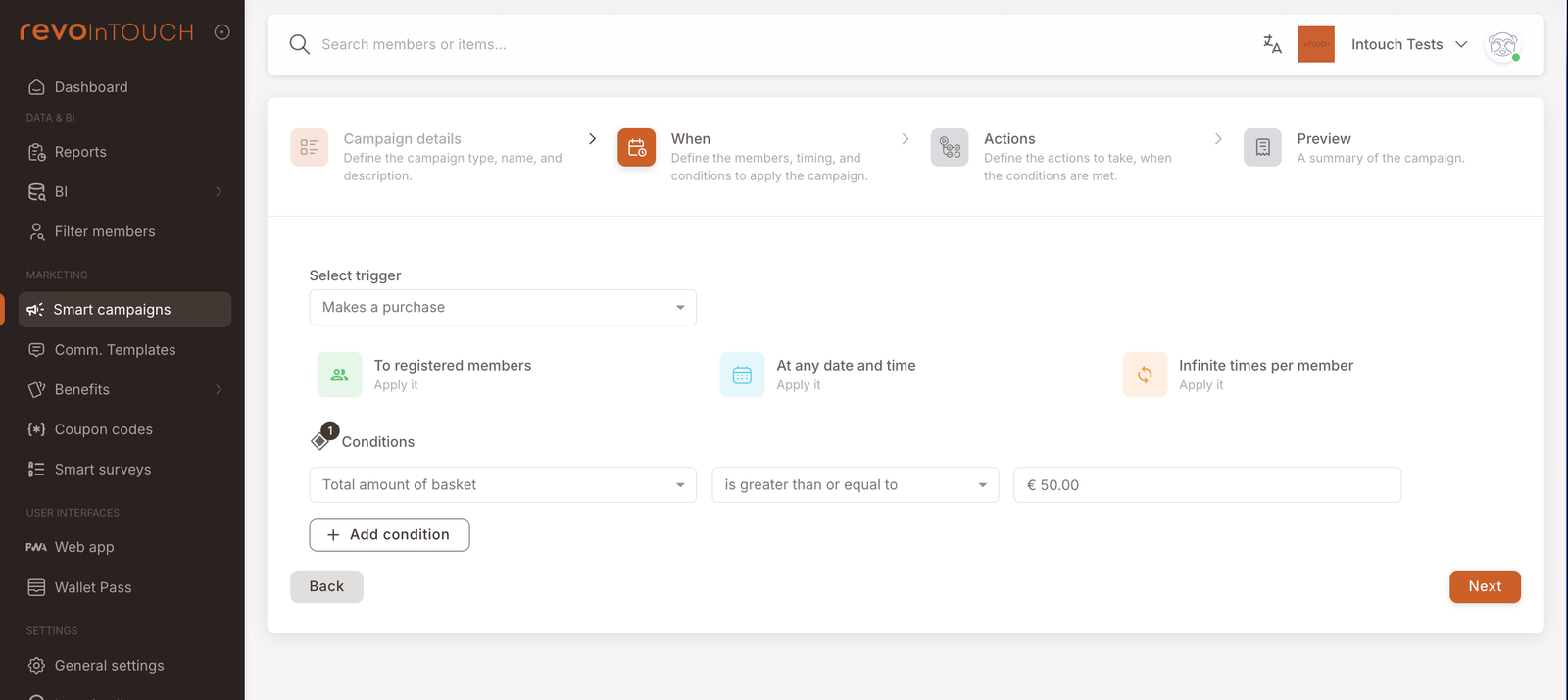
Anatomy of a condition row
Every condition is one row with three controls read left-to-right:
- Field — the thing you're filtering by. The list is defined by the trigger (on step 2) or by the case-editor context (on step 3).
- Operator — how the field's value is compared to yours. The available operators depend on the type of the field — a number field offers numeric comparators, an item-set field offers set operators, an enum field offers membership operators, and so on.
- Value — what you're comparing against. The shape of this control follows the field and operator: a number input, a multi-select item picker, a date or date range, a dropdown of enum values, free-form text.
Adding another condition row adds another filter, not another branch — see Combining conditions below.
Fields, operators, and values
The three controls in a condition row work together, and the operator dropdown adapts to the field you chose. A numeric field like Total amount of basket offers numeric comparators (greater than, less than, between, and so on). An item-set field like Basket items offers membership/quantity operators ("contains at least N of …"). An enum field like Branch or Payment method offers "is one of" / "is not one of" so you can list several values in a single row. A date field offers absolute and relative time comparisons. The value control on the right follows suit — a number input, an item picker, a multi-select dropdown, a date picker.
You don't need to memorise an operator table: pick the field first, and the UI shows the operators and value control that fit it. What matters is knowing which field types exist so you can choose the right field for the filter you have in mind — and the field labels themselves usually make the type obvious (…amount… is a number, …items is an item set, …ID or …type is an enum, …name is free-form text, …date is a date).
Inside a case on step 3, the field list often includes member-level attributes — things like tags, points balance, credits balance, consent flags, total spend, or visit count — on top of the event-level fields available on step 2. This is how you filter on who the member is, not just what just happened. The exact list depends on the trigger; open the field dropdown on a case to see what's available.
Combining conditions
Conditions added to the same Conditions section are combined with AND — every condition must pass for the Rule (or case) to fire. A purchase Rule with two conditions — Total amount of basket ≥ €20 and Branch = Downtown — fires only on €20+ baskets at the Downtown branch. It does not fire on a €20 basket at another branch, nor on a €5 basket at Downtown.
For "fire when X OR Y" logic, split the Rule into several cases instead — see the next section.
When you need OR: use cases
If the logic you want is "fire when X OR Y", the standard way to model that is to split the Rule into several cases on step 3. Each case has its own Condition row, and the cases are evaluated top-to-bottom — the first matching case runs. A Rule that should give a 10 % coupon to either VIP members or members of the partner organisation becomes two cases: one with tag = VIP, one with tag = partner-member, each with its own Add discount action.
See Split into several cases for the full case model.
Triggers with no conditions
Not every trigger has a Conditions section. Total spend updated and Visit updated expose no condition fields on step 2 — the event itself is the entire filter. If you need to narrow those (e.g. fire only when a member's lifetime spend is over €500, or only on the 10th visit), use a case on step 3 with a member-level condition instead of trying to gate on step 2.
This is a general fallback: anything you can't say with the trigger's built-in fields, try to express in a case condition.
Gotchas
4 things that commonly trip people up
- Fields depend on the trigger. A condition written in the Makes a purchase column won't survive if you change the trigger to Redeems a coupon code. The wizard warns before clearing, but it's easy to dismiss. Pick the trigger first, configure conditions second.
- Case sensitivity matters for free-form strings. Tags and other free-form text are stored as typed, so
GoldandGOLDare distinct matches. Stick to a naming convention when you create them so conditions match reliably later. - Missing fields never match. If the triggering event doesn't carry a field (e.g. an anonymous purchase has no member tag), a condition on that field evaluates as a non-match rather than passing or throwing. Rules that depend on optional fields need either a safe default or a case that handles the "unknown" path.
- Conditions don't queue. A condition evaluates at trigger time against the state then. A condition on tag = big-spender fires only if the member was already tagged when the trigger event arrived — not when they're tagged a few minutes later by another Rule. If you need "do X once the tag is applied", trigger the downstream Rule with Tagged instead of gating with a tag condition.