Actions catalog
An action is what a Rule does once its trigger has fired and its conditions have passed. You configure actions on step 3 — Actions of the wizard. Every Rule has at least one action; most have two or three, and the wizard lets you stack them into sequences or split them across mutually-exclusive cases.
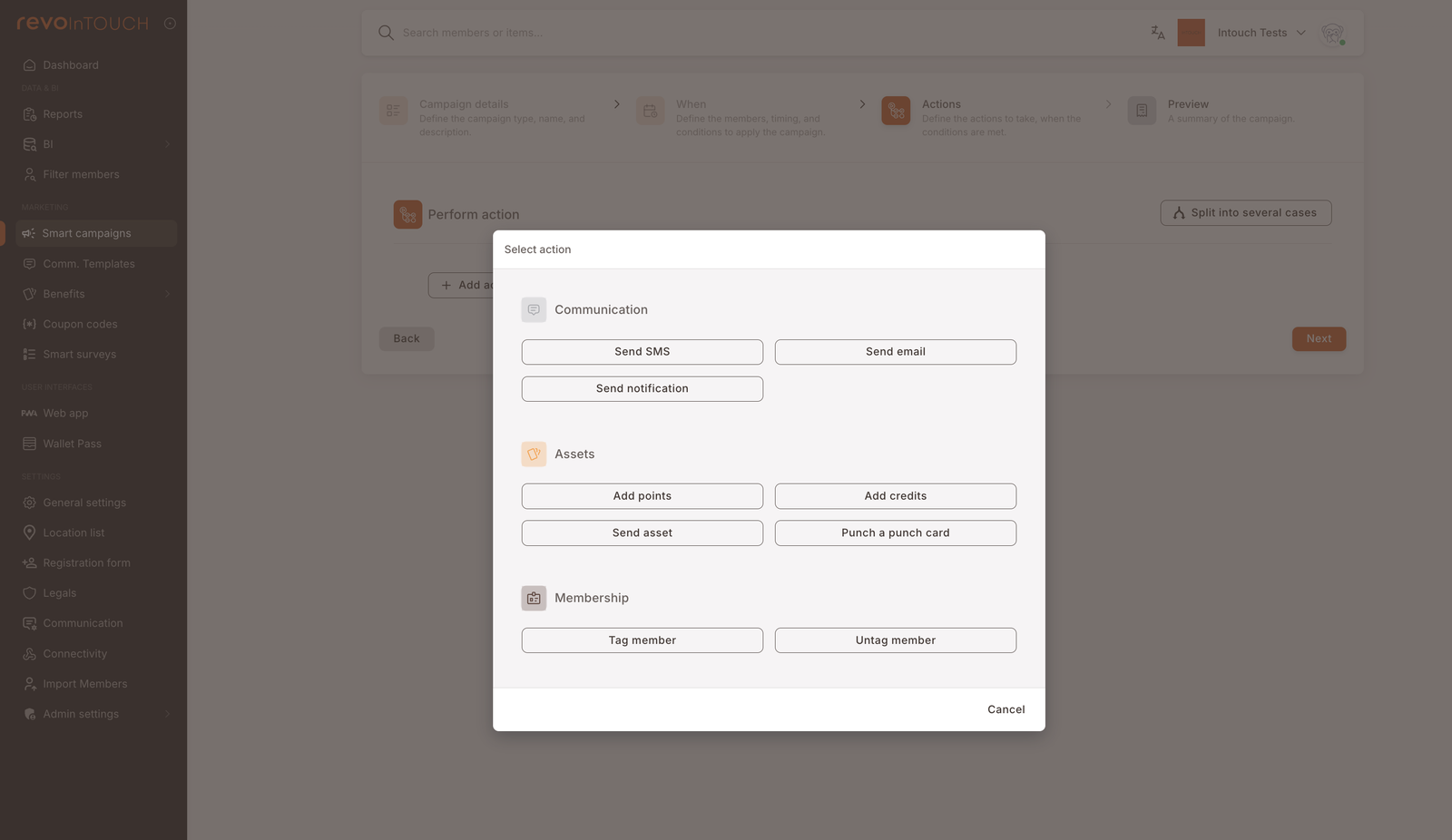
This page catalogs the nine non-discount actions available on the Rule wizard — the menu you see when you click the action dropdown inside an action block — and for each one describes its configuration fields and common uses. Future Campaigns expose the same nine actions. Scheduled campaigns currently expose only a subset of these actions, fitted to the birthday-style use case the kind serves today — so not every action in this catalog will appear on the Scheduled picker. Deals and POS deals use a different "Give discount" action set, covered on the Deal and POS deal pages.
How actions fit into a Rule
Step 3 has two structural choices that apply across every action you configure:
- Stacked (the default). Inside a single action block, click + Add action to add another action below the first one. Both run when the Rule fires, in the order shown. The playbook Credits back + SMS is a worked example — one Rule, two stacked actions.
- Split into several cases. Toggle Split into several cases to branch the Rule based on a condition you define per-case. Each case is a self-contained bundle of stacked actions. See Split into several cases for when to use this.
Every action also has its own delay control. The default is No delay — the action runs as soon as the Rule fires. Change it to delay the action by minutes, hours, or days after the trigger. Delays are per-action, not per-Rule, so you can post a reward instantly and send the confirmation SMS two minutes later.
Stacked and split are not freely interchangeable. Toggling Split into several cases after you've configured actions wipes them and the wizard warns you first — decide on the structure before you fill in the details. See the Cases reference for the full guidance.
At a glance
The action dropdown groups actions into three families: Communication (messaging the member), Assets (changing the member's loyalty balances or asset inventory), and Membership (changing the member's profile attributes).
| Family | Action | Common use |
|---|---|---|
| Communication | Send SMS | Thank-you messages, reward confirmations, reactivation nudges. |
| Communication | Send email | Longer-form messaging, campaign announcements. |
| Communication | Send notification | App-native reminders, time-sensitive offers. |
| Assets | Add credits | Cashback-style accumulation (% of spent, fixed amount). |
| Assets | Add points | Point-based accumulation for redemption-style programs. |
| Assets | Send asset | Grant a gift or coupon to the member. |
| Assets | Punch a punch card | Advance a punch-card asset by one punch. |
| Membership | Tag member | Mark a member for downstream Rules (see the Tagged trigger). |
| Membership | Untag member | Undo a tag — e.g. clear a VIP flag when a member drops out of segment. |
Communication
All three Communication actions draw their content from the tenant's Comm. Templates library. Two content-source models are in use:
- Custom in action — available for Send SMS and Send notification. You draft the content directly in the wizard; no saved template is required.
- Select a saved template — available for all three actions. Templates are built in Comm. Templates → Add new template → (SMS / Email / Notification template). Send email is template-only: you cannot compose an email body inside the Rule wizard.
Two concepts apply across all three actions and across both the wizard's custom editor and the standalone template editor:
- Dynamic fields via
@. Type@inside any content field to open a picker of member fields (name, contact details, loyalty balances, activity) and business fields (name, URLs, policy links), plus a set of generic link types (consent requests, survey links, coupon codes, short links). The field inserts as a chip that resolves at send-time against the member record. The exact picker list can change as the platform evolves — open the@menu to see what's currently available. - Magic links. A specialized category of inserted URL that carries the member's tracking key (or a coupon code token) in the URL parameters. That key lets downstream flows attribute the response back to the member — who filled the survey, who redeemed the coupon. The Select magic links button is only available inside the standalone Comm. Templates editor — when you write a Custom message directly in the wizard, magic links aren't there. If a campaign needs a magic link, build it as a saved Template under Comm. Templates first, then select that Template from the action's Source dropdown.
Why "magic" links? Because a plain URL to a survey or coupon page can't tell you who clicked it. A magic link has the member's tracking key baked into the URL, so the landing page — and any follow-up campaign — knows which member responded. That's what enables Rules like "tag members who complete the satisfaction survey and grant them a gift coupon".
Send SMS
Sends a text to the member's phone — Custom or saved SMS template, with magic-link support
Sends a text message to the member's phone number on file. Common uses: thank-you after a purchase, confirmation of a reward, reactivation nudge.
Configuration
- Source — Custom (draft the body in the wizard) or select a saved SMS template from Comm. Templates.
- SMS content — the message body. Supports dynamic fields via
@. Magic links are only available inside the Comm. Templates editor — to use one, save the message as a Template first and select it via Source. - Charged messages / Total characters — live counters shown below the body field. SMS splits into a new segment every 160 characters (GSM-7) or 70 characters (Unicode). Anything over the segment boundary costs proportionally more. The wizard shows a note reminding that the count is an estimate — actual cost varies with dynamic-field expansion and provider behavior.
- Delay — when to fire, relative to the trigger. Default No delay.
Common pitfalls
- Dynamic fields only resolve if the member record has the field. If you use
[first name]and the member registered without one, the chip renders as empty string — the sentence may read awkwardly. Either write copy that reads naturally without the name ("Hey there!") or gate the Rule with a condition that requiresfirstNamepopulated. - Character budget is an estimate. Dynamic fields and magic links expand at send-time — member names and tokenized URLs vary in length — so a message that previews at 155 characters can tip over 160 for some members. If you're close to the boundary, shorten the template.
Send email
Sends an email — template-only, sender identity managed tenant-side
Sends an email to the member's email address on file. Template-only: there is no custom option in the Rule wizard — you must first create the email in Comm. Templates, then select it here.
Configuration
- Source — select a saved Email template from Comm. Templates. The template carries the Name, Subject, and full body.
- Delay — when to fire, relative to the trigger. Default No delay.
About the email template
Email templates are built in Comm. Templates → Add new template → Email template using a drag-and-drop editor (Unlayer) with the usual library of content blocks — headings, paragraphs, buttons, images, columns, and so on. Desktop and mobile preview toggles are available. Dynamic fields via @ and magic links are both supported — same mechanism as SMS and Notification.
Sender identity and deliverability
Sender identity is tenant-level, not per-template. Configure it once in Settings → Communication → Email settings:
- Sender — the display name recipients see in their inbox (e.g. the business name).
- Email address — a Default / Custom toggle. Default uses a platform-managed address on a managed sending domain (e.g.
no-reply-1234@mail.fidelizacion.app) and works out of the box with no DNS setup. Custom lets the tenant specify its own username and domain — this requires the usual SPF / DKIM records on the tenant's domain to deliver reliably; coordinate with your integrator before switching.
Every email template in the library sends from whichever sender identity is currently configured in Settings. Changing it applies to all future sends immediately — there's no per-template override.
Unsubscribe handling
Unsubscribe is also tenant-level, configured at Settings → Communication → Unsubscribe page settings. The tenant defines the unsubscribe landing page (title, description, button text, success title and message) and two template bodies — Unsubscribe SMS Template (plain text) and Unsubscribe Email Template (rich text) — that explain the unsubscribe action to the member. You don't need to add an unsubscribe link manually to individual email templates; the transport layer handles the requirement tenant-side. If you'd rather place the link inside the email yourself, the email editor's Select magic links picker has an Unsubscribe link section to copy from.
Common uses
Longer-form campaign announcements, survey invitations with a visually-designed header, and flows that don't fit in a 160-character SMS.
Send notification
Sends a push notification — title + body + optional image, only reaches members with the app
Sends a push notification to the member's registered mobile device via the the platform app SDK.
Configuration
- Source — Custom (draft the notification in the wizard) or select a saved Notification template from Comm. Templates.
- Title — the notification title (bold, top line on the device).
- Notification content — the body text. Supports dynamic fields via
@and magic-link URLs via Select magic links. - Notification image — optional image shown inline with the notification. Provide an Image URL or Upload image directly. A preview appears in the editor. Image-rich push notifications are particularly effective for promo announcements and birthday messages.
- Delay — when to fire, relative to the trigger. Default No delay.
Common pitfalls
- Notifications are device-dependent. Members without the app installed, or with notifications disabled, receive nothing silently. Don't rely on Send notification for anything critical — pair it with Send SMS or Send email as a fallback.
Assets
Add credits
Adds credits to the member's balance — the cornerstone of cashback programs (memberCredit exclusion required)
Adds credits to the member's balance. The cornerstone of cashback-style accumulation programs.
Configuration
- Calculation method — one of two options: Add % of spent amount (cashback-style) or Add fixed amount (flat grant per transaction).
- Amount — the percent (for % of spent) or the money value (for Fixed amount).
- Scope — Any item (the whole basket) or a specific item subset. Use scope to run "10% back on coffee only" style campaigns without moving the logic into a condition.
- Don't accumulate on… — expandable section with two separate exclusion controls:
- Don't accumulate on these items — pick items or categories to exclude (gift cards, service charges, tips).
- Don't accumulate for these payment methods — exclude transactions paid with specific payment types. Every accumulation Rule must add the POS's member-credit payment type here (commonly
memberCredit; check with your integrator for the exact string). Without this exclusion, members earn cashback on the portion of a purchase they paid for with already-accumulated credits, and their balance compounds with every transaction.
- Delay — per-action. Default No delay.
The memberCredit payment-method exclusion is not optional for % of spent campaigns. Without it, your tenant's credit liability compounds invisibly. See the Credits back + SMS playbook for the full reasoning.
Common uses
Cashback programs ("10% back on every purchase"), tier-specific bumps (15% back for VIP members via cases), VIP welcome bonuses, and promotional top-ups for campaigns like double-credits-weekend.
Add points
Mirrors Add credits exactly, but for the point-based currency
Adds points to the member's balance. The point-based counterpart to Add credits — the configuration mirrors Add credits exactly:
- Calculation method — Add % of spent amount or Add fixed amount.
- Amount — the percent or the fixed point value.
- Scope — Any item or a specific item subset.
- Don't accumulate on… — same two-part structure as Add credits: item exclusions and payment-method exclusions.
- Delay — per-action. Default No delay.
The memberCredit payment-method exclusion applies to Add points for the same compounding reason it applies to Add credits — members shouldn't earn points on the portion of a purchase they paid for with previously-earned balances. Add it to Don't accumulate for these payment methods on every point-accumulation Rule.
Send asset
Issues a Gift or Punch card from the Benefits library to the member
Issues a member-level instance of a Benefit from the tenant's library. In the UI's left nav, Benefits is the umbrella for two asset types that Send asset can issue: Gifts (free items or discount coupons) and Punch cards (counter-based rewards). Both are pre-configured elsewhere; Send asset just picks one and grants it to the member.
Configuration
- Benefit picker — pick a Gift or Punch card from Benefits → Gifts / Benefits → Punch cards. The picker spans both types; choose the specific Benefit you want the member to receive.
- Delay — per-action. Default No delay.
That's the whole config on this side. Every other knob — what the discount does, which items or departments it applies to, caps and exclusions, how long the member has to redeem it — lives on the Benefit itself, not on the Rule.
About Gifts
A Gift is a pre-configured discount structure, defined in Benefits → Gifts via its own four-step wizard. The wizard covers the discount shape (whole-purchase discounts, specific-item or free-item discounts, and "buy X get Y" combinations), optional item exclusions and per-redemption caps, and the redemption window (when the member can start using the Gift, and when it expires). All of that travels with the asset when Send asset issues it — there's no per-Rule override. See the Gifts page for the full Benefit-side configuration.
About Punch cards (issued via Send asset)
A Punch card, also defined under Benefits → Punch cards, is a counter-based asset — e.g. "buy 10 coffees, the 11th is free". Its wizard captures the total punches count, the redemption window, and the reward the member gets when the card fills up (again, a Give discount action). Send asset issues an empty instance of the card to the member; a separate action, Punch a punch card, advances it one punch at a time.
Common uses
Welcome Gifts on sign-up, milestone rewards ("Send asset: €5-off coupon" when a member hits their 10th visit), survey-completion rewards paired with a magic-link survey, and explicit punch-card issuance when you want a member to have the empty card in their wallet before their first qualifying purchase.
Gifts can also be created from a template — in the Gifts list view there's a Create Gift from template action alongside Add new Gift. Templates are platform-maintained starters for common discount shapes; the tenant still tunes the details.
Punch a punch card
Advances a member's punch card by one or more punches; auto-issues an empty card on first use
Adds punches to a punch-card asset. Use this alongside the Punchcard: 9th coffee free playbook to implement "buy N, get the (N+1)th free" style rewards.
Configuration
- Asset — select a punch card from the tenant's Benefits → Punch cards library. The picker spans the catalog of punch-card templates, not a specific member's active cards.
- Quantity — how many punches to add each time the action fires. Configurable per action, not locked to
+1. - For each — the item group that counts as one qualifying unit (e.g. Coffees, Teas). Each qualifying unit in the basket contributes Quantity punches. So with Quantity = 2 and For each = Coffees, a basket with three coffees adds six punches.
- Delay — per-action. Default No delay.
The rest of the card's behavior — total punches required, what reward the member gets once the card fills up, redemption window, images — is baked into the punch-card template itself.
Because Quantity and For each are per-action, you can stack two Punch a punch card actions on the same Rule to weight products differently. A classic pattern: Do — Punch a punch card, Test Card, Quantity 2, For each Coffees and Do — Punch a punch card, Test Card, Quantity 1, For each Teas. Both actions punch the same card; coffees count double.
Auto-issue and overflow behavior
Two member-state edge cases that the action handles for you, so you don't have to guard against them in the Rule:
- Member doesn't hold the card yet. If the triggering purchase is the member's first qualifying one, Punch a punch card auto-issues an empty card to the member and immediately applies the first punch. You don't need a separate Send asset step to give them the card first.
- Overflow across the card boundary. If a single purchase would advance the member past the card's final punch (e.g. 3 punches left, member buys 5 qualifying items), the platform completes the current card, rewards the member, issues a fresh empty card, and carries the remaining punches (2, in this example) onto the new card. No punches are wasted.
Common uses
Coffee-shop "buy 10 get 1 free" programs, visit-based milestone cards, tier-progress cards that unlock benefits once filled.
Send asset and Punch a punch card are both valid ways to get a punch card into a member's wallet. Use Send asset when you want the empty card issued up front (say, as a welcome benefit so the member sees it before their first purchase). Use Punch a punch card alone when you're happy for the card to appear on the member's first qualifying transaction — the auto-issue means you don't need a separate issuance Rule.
Membership
Tag member
Adds a tag to the member's profile — the primary way to chain Rules
Adds a tag to the member's profile. The primary way to mark members for downstream Rules.
Configuration
- Tag — type a tag name and press enter. Tags in the platform are created on-the-fly; there is no centrally-managed tag library to curate up front. Once a tag has been applied to at least one member, it shows up as a suggestion in every tag picker elsewhere in the hub (filter members, untag member, conditions on the Tagged trigger, etc.), so the "library" is just the union of tags currently in use.
Common uses
- Chaining Rules. A first Rule ("Spent over $500 this month") ends by tagging the member
big-spender. A second Rule, triggered by Tagged =big-spender, sends a VIP SMS. Cleaner than stacking everything into one monolithic Rule. - Segmentation. Tags are the simplest way to define ad-hoc segments that other campaigns can target.
Because tags are created on-the-fly and are never normalized, Gold and GOLD are two different tags, and big spender and big-spender won't match each other in conditions. Agree on a naming convention up front — our recommendation is lowercase hyphenated (big-spender, lapsed-90-days) — and keep a short reference list somewhere outside the hub so the whole team uses the same strings.
Untag member
Removes a tag from the member's profile — for undoing perks or hygiene cleanup
Removes a tag from the member's profile.
Configuration
- Tag — pick from the full tag universe (every tag currently applied to any member in the tenant). The picker is not scoped to the triggering member's current tags — you can select any tag; members who don't have it are simply unaffected.
Common uses
- Undo a perk when a member drops out of the qualifying segment. Pair with Untagged on a downstream Rule to notify the member or revoke benefits.
- Hygiene — clear stale flags on a schedule via a Scheduled campaign.
You can also remove a tag manually from an individual member's profile — click the × on the tag chip under the TAGS section of the profile page. Use the Untag member action when you want to remove a tag from a segment of members at once via a Rule.
Looks like an action, isn't
A few things that sometimes get mistaken for actions:
- Conditions are on step 2 (for the Rule-wide filter) or inside a case on step 3 (for a per-branch filter). They're not actions — they decide whether a Rule fires, not what it does.
- Delay is a configuration of an action, not an action itself. Every action has a delay control; there's no standalone "Wait" action.
- Discount-at-the-register (the member pays less right now) is not an action you'll find in this catalog. That's the domain of the Deal and POS deal campaign kinds, which use a different set of discount-shaped actions. See the Deal overview.