Author a Punch card
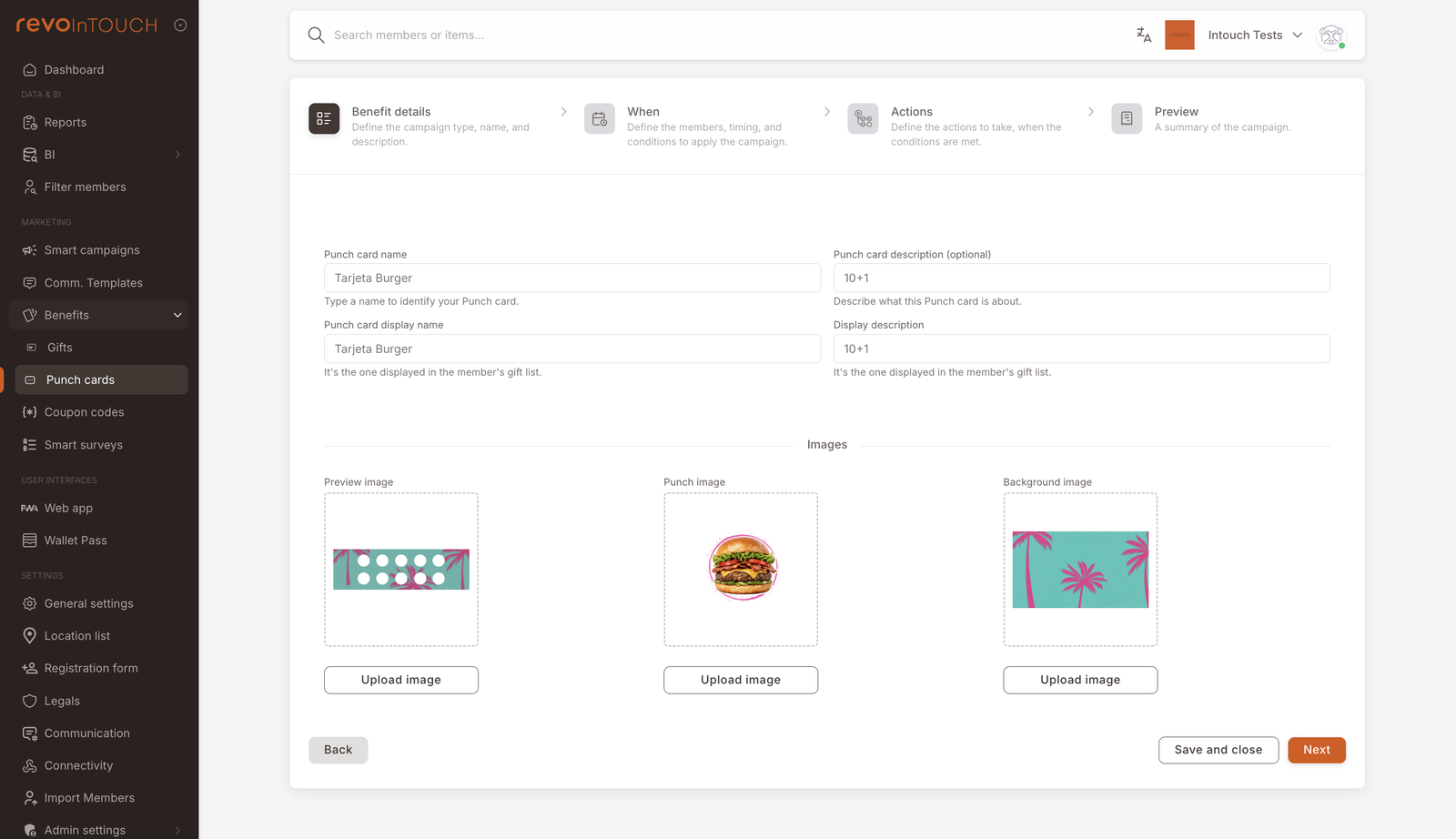
Step 1 — Benefit details. Name + display name + description, upload three images: Preview (the empty card), Punch (the icon stamped onto each filled slot), Background.
Step 2 — When. Audience, expiry, Total punches (the number of fills before the reward unlocks), redemption window.
Step 3 — Actions. Pick the reward shape (typically Free item) and configure what the completed card pays out.
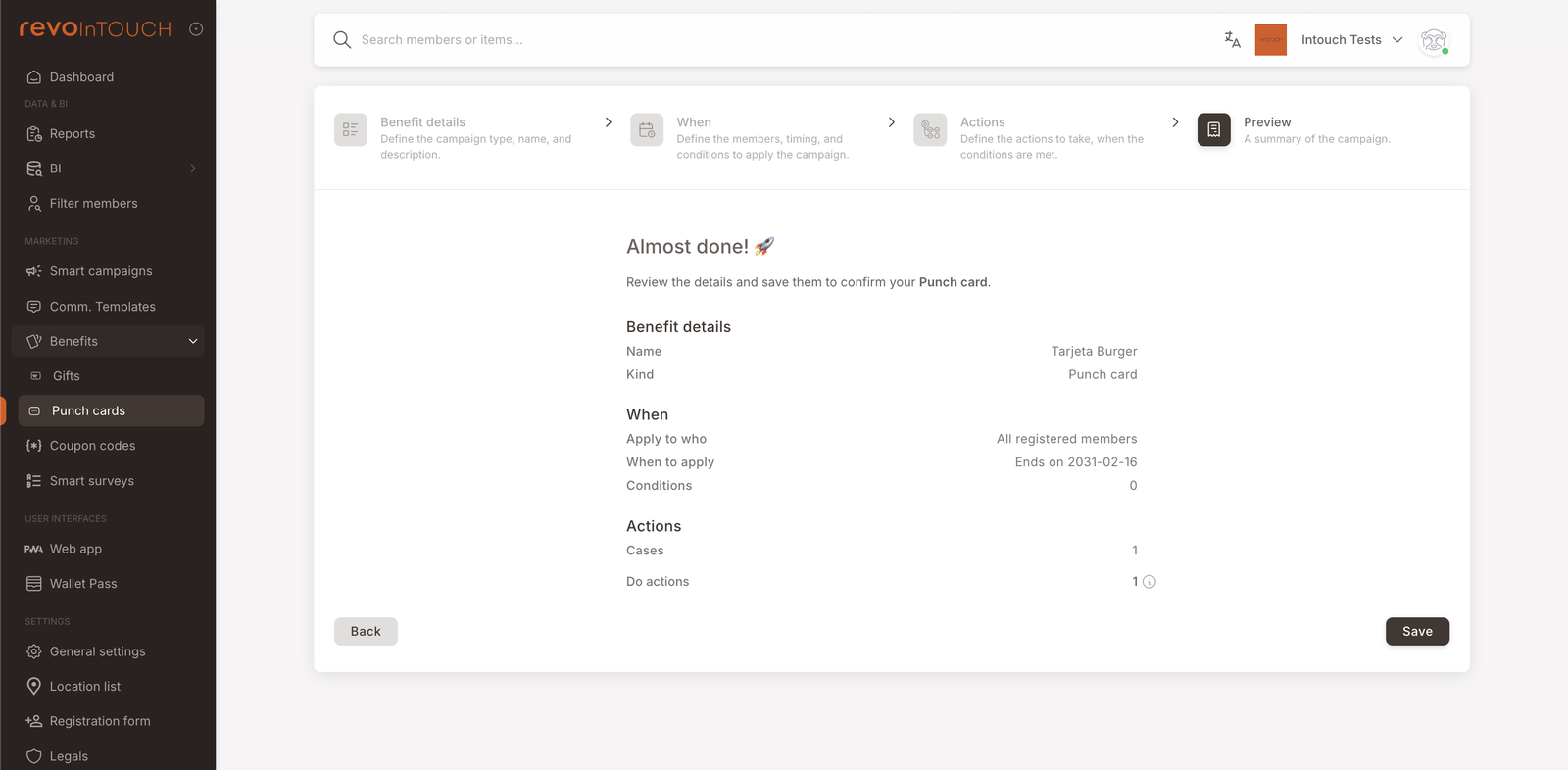
Step 4 — Preview. Recap, then Save.
The Punch card is now Active. A Smart Campaign Rule with a Punch a punch card action can punch this card on every qualifying purchase; when the card fills, it becomes itself a redeemable asset in the member's wallet.
A Punch card is a cumulative reward asset. Members receive an empty card and accumulate punches over multiple visits; on the Nth punch the card fills and becomes itself a redeemable Gift-shaped reward (free coffee, free menu, free item).
The Punch card template defines the artwork (three image slots — preview, punch icon, background), the count required to fill it, the validity window, and the reward the filled card delivers.
Walkthrough
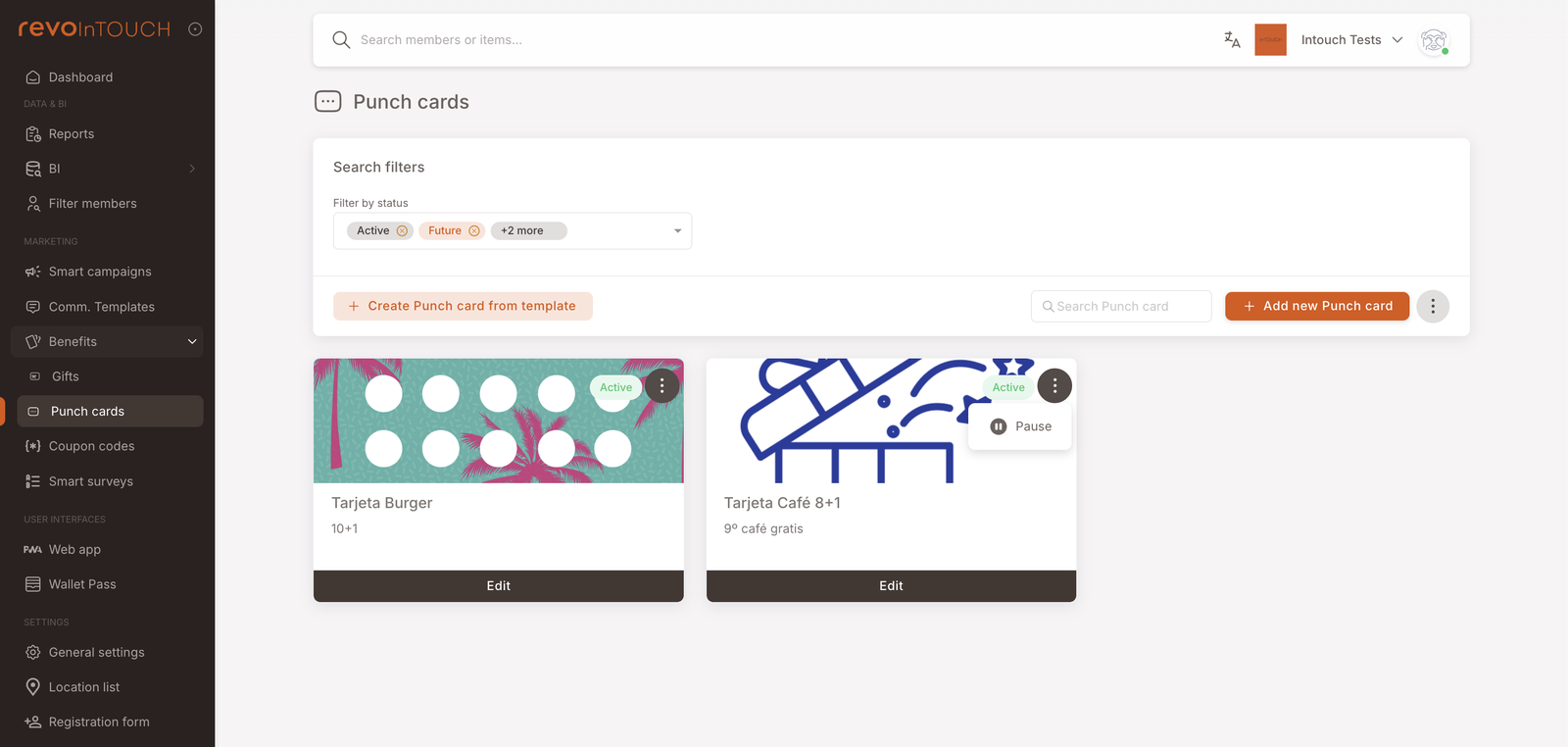
Open Benefits → Punch cards in the left nav and click Add new Punch card to open the four-step wizard.
Step 1 — Benefit details
Same shape as Gift's Step 1, plus two extra image slots:
- Punch card name — internal label.
- Punch card display name — what the member sees in their wallet.
- Punch card description (optional) — internal note.
- Display description — member-facing description ("Buy 10 burgers, get 1 free").
- Preview image — the card artwork shown in the wallet (e.g. the polka-dot grid with empty slots).
- Punch image — the icon stamped onto each filled slot when the member earns a punch (e.g. a small burger icon).
- Background image — backdrop image for the card.
The three-image layout is what makes Punch cards visually distinct from Gifts. The Preview shows the empty card; the Punch icon represents one earned visit and gets repeated as punches accumulate; the Background is the card's overall texture.
Step 2 — When
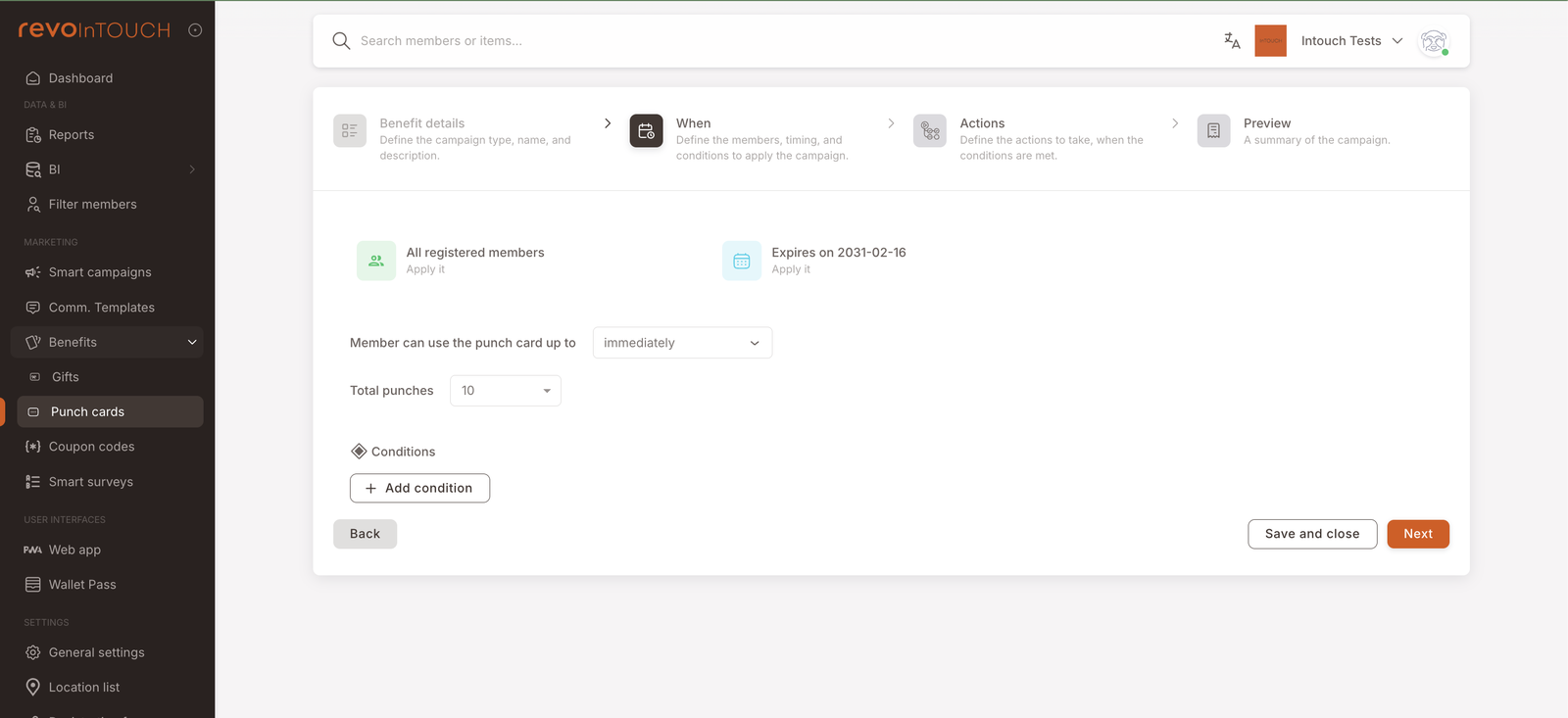
Step 2 sets who's eligible, the validity window, and the punch count. Same tiles as Gift plus one extra field:
- Audience tile — defaults to All registered members. Same gating as Gifts — usually leave at default and let the Smart Campaign that issues / punches the card do the audience filtering.
- Expiry tile — when this Punch card template stops being valid for new issuances. The example shows Expires on 2031-02-16.
- Member can use the punch card up to — the redemption window for the filled card (not the empty one). Immediately in the example means the member can redeem the completed card right away.
- Total punches — the count of punches required to fill the card. 10 for a buy-10-get-1 setup, 8 for a buy-8-get-1, etc. This is the field that defines the cadence of the reward — the Smart Campaign Rule that punches the card just adds one punch per qualifying purchase; this number decides when the card fills.
- Conditions — optional further filters on when the card can be redeemed.
Step 3 — Actions
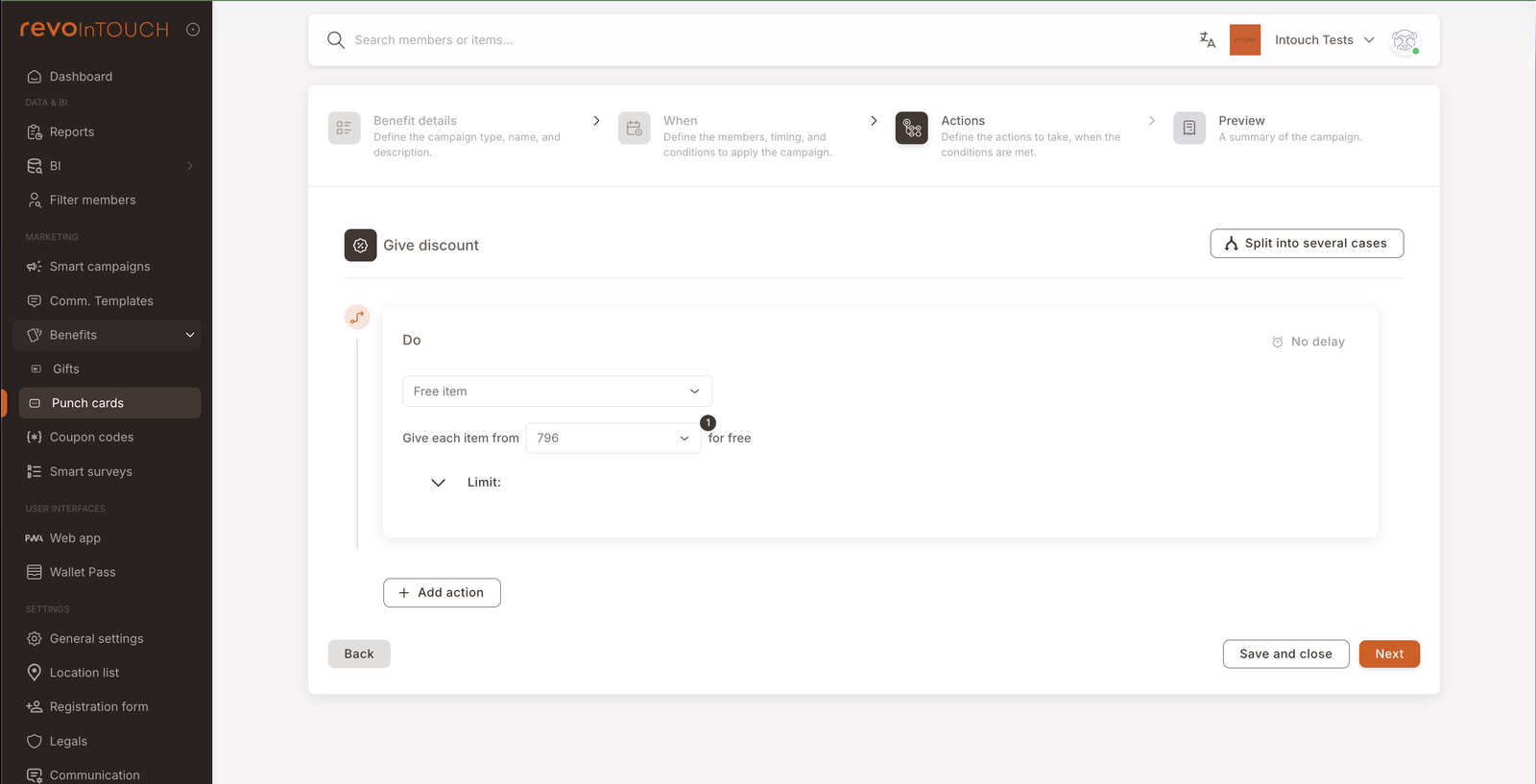
Step 3 configures what the filled card pays out at the till. Same action set as Gifts and Deals — most commonly Free item for a punch-card reward:
- Pick the reward shape. Free item is the canonical choice — "the 9th coffee is free" maps to Give each item from Coffees for free with the right item picker.
- Configure the reward value. For Free item, pick the item or item group.
- Limit — collapsible for capping (rarely used on punch cards; the count itself is the cap).
- Split into several cases — top-right toggle. Use it if the reward should vary by branch or audience (uncommon for punch cards).
Step 4 — Preview
Read-only recap. Save commits the Punch card as Active; it's then pickable from any Punch a punch card action on a Smart Campaign Rule.
Variations
5 common patterns — different counts, different reward, branch-specific, weighted punches, sign-up issuance
Different punch count. Change the Total punches field on Step 2 to whatever cadence fits the offer — 5 for a fast-cycle reward, 12 for a slower one. Same wizard, different number.
Different reward. The reward isn't restricted to "free item of the same product family." On Step 3, pick any discount shape — a percent off, a different free item, an amount off. "Buy 10 coffees, get a 5€ pastry voucher" is a valid Punch card setup. Heads-up: if the reward is a separate Gift (e.g. the "5€ pastry voucher" is itself a wallet-asset Gift), author that Gift first under Benefits → Gifts — the Punch card's Step 3 picker references existing assets / items, it doesn't let you create the reward on the fly.
Branch-specific redemption. On Step 2, add a Conditions row restricting redemption to specific branches. The card can be punched anywhere but only filled / redeemed at the listed locations.
Weighted punches via the Rule. This isn't a Punch card setting — it's done on the Punch a punch card action of the Rule. Stack two punch actions on one Rule, one with Quantity 2 / For each Coffees and one with Quantity 1 / For each Teas, both pointing at the same card. See the Punch card playbook for the full pattern.
Issue empty cards at sign-up. Build a separate Rule on the Joins the program trigger with a Send asset action pointing at the Punch card. New members get an empty card in their wallet immediately; their first qualifying purchase punches the existing card rather than auto-issuing a new one.
Gotchas
5 things to watch for
- Total punches is locked once the card is in use. Editing Total punches on a Punch card that members already hold partially-filled copies of is messy — what happens to the in-flight 6-of-10 cards if you change the total to 8? Better to retire the old card (set to Future or Paused) and build a new one with the new total. Members holding old in-flight cards finish them under the old rules.
- Three image slots is mandatory. Unlike Gifts (one image), Punch cards expect Preview + Punch + Background. Skipping any of them produces a card with placeholder artwork in the wallet, which looks unfinished. Have all three ready before opening the wizard.
- Overflow is auto-handled but visible to the member. A purchase that would push the member past the final punch (say, 3 left, member buys 5 coffees) completes the current card, auto-issues a fresh empty one, and applies the remaining 2 punches to the new card. Two cards land in the wallet from one purchase — surprising if you don't expect it. See the Punch card playbook → Gotchas for the full overflow story.
- The reward isn't configured on the Rule. What the filled card pays out is set here on Step 3 of the Punch card wizard, not on the Rule that punches it. To change the reward, edit the card — not the Rule.
- Discounted items may or may not earn a punch — and that's decided elsewhere. A club-wide setting, Stamp strategy, decides whether a coffee sold at a discount still punches the card. It isn't part of this wizard and it isn't per-card. If punches aren't landing the way you expect on promo purchases, that setting is the first place to look.