Deal overview
A Deal is a silent automatic discount applied at the till. Configure who's eligible (audience), when it's active (timing + basket), and the discount shape — the platform applies it on every closing check that matches an identified member. Members never see Deals anywhere; the discount just shows up in the check total.
Unlike a Rule, which fires an action on an event, a Deal doesn't fire anything — it's a pricing rule evaluated at every check-close. There's no catalog in the Web App, no entry in the Wallet Pass, no "claim" step. Configure the offer and its eligibility, and from that moment on, every qualifying check that identifies a member gets the discount.
What makes something a Deal
Three properties separate a Deal from the other campaign kinds:
- Silent and automatic. A Deal doesn't fire on an event, and the member doesn't pick anything. The POS closes a check; the platform evaluates every active Deal against that check; every Deal whose eligibility matches applies its discount. There is no member-side opt-in and no cashier-side awareness required.
- Discount-shaped. The action of a Deal is always a price reduction on the check — percent off, flat off, a free item, or similar. Deals cannot send an SMS, add credits, or tag a member; those are Rule actions.
- Member-identified. A Deal only applies if a member is attached to the check. If the cashier closes the check as an anonymous purchase, no Deals run. This is the one distinction between a Deal and a POS Deal — a POS Deal applies on every check regardless of member identification.
When to reach for a Deal
Reach for a Deal when the offer is:
- A blanket discount for a defined audience during a defined window — Happy Hour, a weekend campaign, a loyalty-tier price cut.
- Basket-shaped — evaluated against what's on the check at close (drinks, pastries, minimum spend), not against member history.
- Meant to just happen — no claim step, no "redeem" surface, no communication required for the discount to work. (You can still announce the promotion to drive awareness — see the Announce Happy Hour playbook — but the discount applies whether you announce it or not.)
Some common shapes:
- "20 % off drinks between 18:00 and 20:00 on weekdays." → Deal.
- "Free pastry with any coffee for registered members this weekend." → Deal.
- "VIP-tier members get 15 % off the new collection." → Deal with audience narrowed to a VIP tag.
If the incentive happens after the fact (credits back after purchase, thank-you SMS, birthday gift), that's a Rule. If the discount should apply on every check — not just member-identified ones — that's a POS Deal.
Anatomy of a Deal
Every Deal has the same two-part structure, established on step 2 and step 3 of the wizard:
- Eligibility rules — which members count (audience), when the Deal is active (date range, days of week, time of day), and what shape the basket must have at check-close. There is no event trigger on a Deal; eligibility is the whole of step 2.
- Discount action — what the Deal does to the check when it applies. Picked from a dedicated discount action set (see step 3 below).
The Deal wizard
Deals use the same four-step wizard as every other campaign kind:
Step 1 — Campaign details
Pick Deal as the kind. Name it so the offer is obvious in the list view, and use the description field to park the internal context a future reader will want — the campaign it belongs to, the budget it's drawing from, when it's meant to retire.
Step 2 — When (eligibility)
Step 2 on a Deal is purely eligibility and basket rules — there is no event trigger and no trigger-equivalent. The question step 2 answers is "which checks does this discount apply to?", not "what fires this Deal?". You'll configure:
- Audience — which members the Deal applies to (all registered, members with a specific tag, members matching an attribute condition). A check identified to a member outside the audience doesn't match.
- Timing — the window during which the Deal is active: date range, days of week, time of day. The check must close inside the window for the Deal to apply. A check opened at 19:58 and closed at 20:03 misses a 18:00–20:00 window.
- Rate cap — how many times a single member can receive the discount ("infinite times per member", "once per member", "once per day per member", and so on).
- Basket conditions — the shape the check must satisfy at close: minimum total, specific item categories, particular branches. This is usually where the "what the Deal is actually about" lives — a 20 %-off-drinks Deal is a Basket items contains at least 1 of Drinks condition plus a discount on the Drinks category.
Because a Deal's whole reason to exist is the discount it applies, basket conditions generally do more work here than conditions do on a Rule — they're what make the difference between "20 % off anything" and "20 % off drinks on weekday evenings".
Step 3 — Discount action
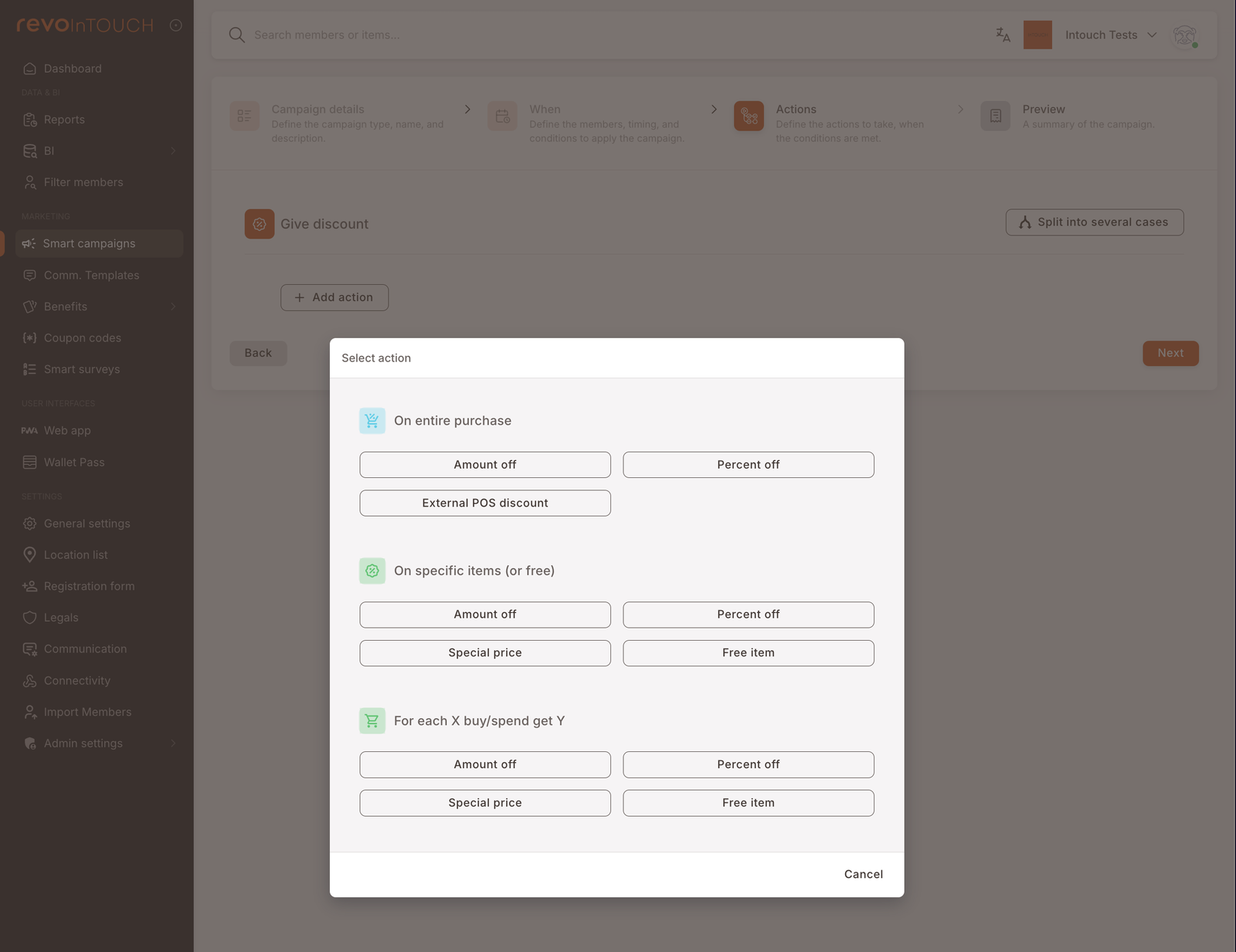
Pick the shape of the discount the Deal applies when it matches. Deals have their own action set, distinct from the 9-action set Rules use. Three families cover everything on the picker:
- On entire purchase — the discount applies to the whole check. Amount off, percent off, or an External POS discount (an escape hatch that hands the actual price reduction off to a named discount configured on the POS side — useful when the POS already knows how to handle a particular promo code or campaign).
- On specific items (or free) — the discount applies to selected items or categories. Amount off, percent off, a special price override, or "free item".
- For each X buy / spend get Y — buy-or-spend-triggered reward. Amount off, percent off, special price, or free item, applied for every X in the basket.
You don't need to memorise every combination; the picker's headings make the shape obvious when you open it. The important thing upstream is that you pick the family that matches the offer — basket-wide, item-specific, or buy-X-get-Y — before worrying about whether it's a percent or an amount off.
A Deal can be split into several cases on step 3 the same way a Rule can — first matching case wins, remaining cases skipped. Reach for cases when the discount should vary by member segment or basket shape but you don't want to run multiple near-identical Deals to cover all the branches. See Split into cases for the full mechanics.
A Deal's action is always a price reduction — Send SMS, Add credits, Tag member, and the other non-discount actions aren't available inside a Deal. If you want a message to accompany the promotion ("Happy Hour starts tonight, 20 % off drinks"), announce it separately with a Future Campaign or a scheduled Rule. The Deal will apply to qualifying checks regardless of whether the announcement went out.
Step 4 — Preview
A read-only summary of the entire Deal — eligibility, timing, discount shape, rate cap. Use it as a last check before saving. Save commits the Deal; if the state on step 1 was Draft, it's saved as a draft and won't apply at checkout until you flip it to Active.
Lifecycle
Three states — Active, Draft, Paused — and when changes take effect
Deals use the same three-state lifecycle as Rules:
- Active — every closing check that matches the Deal's eligibility gets the discount.
- Draft — the Deal is saved but inert. No checks are affected.
- Paused — temporarily inert. Use this for short-term withdrawals — a pricing issue, a supply problem, a pending revision.
State is checked at check-close. the platform evaluates every active Deal at the moment the POS closes the check. If the Deal is Paused when the check closes, the discount does not apply — and if you flip the Deal back to Active a minute later, the next check will run under the Active state. Mid-service pauses are fine; just know that any check already in progress that closes during the pause will miss the discount.
Editing an Active Deal takes effect on the next check-close — prior checks aren't retroactively changed.
Testing a Deal before publishing
4-step pattern using a test-user tag
Same pattern as the Rule playbooks: narrow the Deal to members tagged test-user, then remove the tag when you're ready to go live.
- Tag yourself (or a teammate) with
test-userfrom the member's profile page. - Add an audience condition to the Deal restricting it to members with the
test-usertag. - Run a qualifying check at the POS with the tagged member identified. At check-close the discount should apply automatically.
- When the test passes, remove the
test-usercondition and save. The Deal now applies to the full audience you originally intended.
Gotchas
5 things that commonly trip people up
- Deals don't send messages, and Deal application isn't a Rule trigger. The Deal action set is discount-shaped only, and there is no "Deal applied" event a Rule can listen to. If you need a thank-you SMS alongside a Deal's discount, the Rule has to listen to something else — typically Makes a purchase, which fires on the underlying check the Deal ran against.
- Check must close inside the window. For time-of-day Deals, the Deal evaluates at check-close, not when the order was taken. Long-running checks can fall outside the window. If a member orders at 19:55 and the cashier doesn't close the check until 20:03, the Deal won't apply.
- No prioritization — every matching Deal applies. If two active Deals both match the same check, both discounts apply. There is no "use the best one" logic. When you want a Deal to apply only to members who don't have a better offer, exclude that audience explicitly in step 2.
- Member must be identified on the check. A Deal only applies if the cashier attaches the member to the check before closing it. An anonymous check gets no Deal — even if the basket, timing, and audience otherwise match a Deal targeting All registered members.
- Nothing tells members the Deal exists. No wallet notification, no Web App entry, no card on their phone. If you need awareness — Happy Hour hours, a special-weekend promo — run a separate announcement campaign (see the Announce Happy Hour playbook). The Deal still applies whether the announcement went out or not; the announcement just gets people through the door.