Future Campaign: Announce a Deal
Announce Happy Hour to every member — a Future Campaign playbook
Step 1 — Pick Future Campaign, name it Happy Hour emailing.
Step 2 — Two tiles:
- Audience: To registered members.
- Fire time: Immediately (or Specific time for a scheduled send).
Step 3 — Send email → Happy Hour template (subject is sourced from the template).
Step 4 — Save.
Email goes out at the configured moment. Doesn't enable the Deal — the Happy Hour Deal must be Active separately for the discount to apply. Email template must already exist under Comm. Templates.
This playbook sends one email to every registered member telling them Happy Hour starts tonight. It's the companion to the Happy Hour Deal playbook — the Deal itself applies the 20% discount silently at the register whether you announce it or not, but a Deal members don't know about doesn't drive traffic. That's the job of this campaign.
It's the first playbook that uses the Future Campaign kind — the one-shot, manual, time-driven campaign you reach for when you want to push one thing to a chosen group, once.
What you'll build
From the member's point of view:
- At a moment you pick (immediately on save, or a specific date and time in the future), the member receives an email: subject "20% off on alcoholic drinks between 18:00–20:00 weekdays", body inviting them to drop in for Happy Hour.
- Interested members show up between 18:00 and 20:00 and order drinks.
- At check-close, the Happy Hour Deal applies the 20% discount automatically — exactly as it would have if the member had never seen the email.
The announcement doesn't create the discount; it just gets people through the door. The two campaigns work independently.
This Future Campaign fires once. It sends the email at the moment you set, then retires. If you want a recurring reminder (every Monday morning, "Happy hour all week"), that's a Scheduled campaign instead — or, pragmatically, a fresh Future Campaign each time until Scheduled supports the cadence you need.
When to use this
Use a Future Campaign when you need a one-off, member-facing push tied to a specific moment. The shape fits any one-time announcement, not just Happy Hour: a new branch opening, a menu refresh, a pop-up event, a schedule change. The canonical pattern is always the same — audience, fire time, one communication action.
Before you start
3 prerequisites — Deal already Active, email template, audience decision
Three things to have lined up before you open the wizard:
- The Happy Hour Deal is already configured. The Deal is what applies the discount. This campaign only informs — it does not enable the Deal, and sending the email doesn't cause anything to happen at the register. Confirm the Deal is Active (or scheduled to be Active by the time the email lands) before you schedule the announcement. See the Happy Hour Deal playbook.
- The email template exists under Comm. Templates. This is not optional. The Future Campaign wizard references a saved email template — there is no Custom message option for email. The template owns the subject line, the body, the styling, the dynamic fields, and the sender identity. If the template isn't built yet, you cannot proceed; go create it under Comm. Templates, then come back here.
- You know the target audience. For a launch announcement the usual answer is all registered members, but you may want to narrow it — only members with marketing consent on file, only members who've visited in the last 90 days, only members in the city where Happy Hour is starting. Know the filter before you open the wizard.
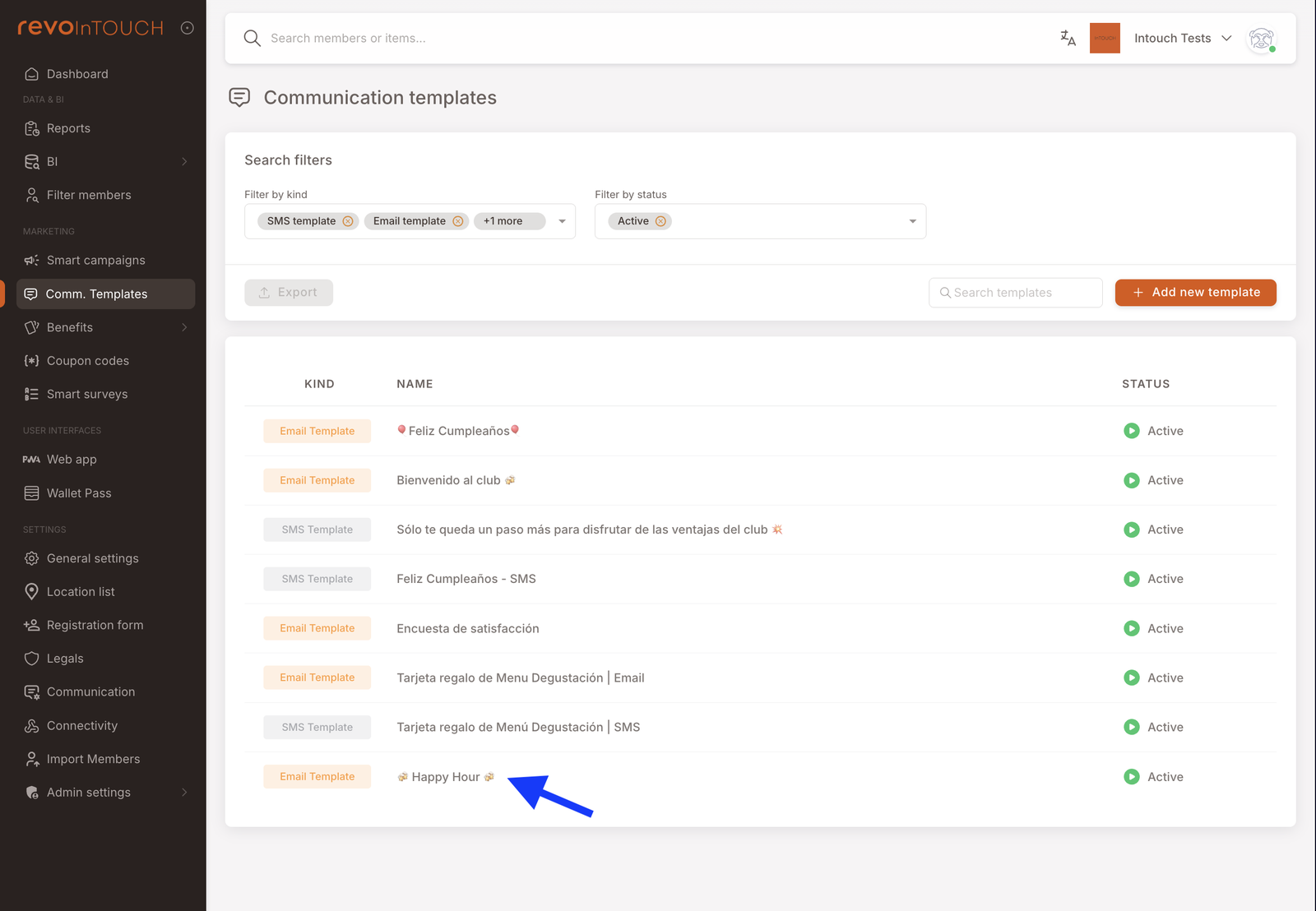
Walkthrough
Smart Campaigns live under Marketing → Smart campaigns in the left nav. Click Create campaign to open the four-step wizard.
Two ways in, same wizard. You can also start from Filter members — build an audience filter, then click One-time action. That takes you into the same Future Campaign wizard with the audience pre-filled. Use whichever entry point matches how you're thinking about the job: what am I sending? starts here; who am I sending to? starts from Filter members.
Step 1 — Campaign details
Pick Future Campaign as the kind. Name it so the occasion and the channel are obvious — Happy Hour emailing works. Future Campaigns are one-shot and they stick around in the list as historical records; a descriptive name keeps the list readable six months later when you're scanning for what's been sent.
Use the optional description field to park the context that isn't obvious from the configuration: the campaign it belongs to, why this audience, what the follow-up (if any) looks like.
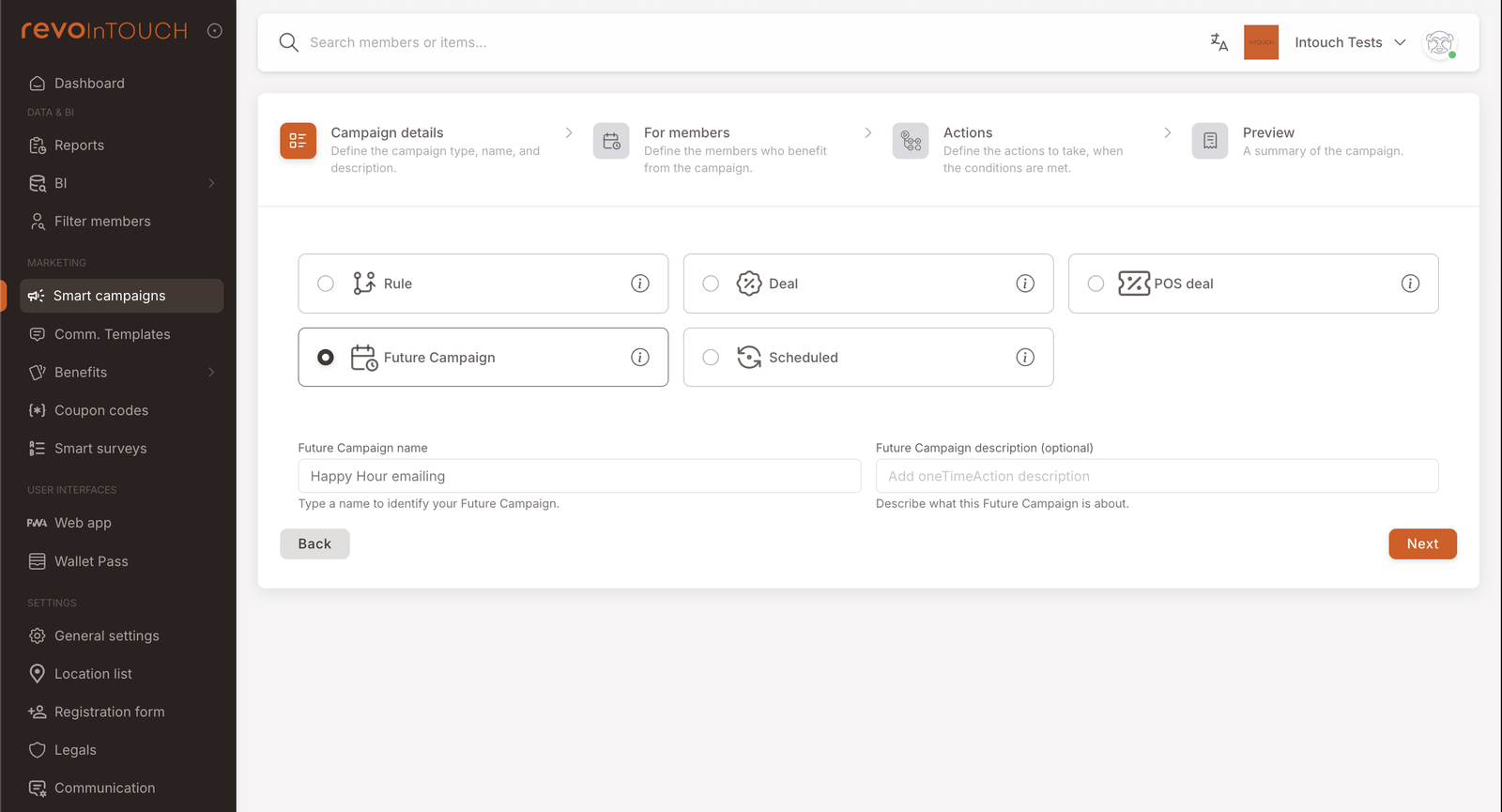
Step 2 — For members (audience + fire time)
Step 2 on a Future Campaign reads differently from a Rule or a Deal. The header is For members rather than When, because the main decision is which members to push to; the fire time is just the moment the push goes out. The step opens with two tiles — To registered members and Immediately — each defaulted to a sensible starting value.
Audience — click the To registered members tile to open the Apply to members picker. For a launch announcement the canonical choice is All registered members. Narrow it with Specific members if you want to filter — e.g. members with marketing consent set to yes, or members whose registration branch is in the city where Happy Hour is starting.
Fire time — click the Immediately tile to open the Apply at dates and times modal. Two options:
- Immediately — the campaign fires the moment you save and activate it on Step 4. Useful for "launch the announcement right now" sends.
- Specific time — pick an Execution time (date + time). The campaign sits in the list as Active and fires at that moment. Useful for "send at 14:00 on launch day" sends prepared the night before.
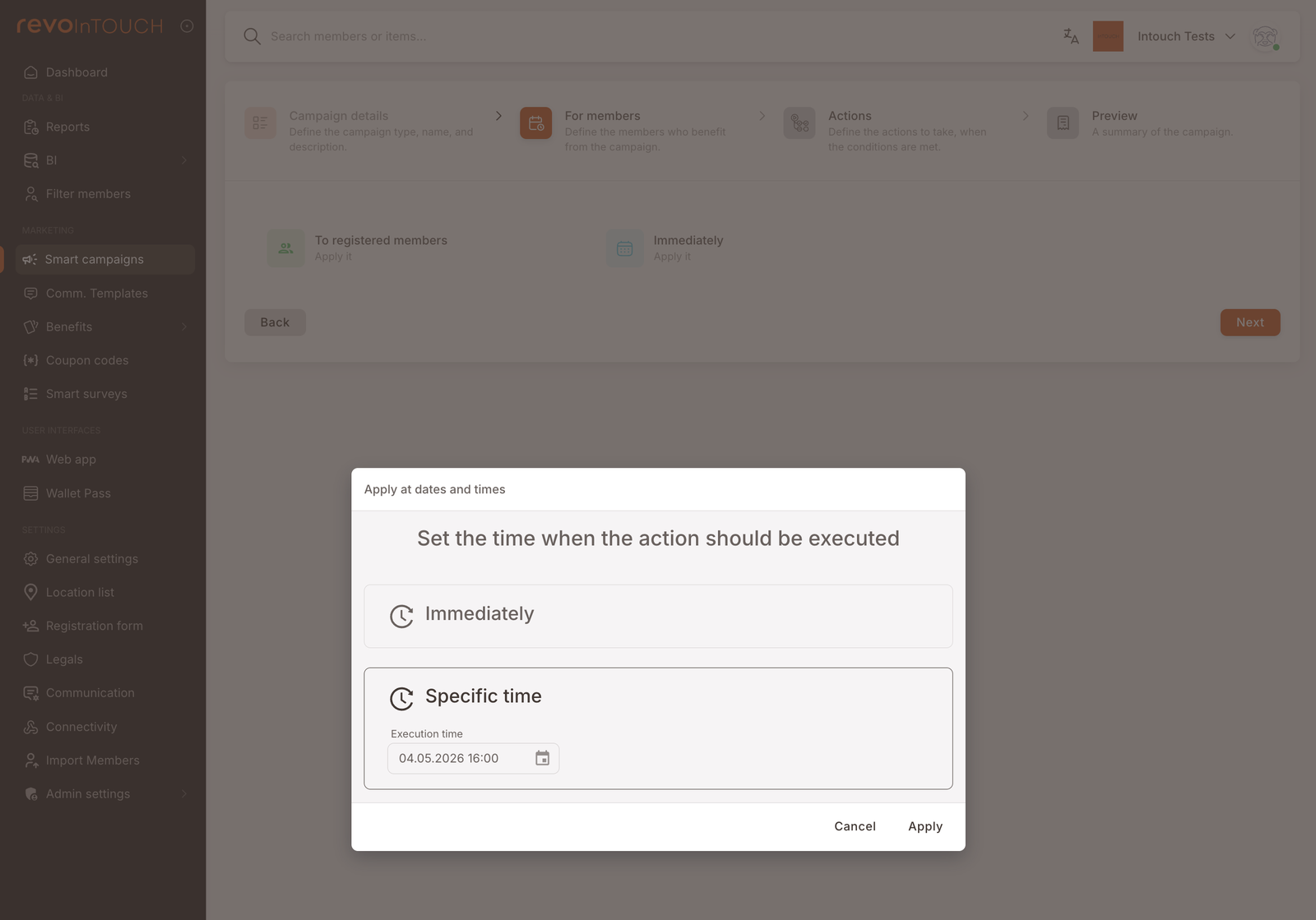
The fire time is a single wall-clock moment in the tenant's timezone, not per-member local time. A member on holiday in another timezone receives the email at the same UTC moment as members at home; the tenant timezone just decides what that moment is called ("14:00 local"). This matters if your tenant serves multiple timezones — see Gotchas.
Step 3 — Actions
The Future Campaign action picker is the same 9-action menu a Rule uses. For an email announcement you want a single action, stacked in the default "Do …" layout:
- In the action dropdown, select Send email.
- In the template picker, select the Happy Hour template you prepared under Comm. Templates.
- Review the Subject row that appears below the picker. It's pulled from the template and shown read-only — the subject is fixed at template-build time, not here. If the subject needs to change ("20% off on alcoholic drinks between 18:00–20:00 weekdays"), edit the template under Comm. Templates rather than trying to change it on the campaign.
- Leave the block at No delay on the right. A one-shot announcement doesn't need a delay.
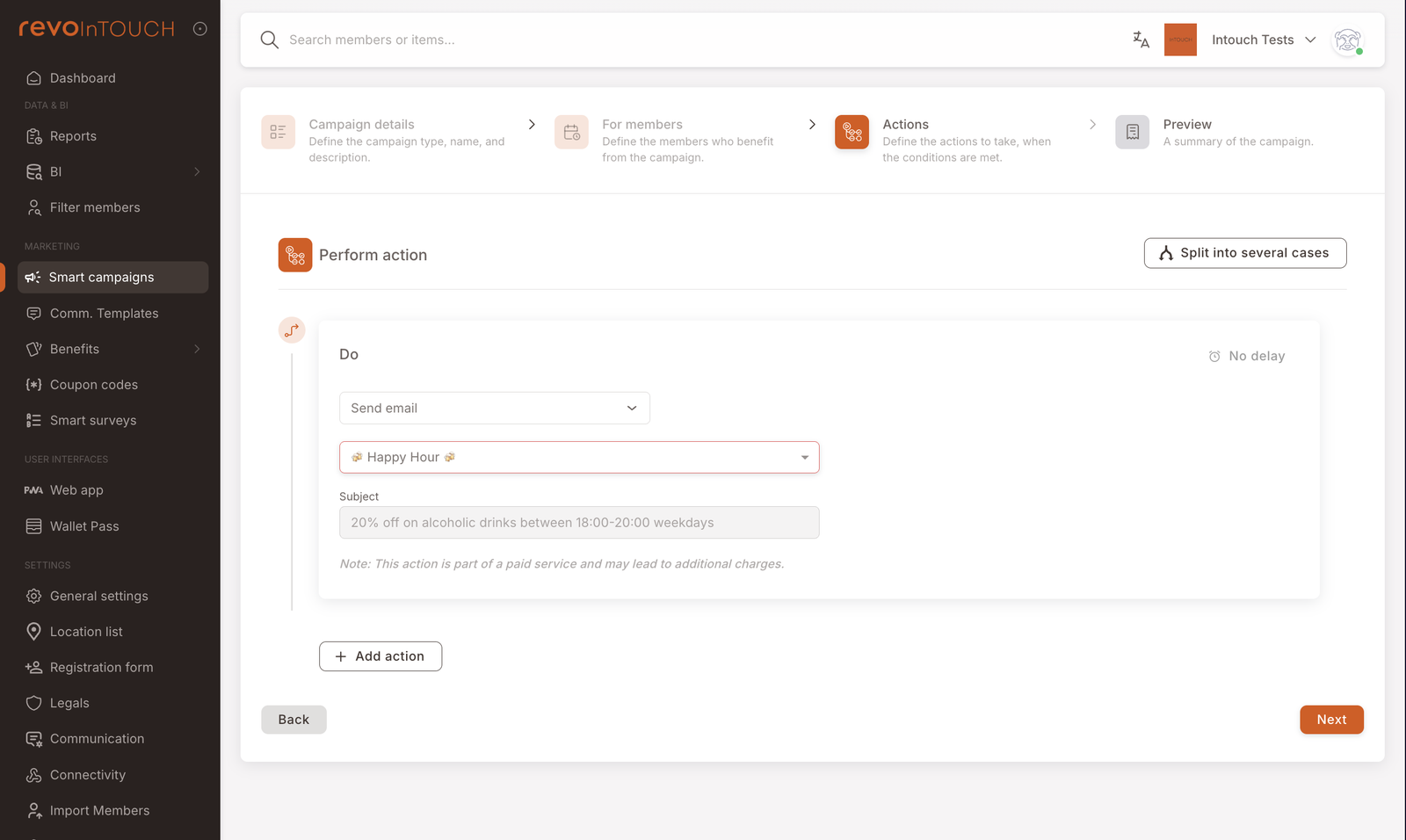
Email is a paid service. The wizard surfaces a small note on the email action — "This is part of a paid service and may lead to additional charges." Review your tenant's email volume and billing arrangement with your the platform account contact before scheduling a large send. An all-registered-members email at scale is an operational cost decision, not just a marketing one.
The Happy Hour template is referenced by the campaign, not snapshotted into it. If you edit the template between saving the campaign and its fire time, the updated template — body, subject, footer, sender — is what goes out. Useful for last-minute copy tweaks, and also a good reason to lock template edits once the campaign is scheduled and close to firing.
Step 4 — Preview
Read-only recap. Check three things in particular:
- Kind shows Future Campaign (not Scheduled).
- For members shows the correct audience and the correct fire time.
- Actions shows Cases: 1 and Do actions: 1.
Click Save. If the state on Step 1 was Active, the campaign is now scheduled — it'll fire at the configured moment (or immediately, if you picked Immediately on Step 2). If the state was Draft, it's saved but will not fire until you flip it to Active from the list view. A campaign left in Draft past its fire time simply doesn't send; there's no retry.
How to test it
4-step pattern — throwaway campaign with test-user tag audience and Immediately fire time
Two things are worth testing before you schedule the real send: that the email lands in a real inbox and renders correctly, and that the dynamic fields (first name, business name) expand the way you expect. The pattern is the same test-user tag trick as the other playbooks, with the fire time set to Immediately.
- Tag yourself (or a teammate) with
test-userfrom the member's profile page. - Create a throwaway Future Campaign, audience narrowed to members with the
test-usertag, fire time Immediately, Action: Send email pointing at the Happy Hour template. Click Save, then flip the campaign to Active from the list view — it'll fire immediately. - Check the email arrives in the tagged member's inbox. Verify that dynamic fields render, links resolve, the subject reads correctly, and the layout holds up in at least one desktop client and one mobile client.
- Delete (or leave and ignore) the test campaign. Create the real one with the full audience and the real fire time.
Variations
5 common tweaks — SMS, stack channels, schedule ahead, per-segment, teaser+reminder pair
SMS instead of email. Swap Send email for Send SMS on Step 3 and point at an SMS template prepared under Comm. Templates. SMS has higher open rates than email for time-sensitive sends ("Happy hour starts in 30 minutes") and doesn't carry email's paid-service surcharge in the same way — but has its own per-segment billing and requires the member to have a phone number on file. For a launch announcement going to a large audience, SMS is the blunter but more reliable channel.
Stack email and SMS. Add a second action on Step 3 for the other channel. Both actions fire at the same moment, so a member with both contact details receives both within seconds of each other. If you want only members without email to receive the SMS (or vice-versa), use Split into several cases on Step 3 instead of stacking — first matching case wins.
Schedule ahead rather than firing immediately. On Step 2, pick Specific time instead of Immediately and set an Execution time for tomorrow morning. Useful when you want to draft and review the campaign on launch-eve and have it go out automatically at a calmer moment the next day. The campaign has to be Active (not Draft) before the fire time for the send to happen.
Per-segment messaging. Use Split into several cases on Step 3 to send a different template to different segments — one email to VIPs ("As a VIP you already know, but…"), another to everyone else. First matching case wins; put the narrow segment first.
Teaser + reminder pair. Create two Future Campaigns: one firing the evening before launch (teaser), another firing launch-day afternoon (reminder). Two separate campaigns rather than one because Future Campaign fires once — if you want two sends, you need two campaigns.
Gotchas
4 things that commonly trip people up
- Announcing doesn't enable the Deal. If the Happy Hour Deal isn't Active by the time members act on the email, the register won't apply the discount at check-close and you'll get "I got your email but I didn't get the discount" support tickets. Confirm the Deal is live (or scheduled to be live) before you schedule the announcement — and pause the announcement if the Deal is paused.
- Emails can't be authored inside the wizard. The Send email action is a template picker, not a composer. Subject, body, styling, and sender are all locked in the template. If the template doesn't exist yet, the campaign cannot be completed — build it under Comm. Templates first. (Same is true of Send SMS, though the constraint bites less often because SMS is usually a short body with few styling concerns.)
- Fire time is the tenant timezone, not per-member local time. A single Future Campaign fires at one wall-clock moment for everyone in the audience. Members in other timezones receive it at whatever their local clock reads at that UTC moment. For a multi-timezone tenant where "14:00 local" matters, split the campaign by region (one Future Campaign per timezone, audience filtered to that region's members, fire time set per local 14:00).
- Audience is evaluated at fire time, not at save time. Members who register between when you schedule the campaign and when it fires are included in the audience if they match the filter at the moment of send. Members who are unsubscribed or archived before the fire time are dropped. This is usually what you want, but worth knowing if the audience size has to be frozen for forecasting.