Member profile
The member profile is the per-member view: stats at the top (Spent / Visits / Points / Credits), Profile / Assets tabs in the middle, and on the Profile tab — Details (phone, email, birthday, language), Consents (SMS / Email / T&C / GDPR / Push), Tags (free-form, the universal segmentation handle), Behaviors (favourite branch, favourite items), and a chronological Activity timeline on the right. Top-right Actions button launches the Manual actions modal for one-off operations on this one member.
Screenshots on this page show one merchant's setup (Spanish labels). Your Hub displays the labels and content you configure for your own program.
The member profile is the densest screen in the management panel — and the one you'll spend the most time on when answering member-service questions or debugging "why didn't this member get my campaign?" issues. Read top-down: stats give the headline, Details + Consents give the demographic context, Tags + Behaviors explain segmentation, the Activity timeline tells you what's actually happened.
Anatomy
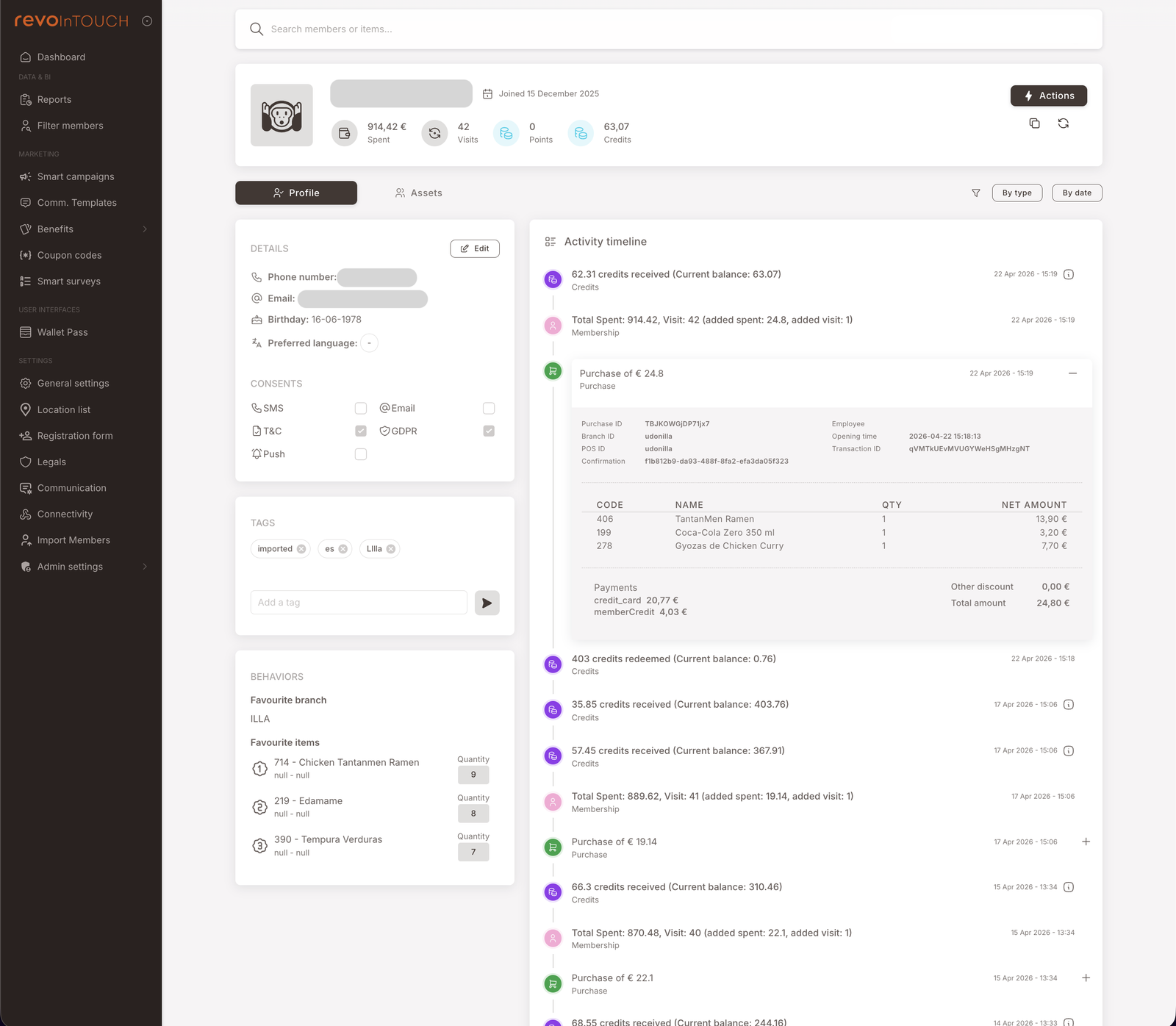
Top — stats
Four headline metrics:
- Spent — total amount the member has spent in the program's lifetime. The single most useful number for ranking members by value.
- Visits — total qualifying transactions. "Visits" is one-purchase-equals-one-visit, regardless of basket size.
- Points — current point balance.
- Credits — current credit balance (cash-equivalent currency).
The avatar, member ID (often masked for PII), and joined date sit alongside.
Top-right — Actions button
The Actions button opens the Manual actions modal — single-member one-off operations on this one person. Use it for service touches ("add 50 credits to apologise for the wait"), demos, and corrections.
Tabs — Profile / Assets
- Profile (the default, screenshot above) — everything described below.
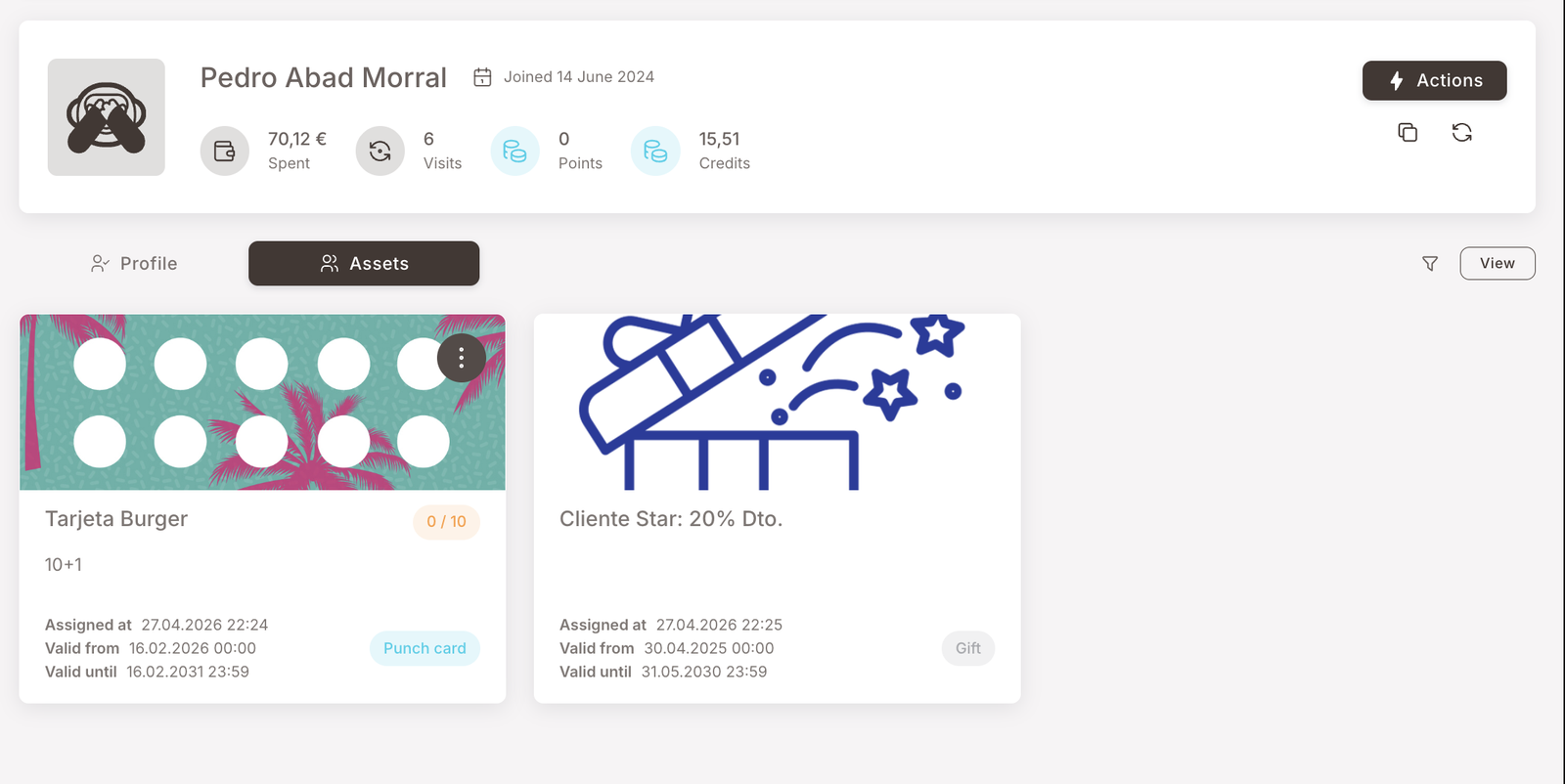
- Assets — the member's wallet contents (active and historical Gifts and Punch cards). The surface to check when answering "does this member actually have the gift I issued?" or "how many punches are on their card?" Each asset card shows artwork, the asset name, the punch count or redemption state, the Assigned at date, and the validity window. A View button opens the full asset detail.
Profile tab — Details panel
Identity and demographic fields — phone, email, birthday, preferred language
Identity and demographic fields. Click Edit on the panel header to update.
- Phone number — primary identification handle for SMS sends.
- Email — primary identification handle for email sends.
- Birthday — date the Birthday Gift Scheduled campaign keys off. Members with no birthday on file are silently invisible to the daily birthday run.
- Preferred language — used by per-language Smart Campaigns (e.g. Split into cases on a Rule that sends a different SMS template per language).
Profile tab — Consents panel
SMS, Email, T&C, GDPR, Push — the compliance gate enforced at delivery
Compliance flags. Each is a checkbox.
- SMS — has the member consented to SMS communications.
- Email — has the member consented to email communications.
- T&C — has the member accepted the terms and conditions.
- GDPR — has the member's GDPR consent been recorded.
- Push — has the member consented to push notifications.
A campaign that sends SMS to a member without SMS consent is filtered server-side at delivery (the Compliance counter on Communication Analytics). The gate is enforced regardless of whether the audience tile excluded the consentless member upstream — and the same enforcement applies on manual sends from the Actions button.
Profile tab — Tags panel
Free-form segmentation chips — the universal handle used across the product
Free-form chips you add to the member for segmentation. The example screenshot shows three tags applied (imported, es, Lila) plus the Add a tag input.
Tags are the universal segmentation handle across the product:
- Smart Campaigns audiences filter on tags (
audience = members tagged VIP). - Filter members filters on tags as one of its member-attribute rows.
- The
test-usertag pattern in every playbook's testing section narrows a campaign to a single tagged member during testing.
Tags are not enums — any string becomes a tag the moment you type it and click apply. Build a tagging vocabulary early (VIP, Gold, test-user, marketing-opt-out) and stick to it; ad-hoc tagging gets messy fast.
Profile tab — Behaviors panel
Favourite branch and favourite items — computed from purchase history
Computed signals derived from the member's history.
- Favourite branch — the branch the member has transacted at most often.
- Favourite items — the top items the member has bought, with the count of times each was purchased. Useful both for the marketer ("this member loves the ramen, send them a ramen-themed promo") and for Filter members ("find every member whose favourite item is X").
These are computed, not user-edited. They update as the member's purchase history grows.
Right side — Activity timeline
Chronological event log — credits, points, spend updates, memberships, purchases
Reverse-chronological log of everything that's happened to the member's account. Mixed event types:
- Credits received / Credits redeemed — balance changes.
- Points received / Points redeemed — balance changes for the points currency.
- Total Spent updates — recalculations after a purchase.
- Membership events — joins, tier changes, profile edits.
- Purchase events — receipts. Click to expand and see the line items, payment breakdown (including how the member paid —
credit_card,memberCredit, etc.), and totals.
Sort options at the top of the timeline (By type / By date) let you filter when the timeline gets long.
This is the surface to check when answering "why didn't this member get the campaign reward?" — the timeline shows the qualifying purchase, the credits-received event (or its absence), and any subsequent Comm. that the campaign sent.
Editing a member
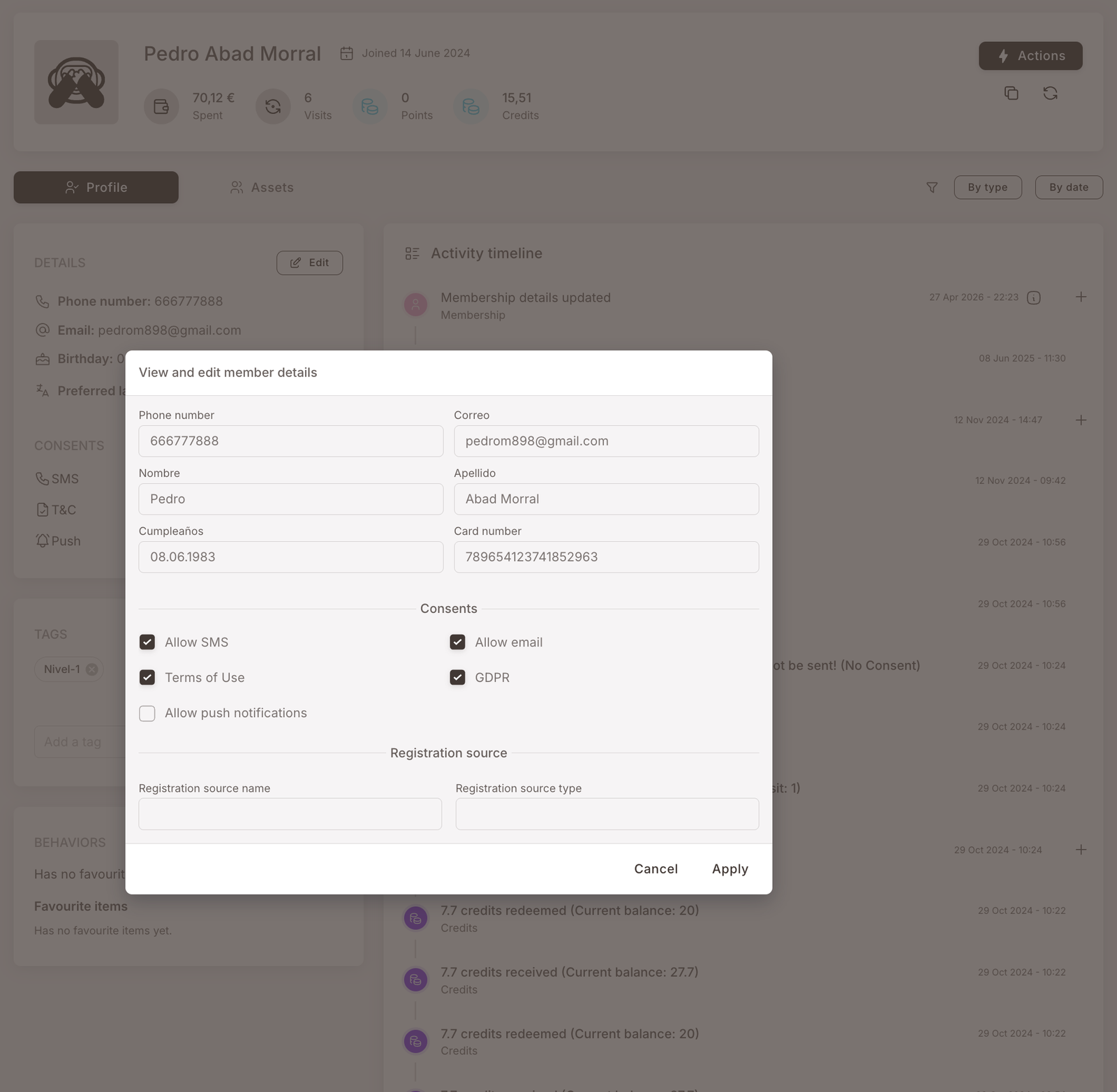
The Edit button on the Details panel opens a View and edit member details modal — the surface for changing identity, demographic, and consent fields:
- Phone number / Correo (Email) — primary identification handles. Be careful: SMS and email sends key off these.
- Nombre / Apellidos — first name and last name.
- Cumpleaños — birthday. Affects the Birthday Gift Scheduled campaign eligibility.
- Card number — the member's loyalty card number.
- Consents — Allow SMS, Allow email, Terms of Use, GDPR, Allow push notifications. These checkboxes are the gate that blocks delivery on un-consenting members regardless of campaign audience.
- Registration source — name and type of the source the member registered through.
Tags are not edited here — they live in the inline Tags panel on the profile (the chip-with-add-input UI).
Gotchas
4 things to watch for when reading a member profile
- Stats are point-in-time, not at-event. Spent, Visits, Points, Credits are the current values. To see history, scroll the activity timeline.
- Members who haven't given consent don't receive messages, even if they're in the audience. If the audience count says "1,000 members" and the campaign sends an SMS, the actual number of texts that go out is the subset who have given SMS consent — the rest are skipped silently at send time. Watch the Compliance metric on Communication Analytics to see how many were skipped this way.
- Behaviors are computed and lag slightly. Favourite branch and Favourite items are computed from the purchase history; they update after a transaction lands but not necessarily within the same minute. Don't rely on them for real-time logic.
- Tags are case-sensitive and free-form.
VIPandvipare two different tags. Audience filters that target one don't catch the other. Pick a casing convention and enforce it across your team.