Summarize with AI
Discounts
In short
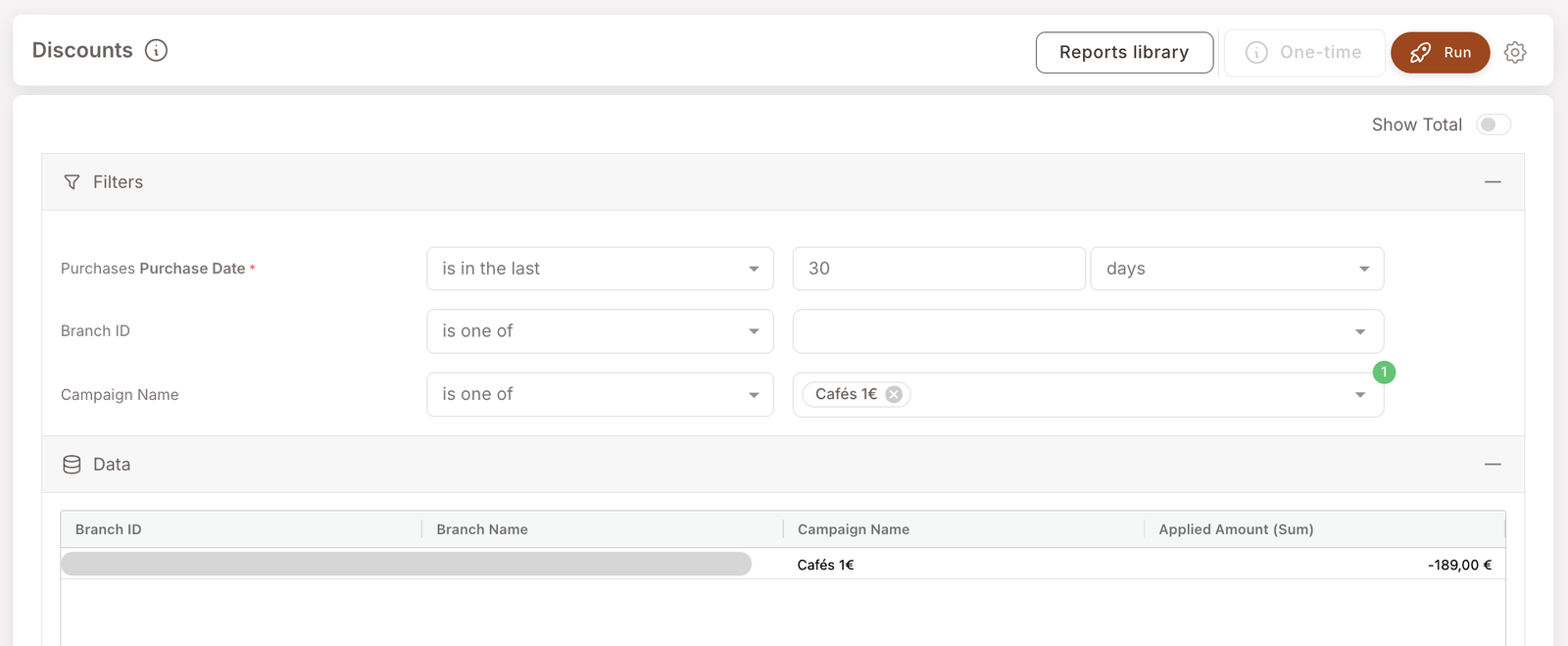
How much price reduction your campaigns have applied to checks — broken down by branch and by campaign. Run it after a Deal launches to see the till-side impact, or month-end to see total promotional spend across all your campaigns.
Where the Sales report tells you what came in, the Discounts report tells you what didn't come in because a campaign was applying. Useful both as an ROI input ("our 1€ Cafés campaign cost us 189€ in discounts last month") and as a sanity check that the campaigns you think are running are actually applying at the till.
What you'll see
Required filters:
- Purchase Date — date range (typically is in the last 30 days).
Optional filters:
- Branch ID — narrow to one or more branches.
- Campaign Name — narrow to specific campaigns (Deals, POS Deals, Rule-driven discounts).
Data columns:
- Branch ID / Branch Name — where the discount applied.
- Campaign Name — which campaign drove the discount.
- Applied Amount (Sum) — total currency value of the discount applied at that branch by that campaign in the period (shown as a negative number — -189.00 € means 189€ of discount was given).
When to reach for this report
4 common use cases
- Campaign ROI input. Pair the Applied Amount from this report with the Sales report — we discounted X but drove Y in incremental sales — to ground a "did this campaign pay off?" conversation.
- Verify a campaign is actually firing. A new Deal that's saved and Active should produce non-zero rows here once members start qualifying. Zero rows after a few days is a sign the conditions aren't matching real baskets.
- Branch audit. Filter by branch to see all discounts applied there — useful when a manager asks "why did our margin drop last week?"
- Promotional budget tracking. Roll up Applied Amount across all campaigns for the month to see total promotional spend.
What to do with the result
Follow-on actions
- Pause an underperforming or runaway campaign. Jump to Smart Campaigns, find the campaign, set it to Paused (don't delete — see the Rule overview lifecycle).
- Layer in an exclusion. If a Deal is applying too generously (e.g. on items it shouldn't), edit the Deal's Step 3 Don't discount these items list — see Deal overview.
- Cross-reference with Gift Performance. A campaign that grants Gifts (rather than applying a Deal-style discount) shows up in the Gift Performance Report instead — different surface, similar question.
Related reports
- Sales — the revenue side, with member share.
- Gift Performance Report — the asset-side equivalent (Gifts redeemed).
- Credits — the post-purchase reward currency, sister to Discounts as a campaign-cost line item.