Member purchases
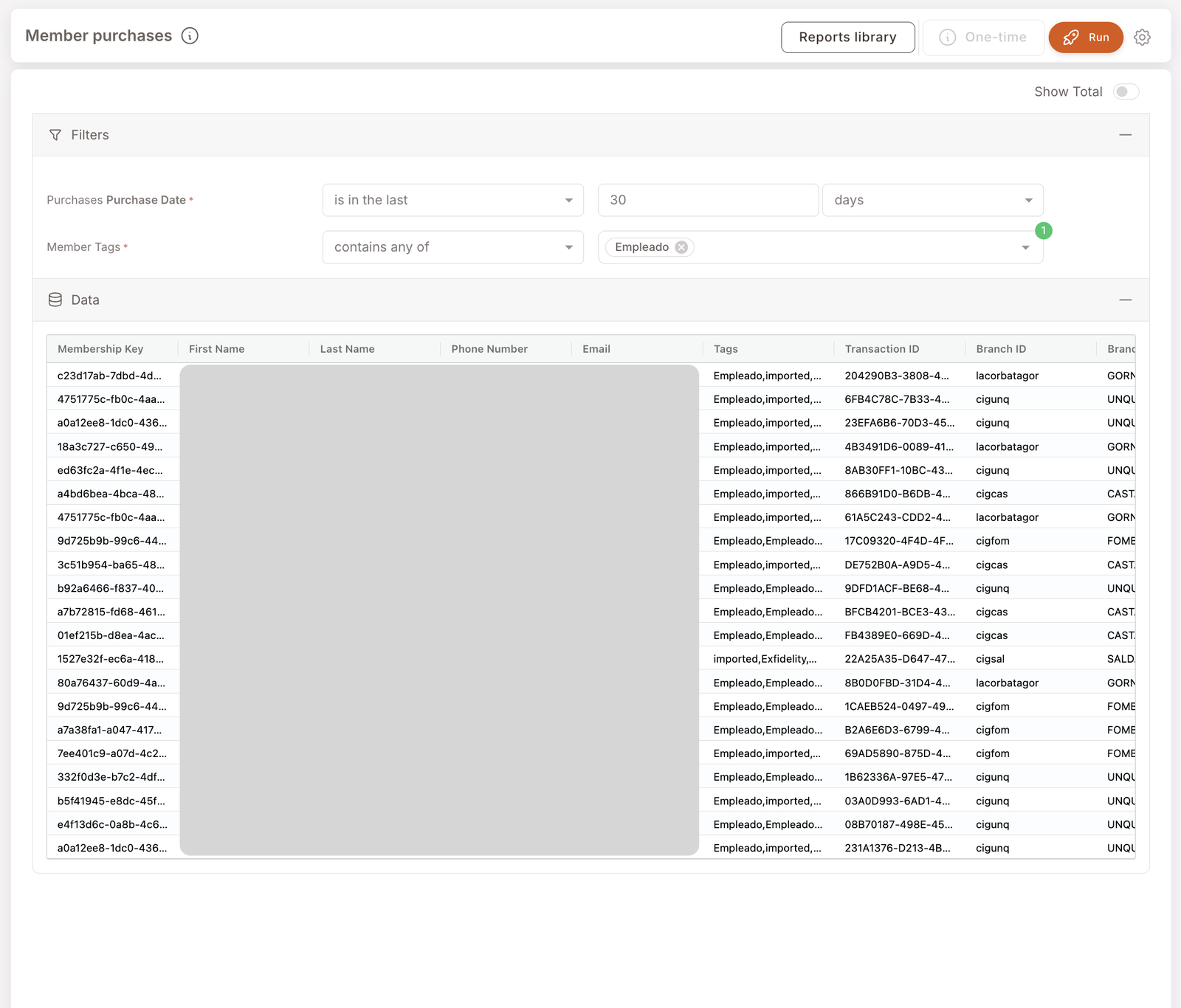
Row-level list of every purchase made by registered members in the chosen period — one row per transaction with the member's identification, the transaction ID, the branch, and (in further columns) the basket details. The most "raw" report in the library; reach for it when you want to see the actual transactions, not aggregates.
This is the report most teams open first because it's the closest thing to a transaction log you can self-serve. Combined with the Member Tags filter, it's also how you pull a list of "every time a VIP-tagged member transacted last month" — useful for tier audits, compliance reviews, and member-service follow-ups.
What you'll see
Required filters:
- Purchase Date — date range (typically is in the last 30 days).
Optional filters:
- Member Tags — contains any of [tag list]. Narrow the report to a tagged segment.
Data columns (one row per transaction):
- Membership Key — unique identifier for the member.
- First Name / Last Name / Phone Number / Email — member identification fields. These are PII (Personally Identifiable Information — data that can identify a specific person, like a name, phone number, or email). Treat these columns under your data-protection policy.
- Tags — the member's full tag list at transaction time.
- Transaction ID — unique transaction identifier.
- Branch ID / Branch Name — where the purchase happened.
Additional columns are visible by scrolling right — typically item details, totals, and payment info.
When to reach for this report
4 common use cases
- Tag-segment audit. Filter by Member Tags = VIP (or Empleado, Test, etc.) to see every transaction by a specific cohort. Useful for compliance ("did employees use their discount appropriately?") and for tier reviews.
- Member-service follow-up. A member calls about a purchase from last week. Filter by their Membership Key (or jump to their Member profile timeline directly).
- Branch-specific transactions. Add a Branch filter and see what your registered members are doing at one specific location.
- Pull a list for outreach. Once filtered, the result rows are member-identified — push a One-time action (Future Campaign with audience pre-filled) to thank, survey, or re-engage.
What to do with the result
Follow-on actions
- One-time campaign push. With a member-identified result, the One-time button at the top activates — opens a Future Campaign wizard with this audience pre-filled (same handoff as Filter members).
- Drill into a specific member. Click through to the Member profile for the full activity timeline beyond what's in this report.
- Download as CSV. Click the settings gear in the top-right and pick Download to export the current result. Useful for sharing with a partner, accountant, or CRM system. See Reports overview → Downloading a report as CSV.
Related reports
- Search purchases — same data shape but lookup by transaction ID / POS ID / branch / confirmation code, useful when you have one specific transaction to find rather than a date-range scan.
- Sales — branch-level aggregate of the same underlying purchases.
- Visits — visit-count aggregate of the same purchases.